

Managing Group Policy updates across multiple user sessions on a single computer can be challenging for IT administrators. When several users are logged into a Windows machine simultaneously—whether through Remote Desktop Services, Fast User Switching, or terminal server environments—ensuring that Group Policy changes apply to all active sessions becomes critical for maintaining security and consistency.
This comprehensive guide will walk you through everything you need to know about running gpupdate for all logged-in users, from basic commands to advanced techniques that seasoned system administrators use daily.

Understanding GPUpdate and Its Importance
Group Policy Update (gpupdate) is a command-line utility built into Windows operating systems that forces an immediate refresh of Group Policy settings. Normally, Windows refreshes Group Policy automatically every 90 minutes for workstations and every 5 minutes for domain controllers, but administrators often need to apply policy changes immediately rather than waiting for the automatic refresh cycle.
When multiple users are logged into a computer simultaneously, the default gpupdate command only affects the current user session. This limitation can create inconsistencies in policy application and leave some users operating under outdated security settings or configuration parameters.

The Basic GPUpdate Command Syntax
Before diving into multi-user scenarios, let’s review the fundamental gpupdate command structure:
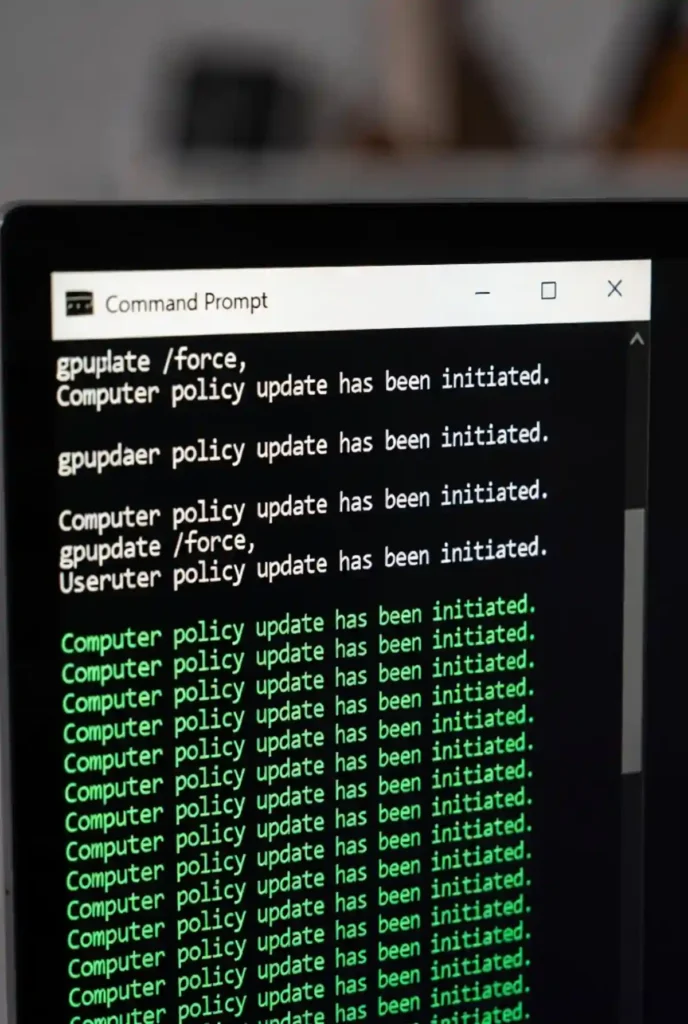
gpupdate /force
This basic command refreshes both computer and user policy settings for the current session. The /force parameter reapplies all policy settings regardless of whether they’ve changed, ensuring a complete refresh.

However, when you need to update Group Policy for all users currently logged into a Windows computer, you’ll need to use additional parameters and techniques.
Running GPUpdate for All Logged-In Users
The most straightforward method to run gpupdate on all users logged into a computer involves using the /target parameter combined with elevated privileges.


Method 1: Using the Target Parameter
Open an elevated Command Prompt (run as administrator) and execute:
gpupdate /target:computer /force
gpupdate /target:user /force
The first command updates computer-level policies, while the second updates user-level policies for all logged-in users. This approach works well in most standard environments.
Method 2: The Boot and Logoff Parameters
For scenarios requiring a complete policy refresh, you can force policy updates at the next system boot or user logoff:
gpupdate /force /boot
gpupdate /force /logoff
The /boot parameter forces a system restart after applying computer policies, while /logoff forces users to log off after applying user policies. Use these carefully in production environments, as they disrupt active user sessions.
Advanced Techniques for Enterprise Environments
System administrators managing large-scale deployments need more sophisticated approaches to ensure Group Policy updates reach all users efficiently.
Using PowerShell for Enhanced Control
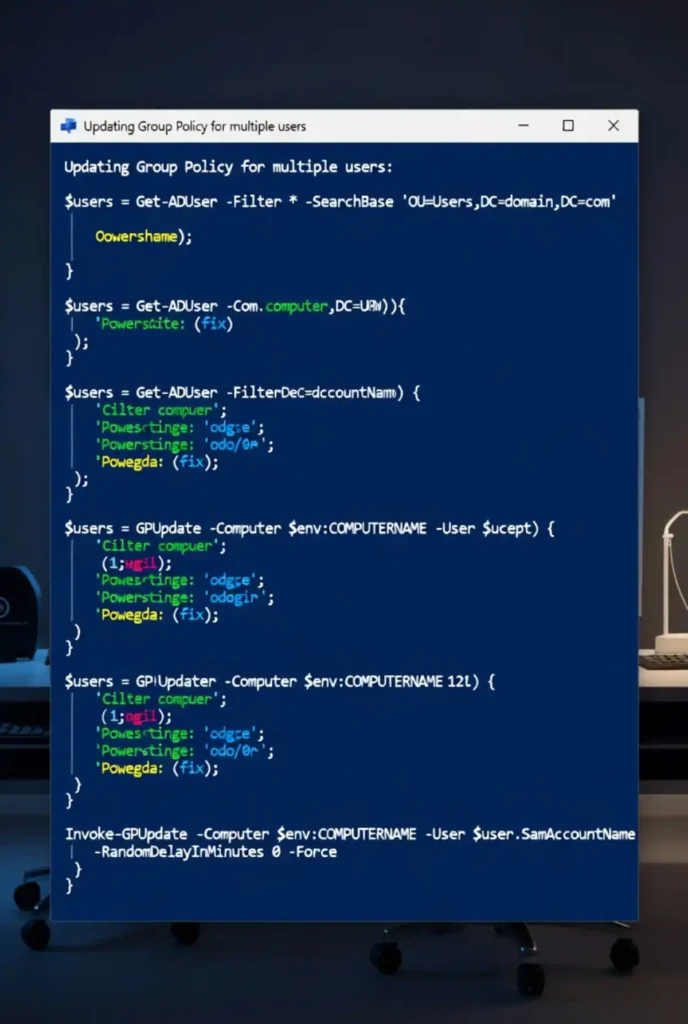
PowerShell provides greater flexibility and control when running gpupdate across multiple user sessions. Here’s a powerful script that identifies all logged-in users and forces policy updates:
# Get all logged-in users
$loggedOnUsers = query user | Select-Object -Skip 1

# Run gpupdate for each session
foreach ($user in $loggedOnUsers) {
    $sessionId = ($user -split '\s+')[2]
    if ($sessionId -match '^\d+$') {
        Write-Host "Updating Group Policy for Session ID: $sessionId"
        Invoke-Command -ScriptBlock {gpupdate /force}
    }
}
This PowerShell approach offers better logging and error handling compared to simple command-line execution.
Remote GPUpdate Execution
When managing multiple computers across a network, you can execute gpupdate remotely using PowerShell remoting:
Invoke-Command -ComputerName COMPUTERNAME -ScriptBlock {gpupdate /force}
For multiple computers, create an array of computer names and loop through them:
$computers = @("PC1", "PC2", "PC3")
foreach ($computer in $computers) {
    Invoke-Command -ComputerName $computer -ScriptBlock {
        gpupdate /force
    }
}
Terminal Server and Remote Desktop Services Considerations
Running gpupdate on terminal servers or Remote Desktop Session Hosts requires special attention because multiple users operate simultaneously on the same machine.
Using QUser to Identify Active Sessions
Before running gpupdate, identify all active user sessions with the quser command:
quser
This displays session IDs, usernames, and connection states. You can then target specific sessions using session IDs if needed.
Applying Policies Without Disrupting Users
In production environments, avoid using /logoff or /boot parameters during business hours. Instead, schedule Group Policy updates during maintenance windows or use the /sync parameter:
gpupdate /force /sync
The /sync parameter ensures that policies requiring foreground processing (like folder redirection or software installation) are applied at the next logon without immediately disrupting current sessions.
Troubleshooting Common GPUpdate Issues
Even experienced administrators encounter challenges when running gpupdate across multiple user sessions. Here are solutions to common problems:
Issue 1: Permission Denied Errors
If you receive “Access Denied” messages, ensure you’re running the command prompt or PowerShell console with administrative privileges. Right-click the application and select “Run as administrator.”
Issue 2: Policies Not Applying to Some Users
When policies fail to apply for specific users, check the following:
- Verify network connectivity to domain controllers
- Ensure the computer account is not blocked in Active Directory
- Check Event Viewer for Group Policy processing errors under Applications and Services Logs > Microsoft > Windows > GroupPolicy
Issue 3: Slow Policy Processing
If gpupdate takes excessively long to complete, use the /wait parameter to set a timeout:
gpupdate /force /wait:60
This limits the wait time to 60 seconds. The default wait time is 600 seconds (10 minutes).
Best Practices for Group Policy Updates
Following these best practices ensures smooth policy updates across all user sessions:
- Test policies in development environments first – Always test Group Policy changes in a non-production environment before deploying to all users.
- Schedule updates during off-peak hours – When possible, schedule forced policy updates during maintenance windows to minimize user disruption.
- Use Group Policy Results for verification – After running gpupdate, verify policy application using
gpresult /ror the Group Policy Results Wizard. - Document your update procedures – Maintain documentation of when and why you force policy updates for audit and troubleshooting purposes.
- Monitor Event Logs – Regularly review Group Policy event logs to identify and resolve policy processing issues before they affect users.
Verifying Group Policy Application
After running gpupdate for all logged-in users, verify that policies applied correctly:
Using GPResult
The Group Policy Result tool displays the Resultant Set of Policy (RSoP) for a specific user and computer:
gpresult /r
For detailed HTML reports, use:
gpresult /h C:\GPReport.html
Checking Specific Policy Settings
To view which Group Policy Objects (GPOs) apply to a computer and user:
gpresult /scope:computer /v
gpresult /scope:user /v
The /v parameter provides verbose output showing all applied policies and their sources.
Automating Group Policy Updates
For environments requiring regular policy updates across multiple machines, automation saves significant time and reduces errors.
Creating Scheduled Tasks
You can create a scheduled task that runs gpupdate at specified intervals:
- Open Task Scheduler
- Create a new task with System or SYSTEM privileges
- Set the action to run
gpupdate /force - Configure the schedule according to your requirements
Using Group Policy Preferences
Ironically, you can use Group Policy itself to schedule gpupdate execution through Scheduled Tasks preferences in a GPO. This creates a self-updating policy infrastructure.
Security Considerations
When running gpupdate for all users, consider these security implications:
- Privilege escalation risks – Only authorized administrators should have the ability to force policy updates
- Network load – Simultaneous policy updates across many computers can strain domain controller resources
- Audit requirements – Document policy update activities for compliance purposes
Conclusion
Running gpupdate on all users logged into a computer is an essential skill for system administrators managing Windows environments. Whether you’re handling a single terminal server with multiple concurrent sessions or managing hundreds of workstations across an enterprise network, understanding the various methods and parameters available for forcing Group Policy updates ensures your systems remain secure, compliant, and properly configured.
By combining command-line utilities, PowerShell scripts, and scheduled automation, you can create a robust Group Policy update strategy that minimizes disruption while maintaining policy consistency across all user sessions. Remember to always test policy changes in development environments, schedule updates during appropriate maintenance windows, and verify successful policy application using gpresult and Event Viewer.
Mastering these Group Policy update techniques will make you more effective at maintaining secure, well-managed Windows environments where policies apply consistently to all users, regardless of how many are logged in simultaneously.



