Learn about Microsoft Windows 11 emergency updates in 2026, including recent critical patches KB5078127 and KB5077744 that fix shutdown bugs, Remote Desktop issues, and cloud storage problems. Complete guide with installation methods and troubleshooting tips.
Microsoft has been releasing emergency updates for Windows 11 throughout 2025 and into 2026, addressing critical bugs that have disrupted users worldwide. These out-of-band updates have become increasingly common as Windows 11 faces quality control challenges that affect everyday computing tasks.

Table of Contents
Understanding Microsoft Windows 11 Emergency Updates
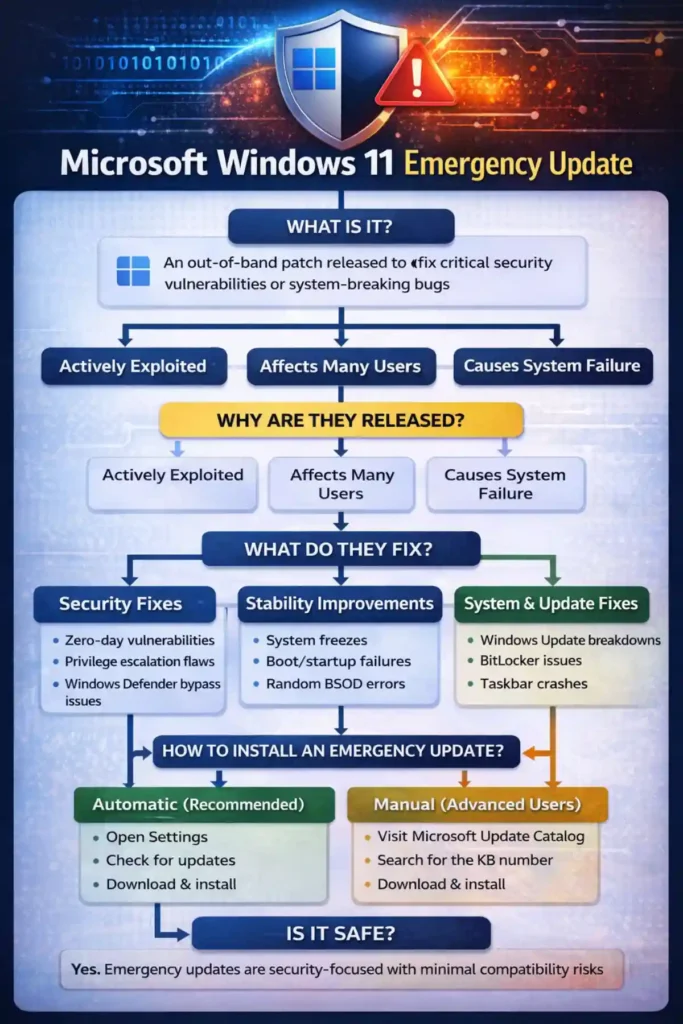
An emergency update, also known as an out-of-band (OOB) update, is a critical patch released outside Microsoft’s regular monthly update schedule. Unlike the standard Patch Tuesday updates that arrive on the second Tuesday of each month, emergency updates address severe issues that cannot wait for the next scheduled release cycle.
These urgent fixes typically resolve problems that significantly impact system functionality, security vulnerabilities being actively exploited, or bugs that prevent users from performing basic operations like shutting down their computers or accessing applications.

Recent Microsoft Windows 11 Emergency Updates: A Timeline
January 2026 Updates
Microsoft released multiple emergency patches in January 2026 to fix critical issues introduced by routine security updates. The KB5077744 and KB5077797 updates addressed a severe problem where Windows 11 systems with System Guard Secure Launch enabled would refuse to shut down, restart, or hibernate properly.
The second wave of emergency fixes came with KB5078127, which resolved application freezing when users attempted to save files to cloud storage services like OneDrive or Dropbox. This issue particularly affected Outlook Classic users who store PST files in cloud locations, causing the application to become completely unresponsive.

2025 Update Problems
Throughout 2025, Windows 11 experienced over 20 major update-related issues requiring emergency intervention. Notable problems included:
- August 2025: Installation failures with error code 0x80240069
- September 2025: Video playback issues affecting digital TV and DVD applications
- October 2025: Windows Recovery Environment problems that left users unable to use keyboard or mouse during system recovery
These recurring issues have raised serious concerns about Microsoft’s quality assurance processes for Windows updates.

How Emergency Updates Impact Windows 11 Users
Automatic Installation
Most emergency updates install automatically through Windows Update when you have automatic updates enabled. However, some critical patches may require manual download from the Microsoft Update Catalog for immediate deployment.
System Performance and Stability
While emergency updates fix critical bugs, they can sometimes introduce new complications. Users should monitor their system performance after installing any update and report issues through the Windows Feedback Hub.
Enterprise Environments
IT administrators managing enterprise deployments face unique challenges with emergency updates. These patches may require immediate testing and deployment outside normal change management windows, potentially disrupting scheduled maintenance periods.
Common Issues Fixed by Emergency Updates
Shutdown and Restart Problems
One of the most frustrating issues resolved by recent emergency updates involved computers refusing to shut down properly. Systems would go through shutdown motions but either continue running or automatically restart instead of powering off, particularly affecting devices with Secure Launch enabled.
Remote Desktop Connection Failures
Several emergency patches addressed authentication problems preventing users from connecting to their systems via Remote Desktop Protocol (RDP). These credential prompt failures affected both individual users and enterprise environments relying on remote access.
Application Unresponsiveness
Cloud storage integration issues caused various applications to freeze or crash when attempting to open or save files to services like OneDrive, Microsoft 365, or Dropbox. This problem severely impacted productivity for users who rely on cloud-based workflows.
File Explorer and System UI Bugs
Previous emergency updates have fixed issues ranging from File Explorer displaying blank white screens in dark mode to Start menu and taskbar malfunctions that prevented basic navigation.
How to Install Microsoft Windows 11 Emergency Updates
Method 1: Windows Update
- Press Windows key + I to open Settings
- Navigate to Windows Update
- Click “Check for updates”
- Install any available critical or security updates
- Restart your computer when prompted
Method 2: Microsoft Update Catalog
For immediate access to emergency updates:
- Visit the Microsoft Update Catalog
- Search for the specific KB number (e.g., KB5078127)
- Download the appropriate version for your system
- Run the .msu file to install manually
- Restart your system to complete installation
Method 3: Group Policy for Enterprise
IT administrators can deploy emergency updates using Group Policy in managed environments, particularly for Known Issue Rollback packages that address widespread problems.
Troubleshooting Emergency Update Installation
Common Installation Errors
If you encounter error code 0x80240069 or similar installation failures, try these solutions:
- Use the Media Creation Tool to perform an in-place upgrade
- Clear the Windows Update cache located in C:\Windows\SoftwareDistribution
- Run the Windows Update Troubleshooter from Settings
- Temporarily disable antivirus software during installation
Verifying Update Installation
Check installed updates by opening Settings, selecting Windows Update, then clicking “Update history” to confirm emergency patches have been successfully applied.
The Quality Control Debate
The Windows Insider Program doesn’t appear to be working effectively anymore, as severe bugs are making it into shipping versions of the operating system. This has led to increased criticism of Microsoft’s testing procedures and quality assurance standards.
Users and IT professionals have expressed frustration that basic functionality issues are not being caught before updates reach production systems. The frequency of emergency patches in 2025 and early 2026 suggests systemic problems in Microsoft’s update development and testing pipeline.
Best Practices for Managing Windows 11 Updates
For Home Users
- Enable automatic updates but monitor for issues after installation
- Create regular system backups before major updates
- Review Windows release health documentation for known issues
- Report problems through the Feedback Hub to help Microsoft identify bugs
For IT Administrators
- Test updates in controlled environments before wide deployment
- Subscribe to Windows update notifications and release health feeds
- Maintain rollback procedures for problematic updates
- Document and report enterprise-specific issues to Microsoft support
- Consider implementing Windows Update for Business policies
Update Deferral Options
Windows 11 Professional and Enterprise editions allow administrators to defer feature updates for up to 365 days and quality updates for up to 30 days, providing time to assess stability before deployment.
Frequently Asked Questions (FAQ)
What is a Windows 11 emergency update?
An emergency update is an out-of-band patch released by Microsoft outside the regular monthly update schedule to address critical bugs, security vulnerabilities, or system-breaking issues that require immediate attention.
How do I know if I need to install an emergency update?
Emergency updates typically install automatically through Windows Update. You can check for pending updates by going to Settings > Windows Update and clicking “Check for updates.” Microsoft also announces critical updates on their official support channels.
Are emergency updates safe to install?
Yes, emergency updates are tested and released to fix critical problems. However, like any software update, they may occasionally cause unexpected issues on specific system configurations. Always maintain recent backups before installing updates.
Can I uninstall an emergency update if it causes problems?
Yes, you can uninstall updates through Settings > Windows Update > Update history > Uninstall updates. Select the problematic update and follow the removal process. However, this may leave your system vulnerable to the original issue the update was designed to fix.
Why is Microsoft releasing so many emergency updates?
The increased frequency of emergency updates reflects quality control challenges in Microsoft’s Windows development process. Complex testing requirements, rapid development cycles, and the diversity of hardware configurations contribute to issues that aren’t always caught before release.
How often does Microsoft release emergency updates?
Emergency updates are released as needed rather than on a fixed schedule. While uncommon in previous years, 2025 and early 2026 have seen multiple emergency patches, sometimes several in a single month.
Conclusion
Microsoft Windows 11 emergency updates have become a regular occurrence, addressing critical issues that impact millions of users worldwide. While these patches fix serious problems ranging from shutdown failures to application crashes, their frequency raises important questions about Windows development quality and testing procedures.
Users should stay informed about emergency updates, install them promptly to maintain system stability and security, and report any new issues they encounter. As Microsoft continues refining Windows 11, the community’s feedback through proper channels remains essential for improving the operating system’s reliability.
For the latest information on Windows 11 updates, visit the official Windows release health page or follow @WindowsUpdate on social media for real-time announcements about critical patches and known issues.