
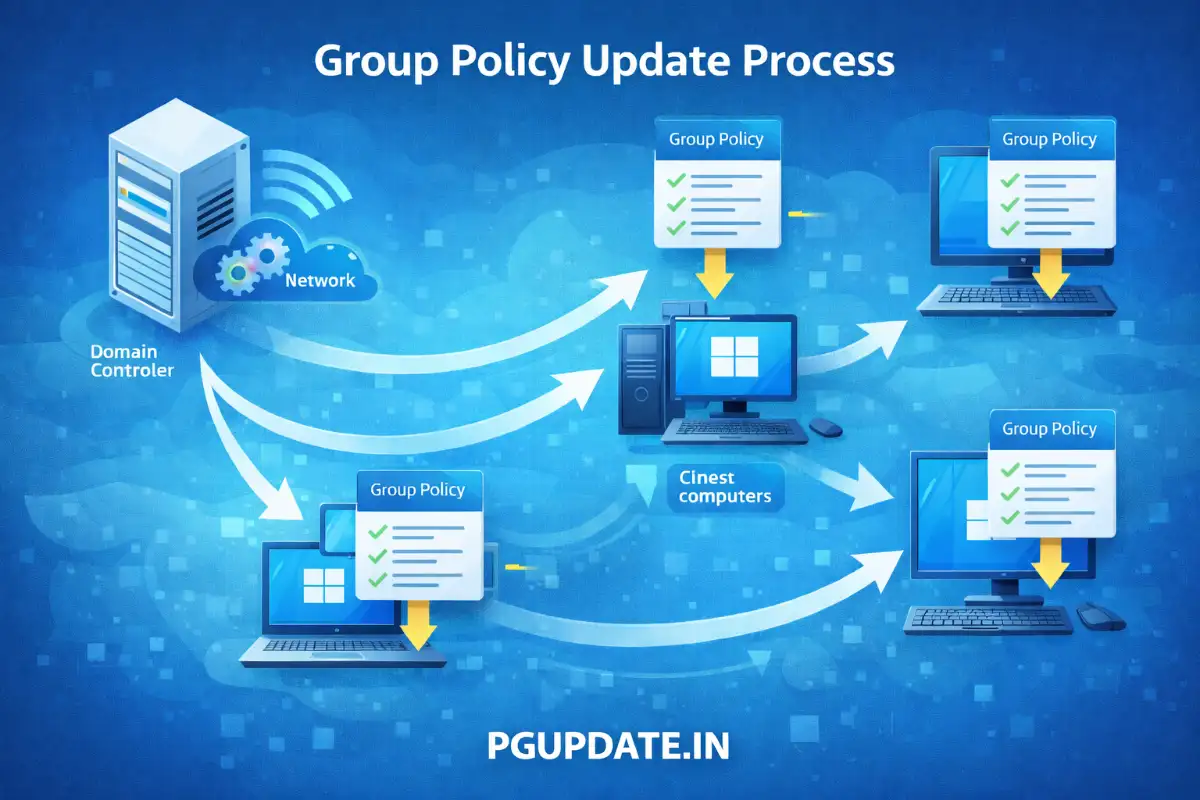
Have you ever made changes to your Windows Group Policy settings and wondered why they aren’t taking effect immediately? You’re not alone! Understanding how to run gpupdate is essential for anyone managing Windows computers in a business or home environment. In this friendly guide, we’ll walk you through everything you need to know about running gpupdate commands, troubleshooting common issues, and making the most of this powerful Windows tool.
What is GPUpdate and Why Do You Need It?
GPUpdate is a built-in Windows command-line tool that refreshes Group Policy settings on your computer. Think of it as a “refresh button” for your system policies. Normally, Windows updates these policies automatically every 90 minutes, but when you need changes to take effect right away, gpupdate is your best friend.

Whether you’re a system administrator managing multiple computers or a power user trying to apply new security settings, knowing how to run gpupdate will save you time and frustration. It’s especially useful when you’ve just made critical updates to Group Policy Objects (GPOs) and can’t wait for the automatic refresh cycle.
How to Run GPUpdate: Step-by-Step Instructions
Running gpupdate is straightforward, and you don’t need to be a tech wizard to do it! Here’s how to get started:

Method 1: Using Command Prompt
- Open Command Prompt as Administrator: Press the Windows key, type “cmd” in the search bar, right-click on “Command Prompt,” and select “Run as administrator.”
- Type the Command: In the Command Prompt window, type
gpupdateand press Enter. - Wait for Completion: The command will process both computer and user policies. You’ll see status messages indicating whether the update was successful.
That’s it! You’ve just refreshed your Group Policy settings. However, there’s more to gpupdate than just the basic command.
Method 2: Using PowerShell
For those who prefer PowerShell, you can use the Invoke-GPUpdate cmdlet:

- Open PowerShell as Administrator: Search for “PowerShell” in the Windows menu, right-click, and select “Run as administrator.”
- Run the Command: Type
Invoke-GPUpdate -Forceand press Enter. - Monitor the Results: PowerShell will display the update progress and any messages.
Understanding GPUpdate Commands and Options
The gpupdate command comes with several useful parameters that give you more control over how policies are refreshed:
gpupdate /force
This is probably the most popular variation of the gpupdate command. The /force parameter reapplies all policy settings, even those that haven’t changed. It’s like giving your system a complete policy refresh.

When to use it:
- Troubleshooting policy application issues
- After making significant changes to Group Policy Objects
- When policies seem stuck or not applying correctly
How to run it: Simply type gpupdate /force in Command Prompt
gpupdate /target:computer
This option updates only computer-specific policies, ignoring user policies. It’s perfect when you’ve made changes to computer configuration settings like network settings or security policies.
Command: gpupdate /target:computer
gpupdate /target:user
Use this when you only need to refresh user-specific policies, such as desktop settings, software installations, or folder redirection policies.
Command: gpupdate /target:user
gpupdate /logoff
Some policy changes require users to log off before they take effect. This parameter automatically logs off the user after the update completes.
Command: gpupdate /logoff
gpupdate /boot
Similar to the logoff option, this parameter restarts the computer if necessary for the policies to take full effect. It’s commonly used for computer-targeted software installations.
Command: gpupdate /boot
Running GPUpdate on Remote Computers
As a system administrator, you might need to update policies on remote computers without physically visiting them. Here’s how:
Using PowerShell for Remote Updates
The Invoke-GPUpdate cmdlet makes remote policy updates easy:
powershell
Invoke-GPUpdate -Computer "ComputerName" -ForceReplace “ComputerName” with the actual name of the remote computer. This command will schedule a Group Policy refresh on that machine.
Updating Multiple Remote Computers
Need to update several computers at once? PowerShell can handle that too:
powershell
$computers = Get-ADComputer -Filter * -SearchBase "OU=YourOU,DC=domain,DC=com"
$computers | ForEach-Object { Invoke-GPUpdate -Computer $_.Name -Force }
This script retrieves all computers from a specific Organizational Unit and updates their policies in one go.
Common GPUpdate Issues and How to Fix Them
Even with the best tools, things can go wrong. Here are the most common gpupdate problems and their solutions:
Issue 1: “User Policy Update Failed” Error
This error typically occurs due to network connectivity issues or corrupted policy files.
Solution:
- Check your network connection to the domain controller
- Run
gpresult /h C:\gpo_report.htmlto generate a detailed report - Review the Event Viewer for specific error messages
- Try running
gpupdate /forceagain after verifying connectivity
Issue 2: GPUpdate Not Applying Changes
Sometimes gpupdate completes successfully, but your changes still don’t appear.
Solution:
- Ensure you’re using the correct command for your situation (
/forceif needed) - Check if the policy requires a logoff or reboot using
gpupdate /logofforgpupdate /boot - Verify that the Group Policy Object is linked correctly in Active Directory
- Use
gpresult /rto see which policies are currently applied
Issue 3: Access Denied Error
This happens when you try to run gpupdate without proper permissions.
Solution:
- Always run Command Prompt or PowerShell as Administrator
- Ensure your user account has the necessary domain permissions
- Contact your system administrator if you’re not authorized to update policies
Issue 4: Network Connectivity Problems
GPUpdate requires connection to a domain controller to retrieve policy updates.
Solution:
- Verify you’re connected to your organization’s network
- Check firewall settings to ensure LDAP port 389 isn’t blocked
- Test connectivity to your domain controller using
ping domaincontroller.name - Wait for network issues to resolve, then try gpupdate again
Frequently Asked Questions About How to Run GPUpdate
How long does gpupdate take to complete?
The time varies depending on the number of Group Policy Objects and your network speed. A typical gpupdate command takes anywhere from a few seconds to a couple of minutes. If you’re using gpupdate /force, it may take longer since it reapplies all policies.
Do I need administrator rights to run gpupdate?
While some gpupdate operations can run with standard user rights, running Command Prompt or PowerShell as Administrator ensures the best results and avoids permission errors. For updating computer policies, administrator rights are definitely required.
What’s the difference between gpupdate and gpupdate /force?
The standard gpupdate command only applies policies that have changed since the last update. In contrast, gpupdate /force reapplies all Group Policy settings, regardless of whether they’ve changed. Think of it as an incremental update versus a complete refresh.
Can I run gpupdate on Windows 10 and Windows 11?
Absolutely! The gpupdate command works on all modern Windows versions, including Windows 10, Windows 11, and various Windows Server editions (2016, 2019, 2022, 2025). The syntax and functionality remain consistent across these versions.
How often does Windows automatically update Group Policy?
By default, Windows automatically refreshes Group Policy settings every 90 minutes with a random offset of 0-30 minutes. Domain controllers refresh their policies every 5 minutes. However, these intervals can be customized by administrators through Group Policy settings.
Will gpupdate restart my computer?
Not automatically. The basic gpupdate command will not restart your computer. However, if you use gpupdate /boot, it will restart the computer when policies require it. Similarly, gpupdate /logoff will log you off if necessary for user policies to take effect.
Can I schedule gpupdate to run automatically?
Yes! While Windows has its automatic refresh schedule, you can create scheduled tasks using Task Scheduler or PowerShell scripts to run gpupdate at specific times. This is particularly useful for ensuring critical policies are applied during maintenance windows.
What should I do if gpupdate fails repeatedly?
First, check the Event Viewer for detailed error messages under Applications and Services Logs > Microsoft > Windows > GroupPolicy. Common causes include network issues, corrupted GPO files, or permission problems. Try running gpupdate /force, and if that doesn’t work, verify your domain connectivity and contact your IT administrator.
How do I check if gpupdate was successful?
After running gpupdate, look for success messages in the Command Prompt window. For more detailed information, run gpresult /r to see a summary of applied policies, or gpresult /h C:\report.html to generate a comprehensive HTML report showing all applied Group Policy settings.
Is there a GUI version of gpupdate?
While gpupdate itself is a command-line tool, you can use the Group Policy Management Console (GPMC) or the Remote Server Administration Tools (RSAT) for a graphical interface to manage Group Policies. However, for forcing immediate updates, the command line remains the quickest method.
Best Practices for Using GPUpdate
To make the most of gpupdate and avoid common pitfalls, follow these best practices:
1. Start with Basic gpupdate First
Don’t automatically jump to gpupdate /force unless you have a specific reason. The standard command is usually sufficient and puts less strain on your domain controllers.
2. Use Specific Targets When Possible
If you only need to update user or computer policies, use the /target:user or /target:computer parameters. This speeds up the process and applies only what’s necessary.
3. Monitor Your Domain Controllers
Running gpupdate /force on many computers simultaneously can create heavy load on domain controllers. Stagger your updates if you’re refreshing policies across numerous machines.
4. Document Your Changes
Before running gpupdate, especially with /force, document what changes you’ve made to Group Policy. This makes troubleshooting much easier if something goes wrong.
5. Test in a Controlled Environment
When deploying new Group Policy settings, test them on a small group of computers first. Use gpupdate to apply the policies and verify they work as expected before rolling them out organization-wide.
6. Use PowerShell for Automation
If you frequently update policies on remote computers, create PowerShell scripts to automate the process. This saves time and ensures consistency across your environment.
Checking Your Group Policy Results
After running gpupdate, it’s important to verify that your policies applied correctly. Here are two useful commands:
Using gpresult
The gpresult command displays detailed information about applied Group Policy settings:
- Quick summary:
gpresult /r - Detailed HTML report:
gpresult /h C:\gp_report.html - User-specific results:
gpresult /user username /r
Using RSOP.MSC
For a graphical view of applied policies, open the Run dialog (Windows Key + R), type RSOP.MSC, and press Enter. This Resultant Set of Policy tool shows all GPOs applied to your user and computer in an easy-to-navigate interface.
Advanced GPUpdate Scenarios
Synchronous vs. Asynchronous Processing
By default, Windows processes Group Policy asynchronously (in parallel). However, some situations require synchronous processing (one at a time):
To force synchronous processing:
gpupdate /syncThis ensures policies that depend on each other are applied in the correct order. Note that you need administrator privileges to use this option.
Remote Group Policy Updates for Multiple Computers
For IT professionals managing large networks, updating policies across many computers is common. Here’s a practical PowerShell script:
powershell
# Define the target organizational unit
$computers = Get-ADComputer -Filter * -SearchBase "OU=Workstations,DC=company,DC=com"

# Update policies on all computers
foreach ($computer in $computers) {
    try {
        Invoke-GPUpdate -Computer $computer.Name -Force -ErrorAction Stop
        Write-Host "Successfully updated $($computer.Name)" -ForegroundColor Green
    }
    catch {
        Write-Host "Failed to update $($computer.Name): $_" -ForegroundColor Red
    }
}
Security Considerations
When running gpupdate, keep these security aspects in mind:
- Always verify you’re applying the correct policies before running gpupdate on production systems
- Use audit policies to track who is making Group Policy changes
- Regularly review applied policies using gpresult to ensure no unauthorized changes have occurred
- Implement proper access controls for Group Policy Objects in Active Directory
- Consider using PowerShell transcription to log all gpupdate commands for compliance purposes
Troubleshooting with Event Viewer
When gpupdate doesn’t work as expected, Event Viewer is your diagnostic friend:
- Open Event Viewer (search for “Event Viewer” in Windows)
- Navigate to Applications and Services Logs > Microsoft > Windows > GroupPolicy
- Look for Operational and Admin logs
- Pay attention to Warning and Error events
- Use the event IDs to search for specific solutions online
Common event IDs to watch for:
- Event ID 1058: GPO file reading failed
- Event ID 1129: Network connectivity issues
- Event ID 1030: Cannot retrieve new Group Policy settings
- Event ID 8194: Registry policy application failed
Conclusion
Learning how to run gpupdate is an essential skill for anyone managing Windows computers, whether you’re an IT professional or an advanced home user. From the basic gpupdate command to advanced remote management scenarios, this tool gives you the power to immediately apply Group Policy changes without waiting for automatic refresh cycles.
Remember to start with the basic command before jumping to gpupdate /force, use appropriate parameters for your specific needs, and always verify your results with gpresult. With practice, gpupdate will become second nature, and you’ll wonder how you ever managed Windows policies without it!
Whether you’re troubleshooting policy issues, deploying new software, or implementing security settings, gpupdate is your reliable companion. Keep this guide handy, and don’t hesitate to experiment in a test environment to build your confidence with this powerful command.
Useful Resources and References
For more information about Group Policy and gpupdate, check out these authoritative sources:
- Microsoft Learn – GPUpdate Documentation
- Active Directory Pro – GPUpdate Command Guide
- TechTarget – Deploy and Force Updates with GPUpdate
- InvGate Blog – GPUpdate: How It Works
- Server Academy – GPUpdate Force Command
- Computer Hope – GPUpdate Command Help
- Action1 – Force Group Policy on Multiple Computers
- Syncro – Force Group Policy Update
- Adam The Automator – Understanding GPUpdate Command
- Microsoft PowerShell Documentation – Invoke-GPUpdate




2 thoughts on “How to Run GPUpdate: The Complete Guide to Refreshing Group Policy Settings”