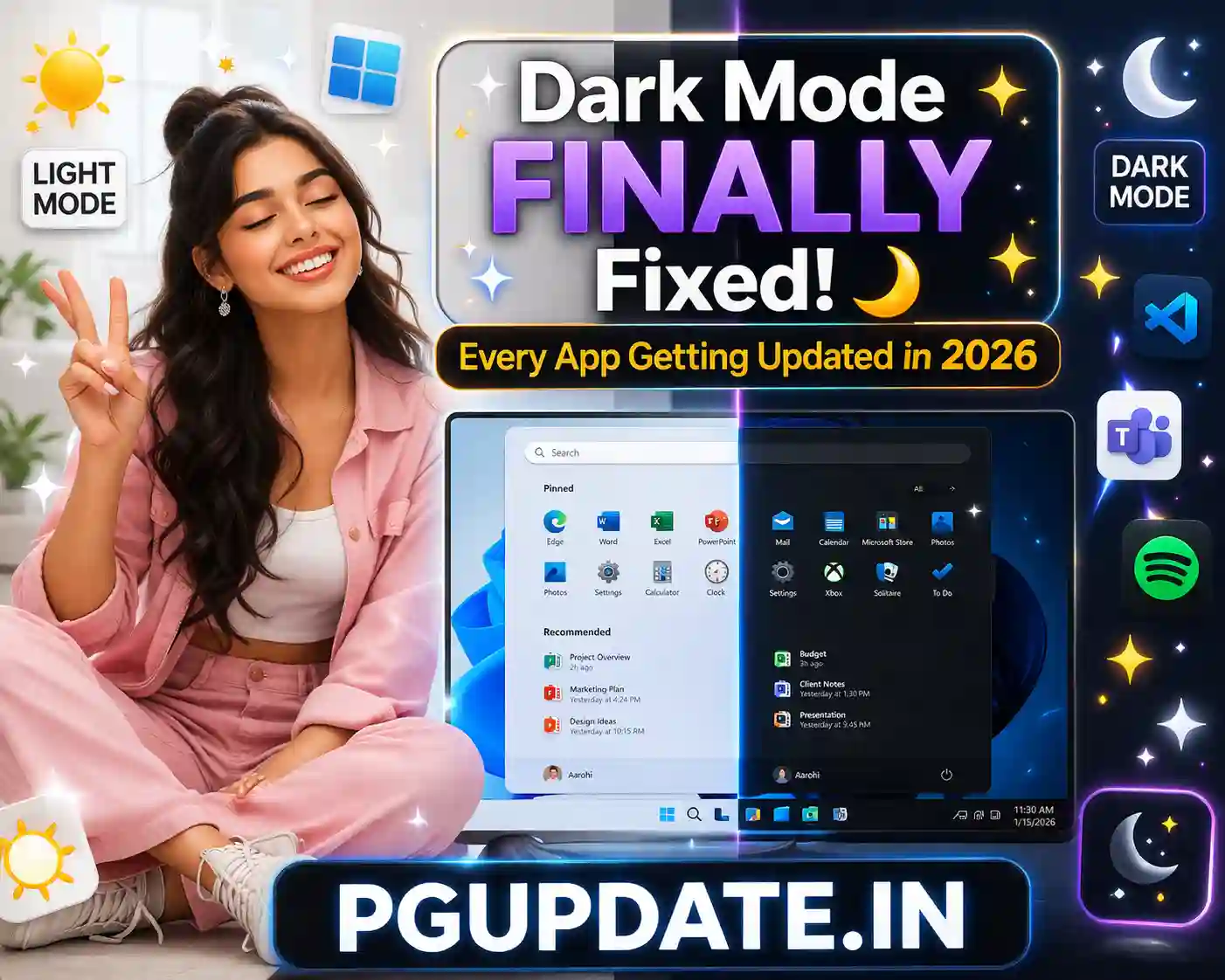
Windows 11 Dark Mode Is Getting Fixed at Last
Windows 11 dark mode is finally getting a proper fix in 2026 — and Microsoft is going through every single legacy dialog and system app to update it. If you’ve been frustrated by random white flash screens, light-mode dialog boxes popping up inside a dark-mode desktop, or inconsistent theming across Windows 11 apps, your wait is nearly over. Here’s everything getting fixed and how to enable the best dark mode experience on Windows 11 right now.

Why Is Windows 11 Dark Mode So Inconsistent?
Windows 11 shipped in 2021 with a beautiful dark mode for its main interface — but underneath that modern shell, thousands of legacy dialog boxes, control panels, and system windows remained in light mode. This created a jarring experience where:
- Opening a file property window showed a bright white dialog
- The Run dialog (Win + R) ignored dark mode completely
- Account management dialogs defaulted to light blue backgrounds
- Registry Editor used light mode regardless of your settings
- Launching File Explorer caused a white flash before rendering in dark
- Various operation pop-ups (copying, deleting) appeared in light mode
Microsoft’s designers had prioritized modernizing the visible surface of Windows 11 but left hundreds of legacy components untouched. The 2026 update is changing that.

Windows 11 Dark Mode Fix: What’s Getting Updated in 2026
Microsoft confirmed in its 2026 Windows quality commitment that it is systematically going through all legacy and system UI elements and bringing proper dark mode support across the board. Here is what’s confirmed to be getting updated:
- ✅ Run dialog (Win + R) — finally respects dark mode setting
- ✅ Account management dialogs — no more light blue backgrounds
- ✅ File property windows — dark theme applied consistently
- ✅ Registry Editor — dark mode support added
- ✅ File Explorer launch flash — white flash on open is being fixed (April 2026 update)
- ✅ Operation pop-ups (copy, move, delete progress) — updated to dark
- ✅ Account type change dialog — new Windows 11-style dark UI (April 2026)
- ✅ Settings app Home page — improved loading and dark consistency (April 2026)
This is part of Microsoft’s broader 2026 push for UI consistency across Windows 11. The April 14, 2026 Patch Tuesday update already includes several of these dark mode fixes. For the full list of April 2026 changes, see our article on the Windows 11 2026 update.

How to Enable Dark Mode on Windows 11 Right Now
If you haven’t fully set up dark mode on your Windows 11 PC, here’s the complete setup:
Step 1: Enable System-Wide Dark Mode
- Open Settings → Personalization → Colors
- Under Choose your mode, select Dark
- This applies dark mode to the Start menu, taskbar, Settings, and supported apps
Step 2: Set Dark Mode for Apps Separately
- In the same Colors settings page, find Choose your default app mode
- Set it to Dark
- This ensures apps like Notepad, File Explorer, and Settings all use dark mode
Step 3: Fix the File Explorer White Flash (April 2026 Update)
The white flash when opening File Explorer in dark mode is being fixed in the April 2026 update. To get this fix:

- Go to Settings → Windows Update
- Click Check for updates
- Install the April 2026 Cumulative Update (KB number will appear here)
- Restart your PC
Step 4: Enable Dark Mode in Microsoft Edge
- Open Microsoft Edge → Settings → Appearance
- Under Overall appearance, select Dark
- Optionally install the Dark Reader extension from the Edge Add-ons store for dark mode on all websites
Step 5: Schedule Dark Mode Automatically
Windows 11 can automatically switch between light and dark mode based on sunset/sunrise:
- Go to Settings → Personalization → Colors
- Change Choose your mode to Custom
- For Default Windows mode — set your preference
- Use third-party apps like Auto Dark Mode for Windows (free, open-source on GitHub) for full scheduling control
Which Windows 11 Apps Still Don’t Support Dark Mode?
Even with the 2026 fixes, some areas of Windows 11 will still have incomplete dark mode support for a while:
- Control Panel — Many legacy Control Panel pages remain in light mode
- Some third-party apps — Apps built without dark mode support will always appear in light mode
- Some driver software — GPU and hardware manufacturer utilities often don’t follow Windows dark mode
Microsoft is working through these systematically, but it’s a massive task given the age of some Windows components. The good news is that the most frequently used dialogs are being prioritized first.
Frequently Asked Questions
Why does File Explorer flash white when I open it in dark mode?
This is a known bug in Windows 11 where File Explorer renders in light mode for a split second before switching to dark. Microsoft has confirmed this is fixed in the April 2026 update. Install the latest Windows updates to resolve it.
Why is the Run dialog (Win+R) still white in dark mode?
The Run dialog is a legacy Windows component that was not updated when Windows 11 launched. Microsoft confirmed it is now being updated to respect the dark mode setting as part of the 2026 UI consistency push.
Does dark mode actually save battery on Windows 11?
Yes — but only on OLED screens. On OLED displays, dark mode significantly reduces battery drain because black pixels are literally turned off. On LCD/IPS screens, dark mode has negligible impact on battery life since the backlight stays on regardless.
Is there a way to force all apps into dark mode on Windows 11?
Not natively — Windows 11 can only request dark mode from apps; it cannot force it. Apps must have built-in dark mode support to respond. The Dark Reader browser extension works great for websites, and some third-party tools can force dark mode in legacy apps with mixed results.
Will all Windows 11 dialogs get dark mode in 2026?
Microsoft has committed to updating legacy dialogs throughout 2026, but given how many there are, not every single one will be updated this year. The focus is on the most commonly used ones: file operations, account management, Registry Editor, and the Run dialog.
Key Takeaways
- Microsoft is systematically fixing Windows 11 dark mode inconsistencies throughout 2026.
- The File Explorer white flash, Run dialog, Registry Editor, and account dialogs are all getting dark mode updates.
- The April 2026 update includes several dark mode fixes — install it via Windows Update.
- Enable full dark mode via Settings → Personalization → Colors and set both Windows and app mode to Dark.
- OLED screen users benefit most from dark mode in terms of battery savings.
- Use Auto Dark Mode for Windows (free, open-source) for automatic scheduled light/dark switching.
After years of inconsistency, Windows 11 dark mode is finally becoming what it should have been from day one. Keep your Windows updated and enjoy a truly dark experience across the entire OS. For more Windows 11 tips and tricks, visit PGUpdate.in.