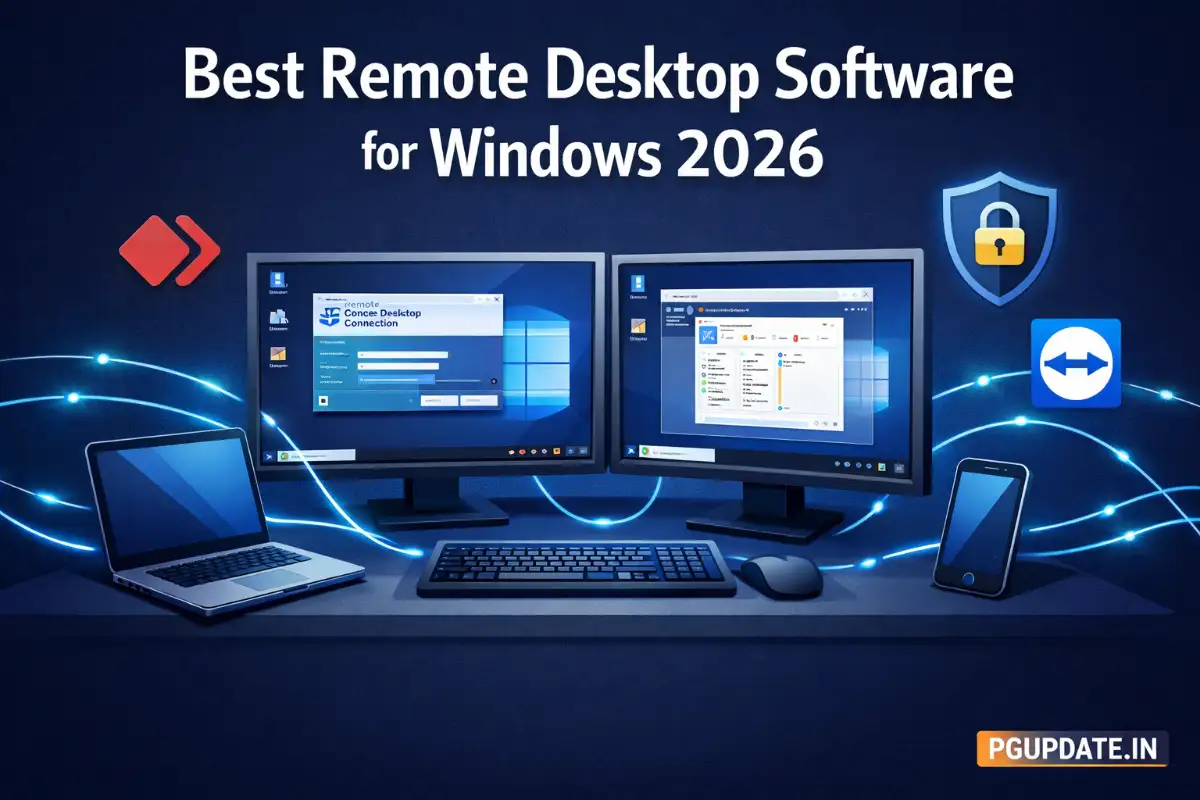
Whether you are working from home, managing servers, or providing IT support to someone halfway across the world, having the best remote desktop software for Windows is no longer optional — it is essential.
In 2026, remote desktop tools have become incredibly powerful. You can now access any Windows PC from your phone, tablet, or another computer with near-zero lag, strong encryption, and features that even IT professionals swear by. But with dozens of options out there, choosing the right one can feel overwhelming.
That is exactly why we created this complete guide. We tested and compared the top remote desktop software for Windows — both free and paid — so you can make the smartest choice for your needs and budget.
What Is Remote Desktop Software?
Remote desktop software lets you connect to and control another computer over the internet as if you were sitting right in front of it. You can see the remote screen, move the mouse, type on the keyboard, transfer files, and run applications — all in real time.

It is used by:
- IT professionals to remotely fix and manage computers
- Remote workers to access their office PC from home
- Students and educators for virtual collaboration
- Businesses running cloud-based Windows desktops
- Gamers streaming their gaming rig from another room
Before we dive into the reviews, it helps to understand what makes a remote desktop tool great in 2026. If you are also managing your Windows PC’s performance, read our guide on how to speed up Windows 11 for a faster remote desktop experience.
Key Features to Look for in Remote Desktop Software (2026)
- ✅ Connection speed and low latency — especially critical for real-time work
- ✅ End-to-end encryption — your sessions must be private and secure
- ✅ Multi-platform support — access from Windows, Mac, Android, iOS
- ✅ File transfer capability — move files between machines seamlessly
- ✅ Unattended access — connect without someone on the other end accepting
- ✅ Multi-monitor support — for power users with multiple screens
- ✅ Session recording — useful for compliance and training
- ✅ Pricing and licensing — fair for personal, small business, and enterprise needs
Security is especially important here. A misconfigured remote desktop tool can expose your PC to threats. We always recommend keeping your Windows fully updated — if you are having trouble, check our guide on Windows Update not working fix.
Top 7 Best Remote Desktop Software for Windows in 2026
1. AnyDesk – Best Overall Remote Desktop Software for Windows
AnyDesk has firmly established itself as one of the most reliable and fastest remote desktop tools in the world. Built on its proprietary DeskRT codec, AnyDesk delivers ultra-low latency connections even on slow networks — making it the top pick for both professionals and home users.

Key Features
- 🚀 Lightning-fast performance with DeskRT codec (as low as 16ms latency)
- 🔒 TLS 1.2 and AES-256 encryption for secure sessions
- 📁 Built-in file transfer with drag-and-drop support
- 🖥️ Supports multi-monitor setups
- 📱 Mobile apps for Android and iOS
- 🔁 Unattended access for servers and remote machines
- 🖨️ Remote printing support
Pricing
| Plan | Price | Best For |
|---|---|---|
| Free | $0/month | Personal non-commercial use |
| Solo | $14.90/month | Freelancers |
| Standard | $29.90/month | Small teams |
| Advanced | $79.90/month | Businesses |
✅ Verdict: AnyDesk is the best all-round remote desktop software for Windows in 2026. It is fast, secure, affordable, and works on virtually every platform. Download AnyDesk here.
2. TeamViewer – Best for Enterprise and IT Support
TeamViewer is one of the most widely used remote desktop tools in the world, especially in enterprise environments. It is the go-to solution for IT helpdesks, managed service providers, and large organizations with complex remote support needs.
Key Features
- 🌐 Remote access to Windows, Mac, Linux, iOS, Android, and even IoT devices
- 🔒 256-bit AES encryption and two-factor authentication
- 📞 Built-in video conferencing and screen sharing
- 📋 Session recording and audit logs
- 🤝 Remote wake-on-LAN capability
- 🧩 IT management integrations (ServiceNow, Salesforce, etc.)
Pricing
| Plan | Price | Best For |
|---|---|---|
| Free | $0 (personal use only) | Home users |
| Business | $24.90/month | Single user professionals |
| Premium | $50.90/month | Small IT teams |
| Corporate | Custom | Enterprise |
⚠️ Note: TeamViewer’s free plan has become more restrictive over the years, often flagging personal use as commercial. For casual home use, consider AnyDesk or RustDesk instead.
✅ Verdict: TeamViewer is the most feature-rich remote desktop software available and is ideal for businesses that need deep IT management capabilities. Visit TeamViewer’s official website.
3. Microsoft Remote Desktop (RDP) – Best Free Built-In Option
If you are running Windows 10 Pro, Windows 11 Pro, or any Windows Server edition, you already have a powerful remote desktop tool built right in — Microsoft’s own Remote Desktop Protocol (RDP).
Key Features
- 💻 100% free — no subscription needed
- 🔒 Network Level Authentication (NLA) for secure login
- 🖥️ Full multi-monitor support
- 🔊 RemoteFX for improved audio and video
- 📁 Local drive and printer redirection
- 🌐 Works from any device with an RDP client (including Mac and Android)
⚠️ Limitation: RDP does not work on Windows Home edition and requires port forwarding or a VPN for access outside your local network, which can be a security concern if not set up correctly.
For users managing systems remotely, keeping Windows updated is critical. If your system has update issues, check out our post on Windows Update stuck on Pending Download and how to resolve it.
✅ Verdict: Microsoft RDP is unbeatable for cost-free remote access on Windows Pro and Server environments. It is ideal for home lab setups, IT pros, and anyone who wants zero-cost remote control within a known network.
4. RustDesk – Best Free Open-Source Remote Desktop
RustDesk has exploded in popularity in 2025–2026 as the best free, open-source alternative to TeamViewer and AnyDesk. With TeamViewer tightening its free plan restrictions, many users have migrated to RustDesk — and for good reason.
Key Features
- 🆓 Completely free and open-source (MIT license)
- 🖥️ Self-hosted server option — your data never leaves your control
- 🔒 End-to-end encryption
- 📁 File transfer and clipboard sharing
- 📱 Mobile apps available for Android and iOS
- 🌍 Works on Windows, Linux, macOS
- ⚡ Surprisingly fast even on default public servers
✅ Verdict: If you want a completely free, privacy-first remote desktop tool for Windows with no commercial restrictions, RustDesk is the best option in 2026. Download RustDesk for free.
5. Chrome Remote Desktop – Best for Beginners
Chrome Remote Desktop by Google is the simplest remote desktop solution available today. There is nothing to install beyond a Chrome browser extension, and it works immediately with your Google account.
Key Features
- 🆓 Completely free — no paid plans at all
- 🌐 Works entirely within the Chrome browser
- 🔒 Secured by Google’s OAuth and pin verification
- 📱 Mobile app for remote access from phones
- ⚡ Easy setup in under 2 minutes
⚠️ Limitations: No file transfer, no multi-monitor toggle, limited performance controls. It is ideal for basic use cases only.
✅ Verdict: Chrome Remote Desktop is perfect for first-time users who just need simple, free remote access without any technical setup. Try Chrome Remote Desktop.
6. Splashtop – Best Value Paid Remote Desktop for Professionals
Splashtop offers an incredible combination of performance, features, and affordability that rivals TeamViewer at a fraction of the price. It is a favourite among IT managers, managed service providers, and remote workers who need consistent, high-speed access to Windows machines.
Key Features
- ⚡ 4K streaming support with 60fps — the best visual quality in class
- 🔒 TLS and AES-256 encryption
- 🖨️ Remote printing and file transfer
- 📋 Session logging and audit trails
- 💻 Supports Windows, Mac, iOS, Android, Chromebook
- 🔁 Unattended access for servers
Pricing
| Plan | Price | Best For |
|---|---|---|
| Business Access Solo | $5/month | Single user |
| Business Access Pro | $8.25/user/month | Teams |
| Enterprise | Custom | Large organizations |
✅ Verdict: Splashtop delivers enterprise-grade features at prices that small businesses and solo professionals can easily afford. It is one of the best-kept secrets in remote desktop software. Try Splashtop free for 7 days.
7. LogMeIn – Best for Large Businesses and Compliance
LogMeIn Pro is a premium remote desktop solution built for businesses that need enterprise-grade features, rock-solid security, and compliance reporting. It is used by Fortune 500 companies and managed IT service providers globally.
Key Features
- 🔒 SOC 2 Type II certified — meets regulatory compliance requirements
- 📁 1TB cloud storage included
- 🖥️ Unlimited computer access
- 📋 Detailed session audit logs
- 🔐 Multi-factor authentication
- 💬 24/7 premium support
⚠️ Note: LogMeIn is the most expensive option here, starting at around $30/month. It is not ideal for individual users or small budgets.
✅ Verdict: LogMeIn Pro is the best choice for large organizations, compliance-heavy industries (healthcare, finance, legal), and businesses that need unlimited, fully audited remote access. Explore LogMeIn Pro plans.
Quick Comparison Table: Best Remote Desktop Software for Windows 2026
| Software | Free Plan | Best For | Starting Price | Encryption |
|---|---|---|---|---|
| AnyDesk | ✅ Yes | Overall best | $14.90/mo | AES-256 |
| TeamViewer | ✅ Limited | Enterprise IT | $24.90/mo | AES-256 |
| Microsoft RDP | ✅ Yes (Pro only) | Free built-in | Free | NLA + TLS |
| RustDesk | ✅ Yes | Open source | Free | E2E |
| Chrome Remote Desktop | ✅ Yes | Beginners | Free | Google OAuth |
| Splashtop | ✅ 7-day trial | Value for pros | $5/mo | TLS + AES-256 |
| LogMeIn | ❌ No | Large business | ~$30/mo | SOC 2 + MFA |
How to Choose the Right Remote Desktop Software for Your Needs
With so many excellent choices, here is a simple decision framework:
- 🏠 Personal/Home use (free): Use Chrome Remote Desktop or RustDesk
- 💼 Freelancer or solo professional: AnyDesk Solo or Splashtop Solo
- 🏢 Small business team (2–10 people): AnyDesk Standard or Splashtop Pro
- 🏭 IT department or MSP: TeamViewer Premium or Splashtop Business
- 🏦 Enterprise with compliance needs: LogMeIn Pro
- 🔒 Privacy-first, self-hosted: RustDesk with your own server
Whatever software you choose, make sure your Windows system is optimized for remote sessions. Slow PC performance can make even the best remote desktop tool feel laggy. Read our detailed guide on how to speed up Windows 11 before setting up remote access.
Security Best Practices When Using Remote Desktop Software
Remote desktop sessions are a prime target for cybercriminals. Here are essential security tips to protect yourself:
- 🔒 Always use two-factor authentication (2FA) on your remote desktop account
- 🔑 Use strong, unique passwords — never reuse old passwords
- 🔄 Keep your Windows OS updated at all times — our guide on why Windows Update takes so long can help you understand and fix update delays
- 🚫 Disable remote desktop when not in use
- 🌐 Use a VPN when accessing remote machines over public Wi-Fi
- 📋 Review audit logs regularly if you are managing multiple machines
- ⚡ Keep remote desktop software updated to the latest version
Speaking of updates, if you ever encounter file permission errors while setting up remote software, our post on Windows Cannot Access the Specified Device Path or File has 9 powerful fixes that can help.
Remote Desktop Software vs VPN: What’s the Difference?
Many users confuse remote desktop software with a VPN. Here is a simple breakdown:
| Feature | Remote Desktop Software | VPN |
|---|---|---|
| Controls another PC | ✅ Yes | ❌ No |
| See remote screen | ✅ Yes | ❌ No |
| Access remote files | ✅ Yes | ✅ Yes (via network) |
| Encrypts all traffic | ✅ Yes | ✅ Yes |
| Hides your IP | ❌ No | ✅ Yes |
| Ideal for IT support | ✅ Yes | ❌ No |
In short: use remote desktop software to control another PC, and use a VPN to securely access a network. Many IT pros use both together for maximum security and functionality.
Common Remote Desktop Issues and How to Fix Them
1. Remote Desktop Connection Refused
This usually means Remote Desktop is disabled on the target PC, a firewall is blocking the connection, or the PC is in sleep mode. Check your Windows settings under System → Remote Desktop and ensure it is enabled.
2. Laggy or Slow Remote Desktop Performance
Reduce the display resolution and color depth in your client settings. Disable visual effects on the remote machine. Also, ensure your internet connection is stable on both ends. A slow PC on the remote end will also cause issues — use our guide on how to speed up Windows 11 to optimize the host PC.
3. Black Screen on Remote Desktop
This is a common issue, especially on Windows 10. Update your graphics drivers, disable GPU hardware acceleration in remote desktop settings, or try toggling the display settings. Check our full post on how to fix Windows 10 black screen problem for detailed solutions.
4. Remote Desktop Disconnects Frequently
Unstable internet, power-saving settings putting the remote PC to sleep, or an outdated remote desktop application can all cause frequent disconnections. Disable sleep mode on the host PC and keep your software updated. If your Windows updates are causing issues, review our article on Microsoft Windows 11 Emergency Update for recent patches that may affect stability.
5. Task Manager Not Accessible Remotely
In some cases, Task Manager may be unresponsive on the remote machine even during a session. Our detailed guide on Windows Task Manager not responding covers 8 fixes that work even in remote sessions.
Frequently Asked Questions (FAQ)
Is remote desktop software safe to use?
Yes, modern remote desktop software uses AES-256 encryption and multi-factor authentication to protect your sessions. The key is to use reputable software from this list, keep it updated, and follow security best practices outlined above.
What is the best free remote desktop software for Windows in 2026?
For personal use, RustDesk (open-source and self-hostable) and Chrome Remote Desktop (easiest setup) are the top free options. Microsoft’s built-in RDP is also excellent if you have Windows Pro.
Can I use remote desktop software on Windows 11 Home?
Windows 11 Home does not support incoming RDP connections natively. However, you can use third-party tools like AnyDesk, RustDesk, or Chrome Remote Desktop on Windows Home without any restrictions.
What is the fastest remote desktop software?
AnyDesk is consistently rated as the fastest remote desktop software due to its proprietary DeskRT video codec, which can achieve latency as low as 16ms on good connections. Splashtop is a close second for high-resolution streaming.
Do I need to open ports for remote desktop?
For Microsoft RDP, yes — you typically need to open port 3389. However, tools like AnyDesk, TeamViewer, RustDesk, and Splashtop use relay servers or encrypted tunnels that work without any port forwarding, making them much easier and safer for home users.
Final Verdict: Which Remote Desktop Software Should You Choose?
After testing all these tools extensively, here are our top picks for 2026:
- 🏆 Best Overall: AnyDesk — fast, secure, affordable, works on everything
- 🆓 Best Free: RustDesk — open source, self-hostable, no commercial restrictions
- 💼 Best for Business: Splashtop — excellent value with professional features
- 🏢 Best for Enterprise IT: TeamViewer — most comprehensive feature set
- 👶 Easiest to Use: Chrome Remote Desktop — zero learning curve
- 🔒 Best for Compliance: LogMeIn Pro — SOC 2 certified, audit-ready
The best remote desktop software for Windows ultimately depends on your specific needs, budget, and technical comfort level. Whether you are a home user needing free access or an IT manager overseeing hundreds of remote machines, there is a perfect tool on this list for you.
For more Windows tips and software guides, explore our full collection of Windows Server 2025 new features, how to take a screenshot on Windows 11, and how to update Windows apps via PowerShell.
Found this guide helpful? Share it with a friend who works remotely! And if you have questions about any of these tools, drop them in the comments below. 👇