

Introduction
Windows 10 display problems can severely impact your computer usage, and among all display-related issues, the black screen problem stands out as the most frustrating and alarming. When your computer boots up but shows nothing except a black screen, panic naturally sets in. You hear the system running, fans spinning, but your monitor remains dark and unresponsive.
Table of Contents
This specific issue affects thousands of Windows 10 users daily, particularly after system updates or driver installations. Unlike other display problems, a black screen can completely prevent you from accessing your computer, making it seem like a critical hardware failure when it’s often just a software configuration issue.

In this comprehensive guide, we’ll focus exclusively on the Windows 10 black screen problem, exploring its causes, symptoms, and most importantly, proven step-by-step solutions that will help you regain access to your system.
Common Windows 10 Display Problems (Overview)
Before diving into our main topic, let’s quickly identify the major display-related problems that Windows 10 users commonly encounter:

- Windows 10 black screen problem
- Windows 10 screen flickering issue
- Windows 10 screen resolution not changing
- Windows 10 display scaling problem
- Windows 10 external monitor not detected
- Windows 10 blurry or stretched display
- Windows 10 screen goes blank after startup
- Windows 10 display problem after update
- Windows 10 brightness control not working
- Windows 10 second monitor not working
In this article, we will focus only on the first and most critical Windows 10 display problem:
Windows 10 Black Screen Problem

This is the most severe display issue because it completely prevents system access. Other problems from the list above will be covered in separate, dedicated articles to provide thorough solutions for each specific issue.
What Is the Windows 10 Black Screen Problem?
The Windows 10 black screen problem occurs when your computer powers on normally, but the display shows only a black screen instead of the login screen or desktop. This issue differs from a complete system failure because your computer is actually running—you can hear hard drive activity, see LED indicators, and sometimes even hear Windows startup sounds.

This problem manifests in several scenarios. Some users see a black screen immediately after pressing the power button, before the Windows logo appears. Others successfully see the login screen but encounter a black screen after entering their password. In some cases, the desktop loads briefly before suddenly turning black, leaving only a mouse cursor visible.
The black screen problem became particularly prevalent after major Windows 10 updates, especially following feature updates like the May 2020 Update and October 2020 Update. Microsoft acknowledged these issues and released patches, but many users continue experiencing this problem due to various underlying causes specific to their system configurations.
Real-world scenarios include: starting your computer after a Windows update to find only a black screen; installing new graphics drivers that cause the display to go black; connecting or disconnecting external monitors that trigger a black screen; or experiencing random black screens during normal usage that require forced restarts.
Symptoms of Windows 10 Black Screen Problem
Identifying the exact symptoms helps determine the appropriate solution. Here are the common signs:
- Computer powers on with normal sounds and LED indicators functioning
- Monitor receives power but displays completely black screen
- Mouse cursor may be visible on black background
- Keyboard responds to inputs like Caps Lock toggling
- Windows startup sound plays normally in background
- External monitor shows signal but remains black
- Black screen appears after Windows logo or login screen
- Display works in BIOS/UEFI but goes black when Windows loads
- Temporary flash of desktop before screen turns black
- Black screen occurs only after specific actions like sleep mode or screen lock
These symptoms indicate your computer is functioning, but the display output is failing due to Windows-specific issues rather than hardware problems. Understanding these signs helps distinguish a black screen problem from complete system failure or monitor hardware issues.
Causes of Windows 10 Black Screen Problem
Understanding why this problem occurs is crucial for applying the right solution. Here are the primary causes:
Faulty Display Drivers
Display drivers control how Windows communicates with your graphics hardware. When these drivers become corrupted, outdated, or incompatible with your current Windows version, they can fail to initialize the display properly, resulting in a black screen. This is especially common after Windows updates that don’t work well with existing graphics drivers.
Windows Update Conflicts
Microsoft regularly releases updates to improve security and functionality, but these updates sometimes conflict with existing system configurations. Feature updates particularly tend to cause black screen issues because they make significant changes to system files and driver management. Cumulative updates can also introduce bugs that affect display initialization.
Fast Startup Issues
Windows 10’s Fast Startup feature saves system state to a hibernation file for quicker boot times. However, this feature can cause conflicts with display drivers, particularly on systems with multiple graphics adapters or when external monitors are connected. Fast Startup sometimes loads outdated display states that result in black screens.
Connection and Adapter Problems
Systems with both integrated and dedicated graphics cards can experience black screen problems when Windows gets confused about which adapter should handle display output. If your monitor connects to the wrong graphics port, or if Windows tries to output to a disconnected display, you’ll see a black screen on your active monitor.
Third-Party Software Conflicts
Certain applications that modify display behavior can interfere with Windows display management. Screen recording software, color calibration tools, custom display managers, and some antivirus programs have been known to cause black screen issues, particularly during startup when they load their display-modifying components.
Corrupted System Files
Windows system files that manage display initialization can become corrupted due to improper shutdowns, malware infections, or failed updates. When these critical files are damaged, Windows cannot properly initialize the display subsystem, resulting in a black screen even though the system is running.
How to Fix Windows 10 Black Screen Problem (Step-by-Step Solutions)
Now let’s explore proven solutions to resolve the black screen problem, starting from simple fixes to advanced troubleshooting methods.
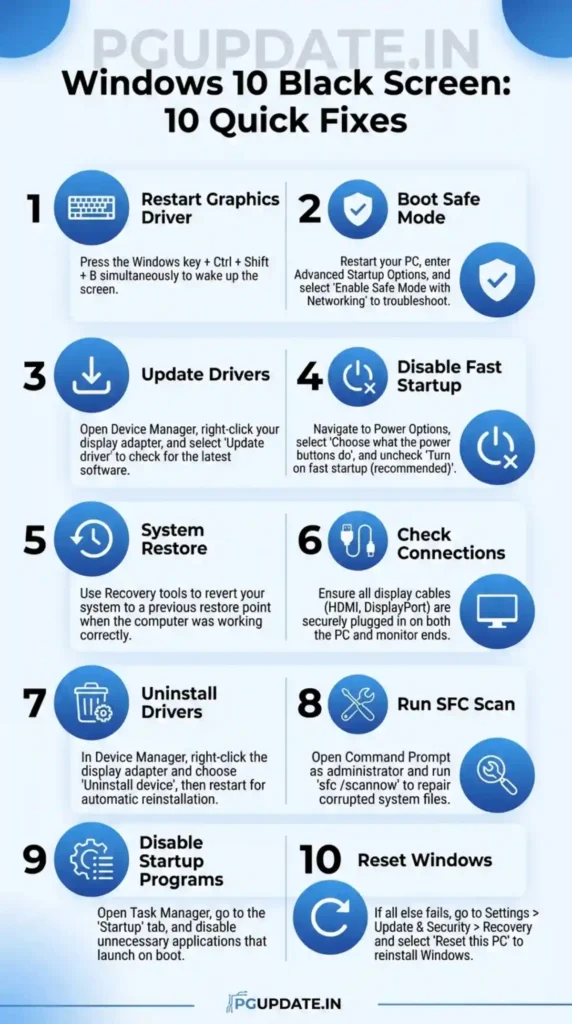
Fix 1: Force Restart Graphics Driver
The quickest solution that often works immediately:
- When you see the black screen, press Windows + Ctrl + Shift + B simultaneously
- Your screen will flash or go black momentarily
- Wait 5-10 seconds for the display to restore
- If successful, your screen should return to normal
This keyboard shortcut forces Windows to restart the graphics driver without rebooting your entire system. It’s particularly effective when the black screen occurs suddenly during normal usage or after waking from sleep mode.
Fix 2: Boot into Safe Mode
Safe Mode loads Windows with minimal drivers, helping identify if third-party software causes the problem:
- Force shutdown your computer by holding the power button for 10 seconds
- Turn on your computer and immediately force shutdown again when you see the Windows logo
- Repeat this process 2-3 times until you see “Preparing Automatic Repair”
- Click Advanced options when the recovery screen appears
- Select Troubleshoot > Advanced options > Startup Settings
- Click Restart and press F4 for Safe Mode or F5 for Safe Mode with Networking
If your display works normally in Safe Mode, the black screen is caused by a driver or software conflict, not hardware failure. You can then proceed with driver updates or software removal while in Safe Mode.
Fix 3: Update or Rollback Display Drivers
Driver issues are the most common cause of black screens:
To Update Drivers in Safe Mode:
- Boot into Safe Mode using the method above
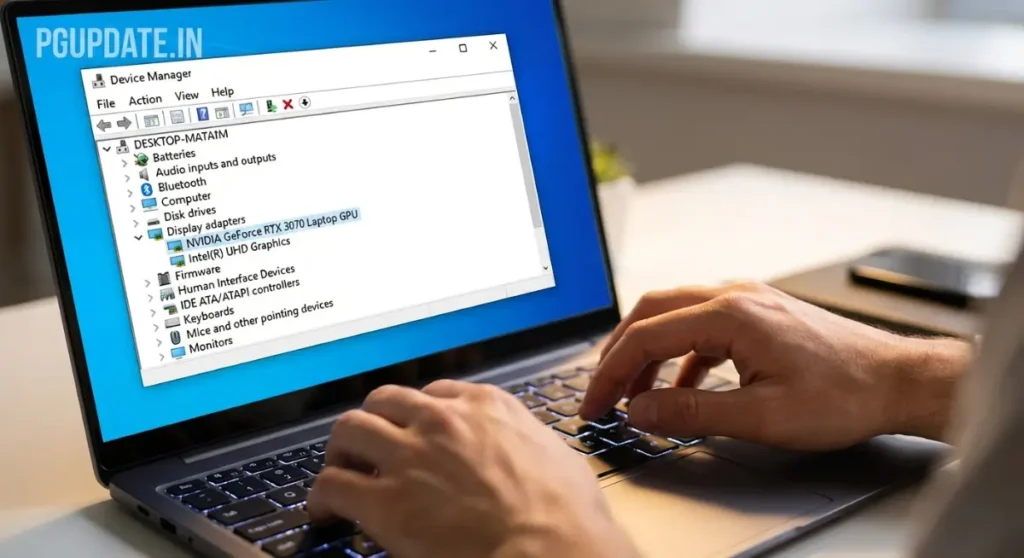
- Right-click the Start button and select Device Manager
- Expand Display adapters
- Right-click your graphics card and choose Update driver
- Select Search automatically for updated driver software
- Follow prompts and restart when complete
To Rollback Drivers:
- In Device Manager, right-click your graphics adapter
- Select Properties > Driver tab
- Click Roll Back Driver if available
- Select a reason and confirm
- Restart your computer
Visit your graphics card manufacturer’s website (NVIDIA, AMD, or Intel) to download the latest certified drivers specifically designed for Windows 10. Avoid beta drivers as they may be unstable.
Fix 4: Uninstall Problematic Display Drivers
Sometimes drivers become so corrupted that updating won’t help:
- Boot into Safe Mode
- Open Device Manager
- Expand Display adapters
- Right-click your graphics card and select Uninstall device
- Check Delete the driver software for this device if available
- Click Uninstall and restart
Windows will automatically install basic display drivers on restart. You can then install fresh drivers from the manufacturer’s website.
Fix 5: Disable Fast Startup
Fast Startup often causes black screen problems:
- Boot into Safe Mode or use the login screen if accessible
- Press Windows + R and type powercfg.cpl
- Click Choose what the power buttons do in the left panel
- Click Change settings that are currently unavailable
- Uncheck Turn on fast startup (recommended)
- Click Save changes and restart
Disabling Fast Startup may increase boot time slightly but often resolves persistent black screen issues, especially on systems with multiple monitors or graphics adapters.
Fix 6: Run System File Checker
Corrupted system files can cause black screens:
- Boot into Safe Mode with Command Prompt (F6 in Startup Settings)
- Type: sfc /scannow and press Enter
- Wait for the scan to complete (may take 20-30 minutes)
- If corruption is found, run: DISM /Online /Cleanup-Image /RestoreHealth
- Restart your computer after completion
System File Checker scans and repairs corrupted Windows files that might be preventing proper display initialization.
Fix 7: Check Display Output Connections
For systems with multiple graphics outputs:
- If possible, try connecting your monitor to a different port (HDMI to DisplayPort, etc.)
- On laptops, try connecting an external monitor
- If you have both integrated and dedicated graphics, try both outputs
- Check if your monitor is set to the correct input source
- Try a different cable to rule out cable damage
Sometimes Windows outputs to the wrong display port, especially after updates or when external monitors were previously connected.
Fix 8: Perform System Restore
If the black screen started recently:
- Boot into Safe Mode or access Advanced Startup Options
- Select Troubleshoot > Advanced options > System Restore
- Choose your user account and enter password
- Select a restore point from before the black screen problem began
- Follow the wizard to complete restoration
- Your system will restart with previous settings restored
System Restore doesn’t affect personal files but returns Windows settings and drivers to an earlier working state.
Fix 9: Disable Problematic Startup Programs
Third-party software can cause black screens:
- Boot into Safe Mode
- Press Windows + R and type msconfig
- Go to the Services tab
- Check Hide all Microsoft services
- Click Disable all
- Go to Startup tab and click Open Task Manager
- Disable all startup items
- Restart normally
If the black screen is gone, re-enable services and startup items one by one to identify the culprit.
Fix 10: Reset or Reinstall Windows 10
As a last resort if nothing else works:
- Access Advanced Startup Options
- Select Troubleshoot > Reset this PC
- Choose Keep my files to preserve personal data
- Follow the on-screen instructions
- Windows will reinstall while keeping your documents, pictures, and personal files
This option resolves stubborn black screen problems caused by deep system corruption but requires reinstalling applications.
Windows 10 Black Screen Problem After Update
Windows updates frequently trigger black screen issues, especially feature updates that make significant system changes. When Microsoft releases major updates, they sometimes include driver changes or display management modifications that conflict with existing graphics drivers.
If your black screen appeared immediately after a Windows update, the problem likely stems from driver incompatibility or changed display settings. Microsoft typically releases patches within weeks to address reported issues, but you shouldn’t wait if your computer is unusable.
Temporary solutions include booting into Safe Mode and uninstalling the recent update through Settings > Update & Security > Windows Update > View update history > Uninstall updates. However, this isn’t recommended long-term as you’ll miss important security patches.
The better approach is updating your graphics drivers to versions specifically designed for the latest Windows version. Graphics card manufacturers usually release compatible drivers within days of major Windows updates. Check NVIDIA, AMD, or Intel websites for drivers released after your Windows update date.
In some cases, the black screen problem resolves itself when Microsoft releases subsequent cumulative updates addressing the issue. Monitor Windows update news and your graphics card manufacturer’s support pages for announcements about fixes.
Prevention Tips for Windows 10 Black Screen Problem
Preventing black screen issues is easier than fixing them:
Create Regular Restore Points
Always create a system restore point before major changes:
- Search for Create a restore point in Windows
- Select your system drive and click Configure
- Ensure system protection is enabled
- Click Create to make a restore point
- Create restore points before updates and driver installations
Regular restore points provide quick recovery options if black screens occur.
Update Drivers from Official Sources
Only download graphics drivers from manufacturer websites:
- NVIDIA users: Visit nvidia.com/drivers
- AMD users: Visit amd.com/support
- Intel users: Visit intel.com/support
Avoid third-party driver update tools as they often install incorrect or outdated drivers.
Disable Fast Startup Permanently
If you’ve experienced black screens before, keep Fast Startup disabled to prevent recurrence. The slight increase in boot time is worth the stability.
Delay Windows Feature Updates
Configure Windows Update to delay feature updates:
- Go to Settings > Update & Security > Windows Update
- Click Advanced options
- Set feature update deferral to maximum allowed
- This lets others discover problems before you install updates
You’ll still receive critical security updates while avoiding potentially problematic feature updates until they’re proven stable.
Monitor Graphics Card Temperature
Overheating graphics cards can cause black screens. Use monitoring software to check GPU temperatures and ensure proper cooling. Clean dust from your computer regularly and verify all cooling fans function properly.
Frequently Asked Questions
Why does my Windows 10 screen go black after login?
This typically indicates a problem with display drivers or startup programs. The system loads successfully but fails to initialize the display properly after login. Boot into Safe Mode, update your graphics drivers, and disable unnecessary startup programs to resolve this issue.
Can Windows 10 black screen be fixed without reinstalling Windows?
Yes, most black screen problems resolve through driver updates, Safe Mode troubleshooting, or system restore. Complete Windows reinstallation is rarely necessary and should only be considered after exhausting all other solutions.
Why does pressing Windows + Ctrl + Shift + B fix the black screen?
This keyboard combination forces Windows to restart the graphics driver without rebooting the entire system. It clears temporary graphics driver issues and reestablishes display output, often resolving sudden black screens during normal usage.
How do I prevent Windows 10 black screen after updates?
Create system restore points before updating, keep graphics drivers current from official manufacturer sources, delay feature updates by a few weeks to let others discover problems first, and disable Fast Startup if you’ve experienced black screens previously.
Is Windows 10 black screen a hardware problem?
Usually not. If your computer works normally in Safe Mode or BIOS, the black screen is almost certainly a software issue related to drivers, Windows settings, or conflicting applications. True hardware failures typically cause problems in all modes, including Safe Mode.
What should I do if Safe Mode also shows a black screen?
If Safe Mode shows a black screen, try Safe Mode with Command Prompt to run System File Checker and check disk integrity. If even that fails, consider hardware issues like monitor problems, cable damage, or failing graphics cards. Test with a different monitor and cables before assuming hardware failure.
Can antivirus software cause Windows 10 black screen?
Yes, some antivirus programs with display protection features can conflict with Windows display management. If black screens started after installing security software, boot into Safe Mode and temporarily disable or uninstall the antivirus to test if it’s the cause.
Conclusion
The Windows 10 black screen problem, while alarming, is usually solvable through systematic troubleshooting. Most cases stem from driver conflicts, Windows update issues, or Fast Startup problems rather than hardware failures. The key is approaching the problem methodically, starting with simple solutions like restarting the graphics driver, then progressing to Safe Mode troubleshooting and driver management.
Remember that if your display works in Safe Mode, you’ve confirmed the problem is software-related and fixable. Focus on updating graphics drivers from official sources, disabling Fast Startup, and removing recently installed software or updates that coincided with the black screen’s appearance.
Prevention through regular restore points, delayed Windows updates, and proper driver maintenance significantly reduces the likelihood of encountering this problem. When black screens do occur, having a restore point from before the issue began provides the quickest recovery path.
If you’ve exhausted all solutions in this guide and the black screen persists even in Safe Mode, consider hardware testing with a different monitor, cables, and if possible, a different graphics card. However, the vast majority of Windows 10 black screen problems resolve through the software-based solutions outlined here.
Approach troubleshooting patiently, make one change at a time to identify what actually fixes the problem, and always create restore points before major system modifications. With the techniques covered in this guide, you should be able to restore your Windows 10 system to full functionality and prevent future black screen occurrences.





2 thoughts on “How to Fix Windows 10 Black Screen Problem: Complete Step-by-Step Guide”