
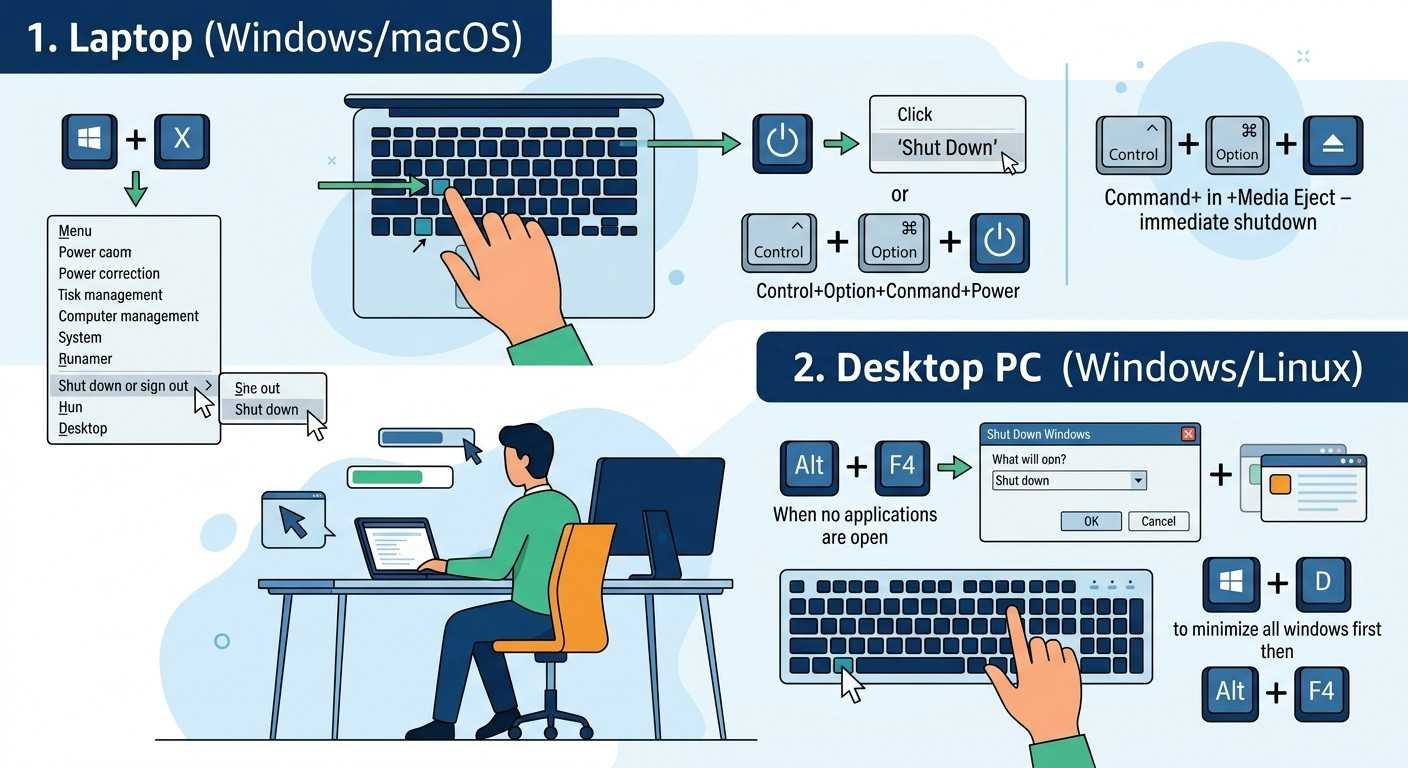
Learning how to shutdown your computer quickly using keyboard shortcuts can save you time and make your daily computer use more efficient. Whether you’re using a laptop or desktop PC, there are several easy ways to turn off your device without clicking through multiple menus.
Shutdown Laptop Using Alt+F4 Method

One of the easiest ways to shutdown your laptop is by using the Alt+F4 keyboard combination. First, make sure you’re on your desktop screen with no programs or windows open. Then, press and hold the Alt key while pressing F4. This will bring up the shutdown dialog box where you can select “Shut down” from the dropdown menu and click OK or press Enter.
Shutdown PC Using Windows Key Shortcuts

Another quick method involves using the Windows key on your keyboard. Press the Windows key to open the Start menu, then press the right arrow key to navigate to the power options. You can then press Enter to access shutdown options, or simply press the letter “U” twice to shutdown immediately.
Shutdown Laptop with Ctrl+Alt+Del Combination

The classic Ctrl+Alt+Del combination also provides access to shutdown options. Press all three keys simultaneously to open the security screen. From there, look for the power button icon in the bottom right corner and click on it to reveal shutdown options.
Shutdown PC Using Run Command

For advanced users, you can use the Run command to shutdown quickly. Press Windows key + R to open the Run dialog box. Type “shutdown /s /t 0” (without quotes) and press Enter. This command will immediately begin the shutdown process.
Shutdown Laptop Using Power Button Settings
You can also configure your laptop’s physical power button to shutdown the computer with a single press. Go to your computer’s power settings and change the power button behavior to “Shut down” instead of “Sleep” or “Hibernate”.
These keyboard shortcuts work on most Windows computers and can help you shutdown your device quickly without using your mouse. Practice these methods to find which one works best for your daily routine.




