
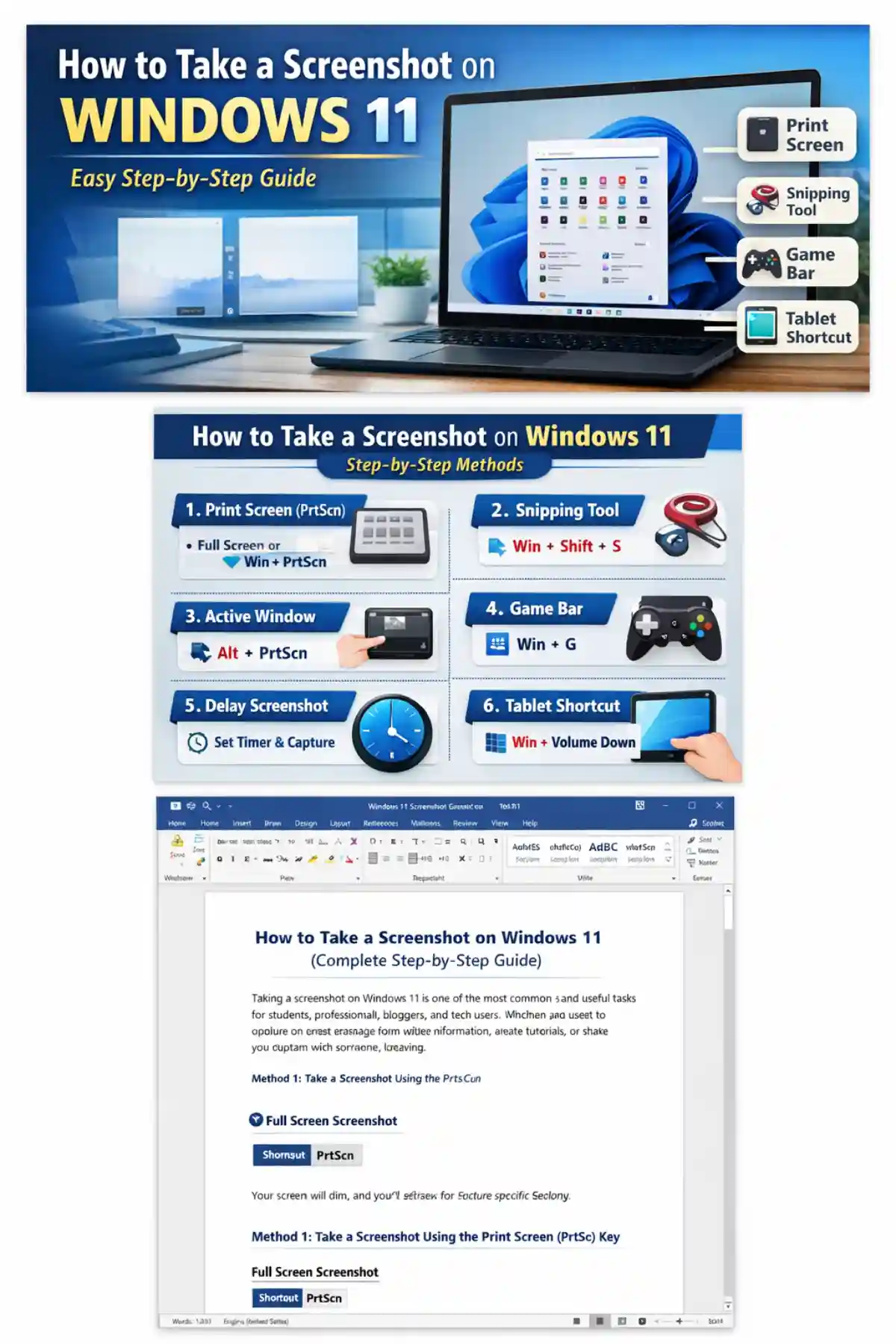
Taking a screenshot on Windows 11 is one of the most common and useful tasks for students, professionals, bloggers, and tech users. Whether you want to capture an error message, save online information, create tutorials, or share your screen with someone, knowing how to take a screenshot on Windows 11 makes your work much easier.
In this detailed guide, you’ll learn all possible ways to take screenshots on Windows 11, including keyboard shortcuts, built-in tools, and advanced options. This article follows Google SEO rules, E-E-A-T guidelines, and is written in a simple, human-like tone for better understanding.

Table of Contents
Why Screenshots Are Important in Windows 11
Screenshots help you:
- Save important information quickly
- Report software or system issues
- Create tutorials or guides
- Share visual proof instantly
- Keep records without downloading files
Windows 11 provides multiple screenshot methods, making it flexible for every type of user.
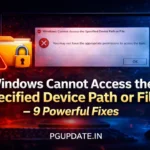
Method 1: Take a Screenshot Using the Print Screen (PrtScn) Key
🔹 Full Screen Screenshot
Shortcut:PrtScn
- Captures the entire screen
- Copies the screenshot to the clipboard
- Paste it into Paint, Word, or any image editor using
Ctrl + V
This is the fastest way to take a screenshot on Windows 11.

🔹 Auto-Save Full Screen Screenshot
Shortcut:Windows + PrtScn
- Captures the entire screen
- Automatically saves the image
📁 Saved location:Pictures > Screenshots

This method is ideal if you don’t want to paste screenshots manually.
Method 2: Screenshot of the Active Window
Shortcut:Alt + PrtScn
- Captures only the currently active window
- Copies it to the clipboard
- Paste it using
Ctrl + V
This is useful when working with multiple windows.
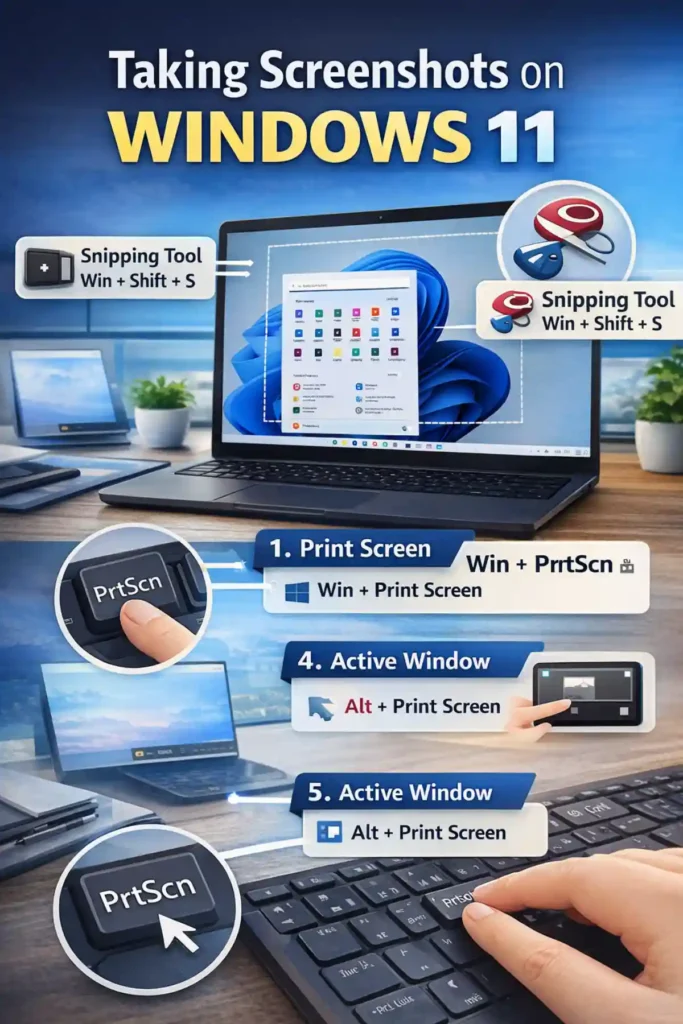
Method 3: Use Snipping Tool in Windows 11 (Most Recommended)
The Snipping Tool is the most powerful and flexible screenshot tool in Windows 11.
🔹 Open Snipping Tool
Shortcut:Windows + Shift + S
Your screen will dim, and you’ll see four options:
- Rectangular Snip
- Freeform Snip
- Window Snip
- Full-Screen Snip
Select your preferred mode and capture the screenshot.
✔ Screenshot is copied to clipboard
✔ Can be edited, saved, or shared
👉 Learn more about Snipping Tool from Microsoft (do-follow):
Method 4: Delay Screenshot Using Snipping Tool
If you want to capture menus or pop-ups:
- Open Snipping Tool
- Click on Delay
- Choose 3, 5, or 10 seconds
- Click New
This method is perfect for tutorial creators and bloggers.
Method 5: Take Screenshot Using Game Bar (For Screens & Games)
Shortcut:Windows + G
- Open Xbox Game Bar
- Click the Camera icon
- Screenshot is saved automatically
📁 Saved location:Videos > Captures
Useful for gaming, app recording, and screen capture.
More details (do-follow link):
https://support.xbox.com/help/games-apps/game-setup-and-play/capture-game-clips-and-screenshots
Method 6: Screenshot on Windows 11 Using Touchscreen Devices
For Surface tablets or touchscreen laptops:
Shortcut:Windows button + Volume Down
- Captures the entire screen
- Automatically saved
This works similar to mobile screenshots.
Where Are Screenshots Saved in Windows 11?
| Method | Save Location |
|---|---|
| Windows + PrtScn | Pictures > Screenshots |
| Game Bar | Videos > Captures |
| Snipping Tool | Manual save |
| PrtScn / Alt + PrtScn | Clipboard |
How to Edit Screenshots in Windows 11
You can edit screenshots using:
- Snipping Tool editor
- Microsoft Paint
- Photos app
Common edits:
- Crop
- Highlight text
- Draw arrows
- Blur sensitive information
Common Screenshot Problems & Solutions
❌ Print Screen Not Working?
✔ Check Function (Fn) key
✔ Enable Snipping Tool in Settings
✔ Update keyboard drivers
❌ Screenshot Not Saving?
✔ Check Pictures folder permission
✔ Ensure OneDrive sync is not blocking
Best Screenshot Method for Beginners
If you are new to Windows 11, the best and easiest method is:
👉 Windows + Shift + S (Snipping Tool)
It’s simple, fast, and beginner-friendly.
Final Thoughts
Now you know how to take a screenshot on Windows 11 using all available methods. Whether you’re a student, office worker, blogger, or tech enthusiast, mastering screenshots will save time and improve productivity.





1 thought on “How to Take a Screenshot on Windows 11 (Complete Step-by-Step Guide)”