Microsoft Update Catalog is an essential tool that every IT professional should master. When managing computers and servers, you need precise control over updates that standard Windows Update simply cannot provide. This comprehensive guide walks you through everything about this powerful Microsoft service, from basic access to advanced deployment strategies.Think of the Microsoft Update Catalog as having direct access to Microsoft’s complete warehouse of updates. Instead of waiting for automatic updates or dealing with unwanted patches, you can select exactly what you need, when you need it. This level of control has become increasingly important as Windows 11 receives monthly security updates and checkpoint cumulative updates starting with version 24H2.
What Is Microsoft Update Catalog?
Microsoft Update Catalog is an online repository where Microsoft publishes updates for its products, including security patches, critical updates, drivers, and service packs for various Windows operating systems and other Microsoft software. Unlike automatic updates delivered through Windows Update, this platform allows you to search for and download individual updates manually.

The catalog has evolved significantly since its inception. As of late 2015 with Windows 10’s release, Microsoft made updates available exclusively through the Update Catalog, and the website no longer requires an ActiveX control, making it accessible from any modern browser rather than being exclusive to Internet Explorer.
This tool becomes invaluable when you’re running business environments with multiple computers or when you have strict compliance requirements. Maybe you need to test updates before deployment, or perhaps you’re working in environments with limited internet access. The catalog gives you complete flexibility to handle updates on your terms.

For IT teams, this means downloading updates to test them safely in controlled environments before company-wide deployment. You can also obtain updates for air-gapped systems that cannot connect to the internet directly. Learn more about the official catalog at Microsoft Update Catalog.
How to Access and Use Microsoft Update Catalog: Step-by-Step Guide
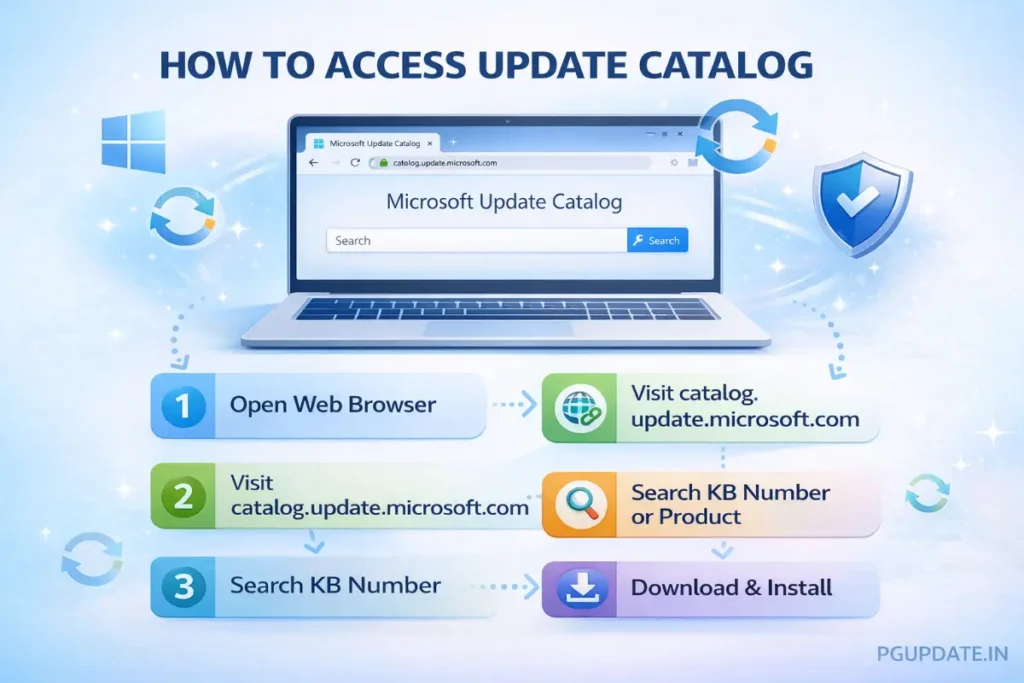
Accessing the Microsoft Update Catalog is straightforward and works from any modern web browser. You can search for updates using various methods including update names, KB numbers, product types, or even hardware IDs.

Here’s the complete process:
- Visit the Catalog Website: Navigate to Microsoft Update Catalog using any web browser
- Search for Updates: Type your search query in the search box. You can search by:
- KB number (like KB5074109)
- Product name (like “Windows 11” or “Windows Server 2025”)
- Hardware ID for specific drivers
- Review Results: Look through the search results and identify the version matching your system architecture (x86, x64, or ARM64)
- Download: Click the “Download” button next to your selected update
- Install: Save the downloaded .msu or .cab file and double-click to install it manually
The catalog supports all Windows versions, including legacy systems like Windows 7 and the latest Windows 11. This method proves especially valuable when working with offline computers or when deploying the same update across multiple machines—download once, use multiple times.

Understanding Update File Types
The catalog provides updates in different formats:
- .MSU files: Windows Update Standalone installer packages that can be installed by double-clicking
- .CAB files: Cabinet files that require DISM or PowerShell for installation
- Driver packages: Specific to hardware components
When automatic updates fail or skip essential files, the catalog is where you’ll find what’s missing, and the site lets you download .cab or .msu files which can be installed manually using built-in tools like DISM or PowerShell.
Microsoft Update Catalog vs Windows Update: Key Differences
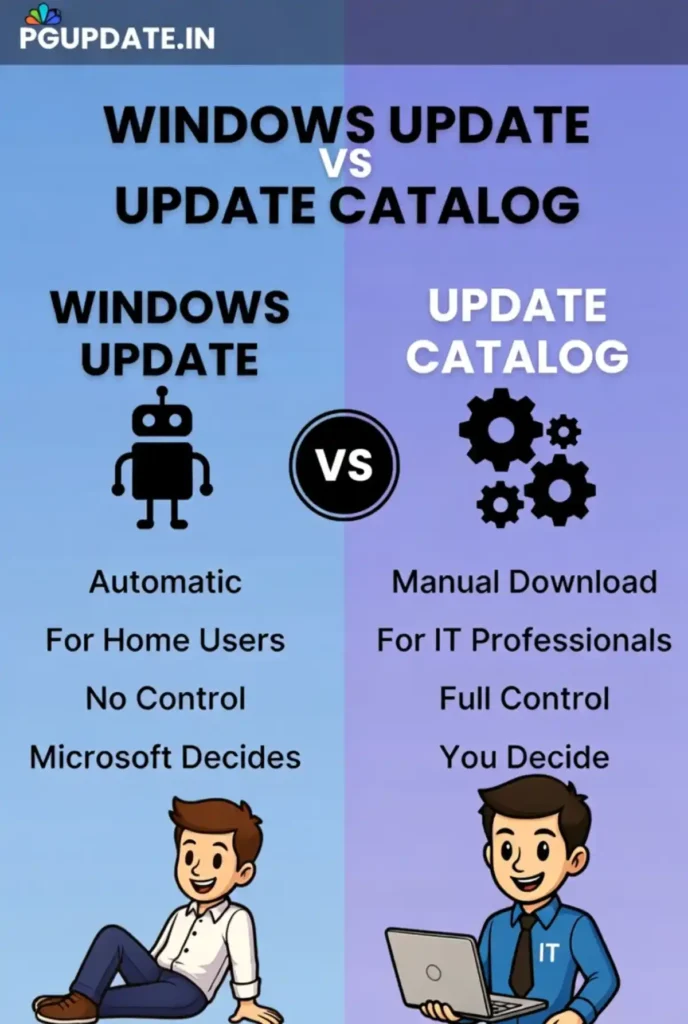
While both services come from Microsoft, they serve different purposes and audiences. Understanding these differences helps you choose the right tool for your needs.
Windows Update is designed for:
- Automatic, seamless update delivery
- Home users and small businesses
- Systems that benefit from Microsoft’s default update schedule
- Minimal user intervention
Microsoft Update Catalog is built for:
- Manual, selective update downloads
- IT professionals and system administrators
- Businesses managing multiple devices or those with specific compliance requirements
- Testing environments and controlled deployments
- Offline or restricted network scenarios
The regular Windows Update decides what your computer needs and installs it automatically. The catalog provides complete transparency—you browse all available updates and select precisely what you want. If an automatic update causes system instability, you can use the catalog to obtain and install an older, more stable version or troubleshoot specific issues.
This control becomes critical in enterprise environments where a single problematic update can affect hundreds of computers, potentially costing thousands of dollars in lost productivity.
Why IT Professionals Choose Microsoft Update Catalog
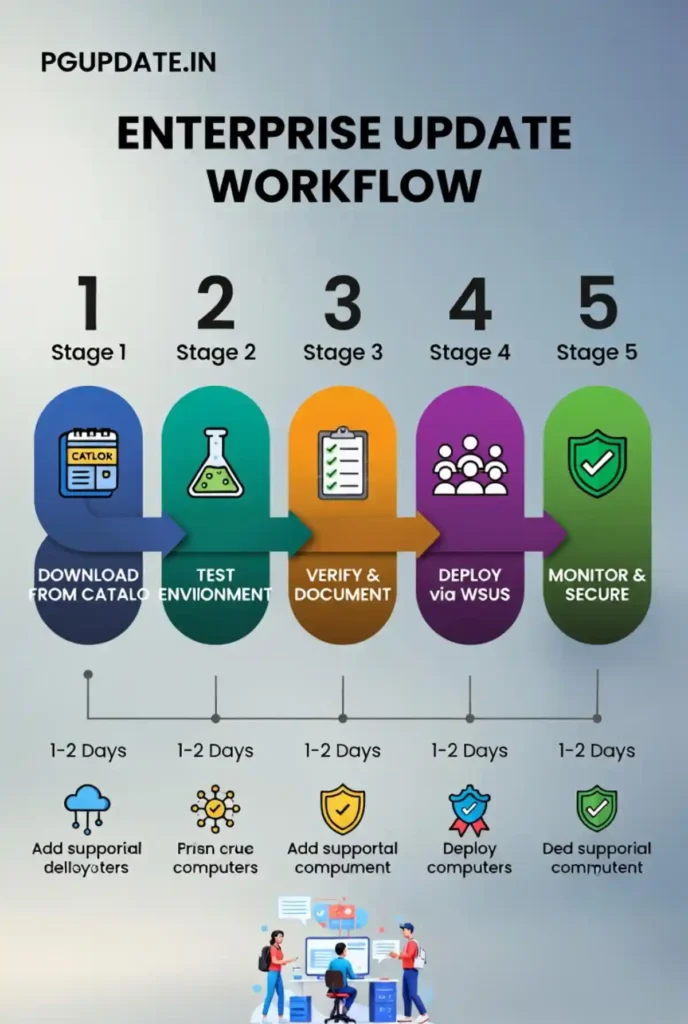
The catalog provides granular control that automated update systems cannot match. IT professionals can download specific updates and deploy them across company computers using management tools like WSUS (Windows Server Update Services), SCCM, or PowerShell scripts.
The benefits include:
Access to All Updates: Get updates that might not appear in regular Windows Update immediately or at all. Some updates are only available through the catalog.
Problem Prevention: Avoid issues with automatic updates that might break critical business applications or cause compatibility problems with specific hardware.
Complete Scheduling Control: Updates happen on your schedule, not Microsoft’s, minimizing downtime and user disruption.
Custom Image Creation: Build Windows installation images that already include necessary updates, streamlining deployment.
Testing Capability: Deploy updates to test environments first, verify compatibility, then roll out with confidence.
Checkpoint Cumulative Updates: Starting with Windows 11 version 24H2, monthly security updates and optional nonsecurity preview release updates might be preceded by checkpoint cumulative updates, and Microsoft Update Catalog users can determine and download these prior checkpoint cumulative updates.
For comprehensive guidance on Windows servicing, visit Microsoft Learn’s Windows Update documentation.
Best Practices for Using Microsoft Update Catalog
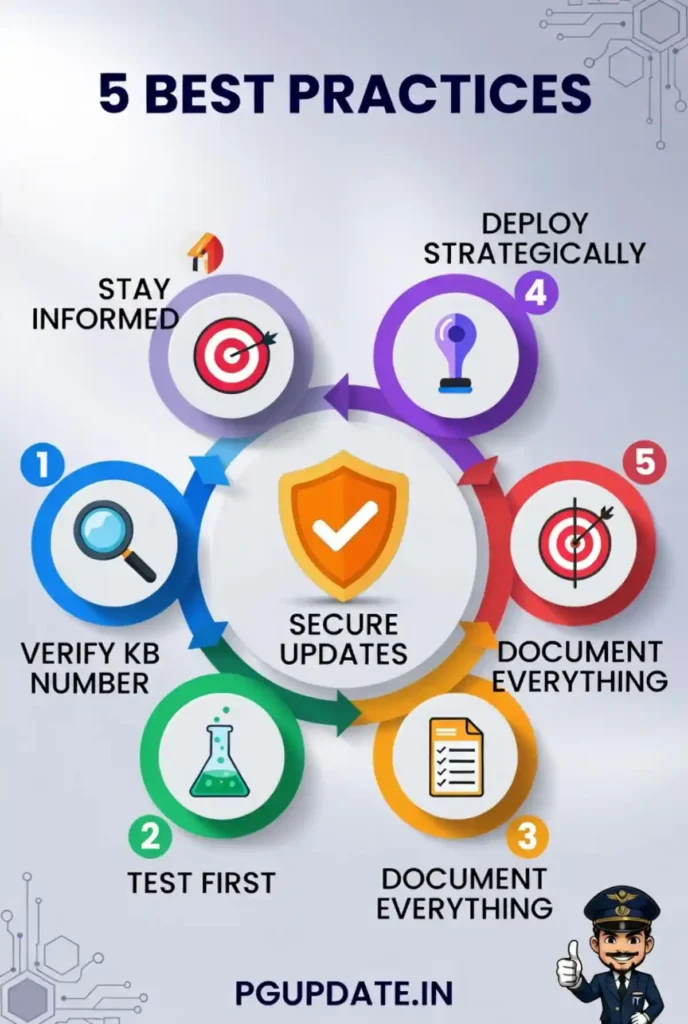
Following these proven practices ensures successful update management while avoiding common pitfalls.
1. Verify KB Numbers Carefully
Always double-check the KB number to ensure you’re downloading the correct update for your specific system version and architecture. Downloading the wrong version creates more problems than it solves. You can find KB numbers in your Windows Update history by pressing Windows + I, navigating to Windows Update > Update history.
2. Test Before Wide Deployment
Set up a test environment that mirrors your production systems. This could be:
- A dedicated test computer matching your standard configuration
- Virtual machines running identical operating systems
- A small pilot group of users
Install updates there first and verify everything works correctly before company-wide rollout. This approach catches compatibility issues early.
3. Maintain Detailed Documentation
Keep comprehensive records of:
- Which updates you installed
- When installations occurred
- Any issues encountered during or after installation
- Rollback procedures if needed
This documentation becomes invaluable during troubleshooting and audit processes. Consider using a change management system or update tracking spreadsheet.
4. Stay Informed About Update Contents
Microsoft provides release notes for updates. Reading these helps you:
- Understand what problems each update fixes
- Identify potential conflicts with your software or hardware
- Plan deployment timing around business operations
- Prepare support staff for potential user questions
Visit Microsoft’s Security Update Guide for detailed vulnerability information and update descriptions.
5. Use PowerShell for WSUS Integration
WSUS currently includes an option to import updates from the Microsoft Update Catalog, but the Import Updates action in WSUS was built using ActiveX which is now deprecated and has been replaced with a PowerShell script that allows you to import single or multiple updates into WSUS.
For detailed PowerShell import instructions, see Microsoft’s WSUS and Catalog documentation.
6. Address Known Issues Proactively
Stay aware of current known issues. For example, after installing certain 2026 updates, some applications may become unresponsive or encounter unexpected errors when opening files from or saving files to cloud-based storage like OneDrive or Dropbox. Microsoft regularly publishes these issues and their resolutions.
Advanced Update Management Strategies
Working with CAB Files
When you download .cab files from the catalog, installation requires additional steps:
# Install CAB file using DISM
DISM /Online /Add-Package /PackagePath:"C:\Updates\update.cab"

# Or use PowerShell
Add-WindowsPackage -Online -PackagePath "C:\Updates\update.cab"
Handling Checkpoint Cumulative Updates
When installing a monthly security or optional nonsecurity preview update, Microsoft Update Catalog users can download prior checkpoint cumulative updates and apply them sequentially, or in one go using DISM.
The download popup in the catalog shows all prior checkpoints, allowing you to download all necessary .msu files conveniently.
Secure Boot Certificate Updates
Secure Boot certificates used by most Windows devices are set to expire starting in June 2026, which might affect the ability of certain devices to boot securely if not updated in time. IT administrators should review Microsoft’s guidance and update certificates proactively.
For preparation steps, see Microsoft’s Secure Boot certificate documentation.
Microsoft Update Catalog Safety and Legitimacy
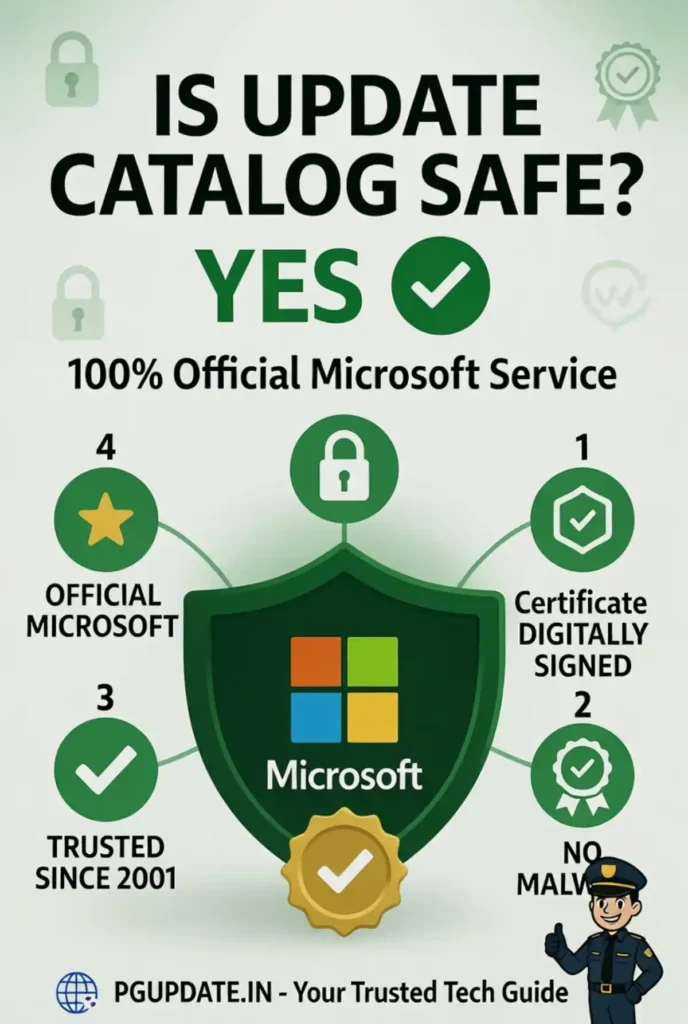
A common question: “Is the Microsoft Update Catalog safe?” The answer is definitively yes.
The Microsoft Update Catalog is owned and maintained directly by Microsoft, has been around since Windows XP days, and is a key source for system administrators and tech-savvy users. It does not request personal information or pose security risks as it only hosts Microsoft-signed updates with no third-party mirrors or hidden redirects.
All updates in the catalog are:
- Digitally signed by Microsoft
- Identical to updates delivered through Windows Update
- Scanned for integrity before publication
- Traceable through official Microsoft KB articles
Troubleshooting Common Catalog Issues
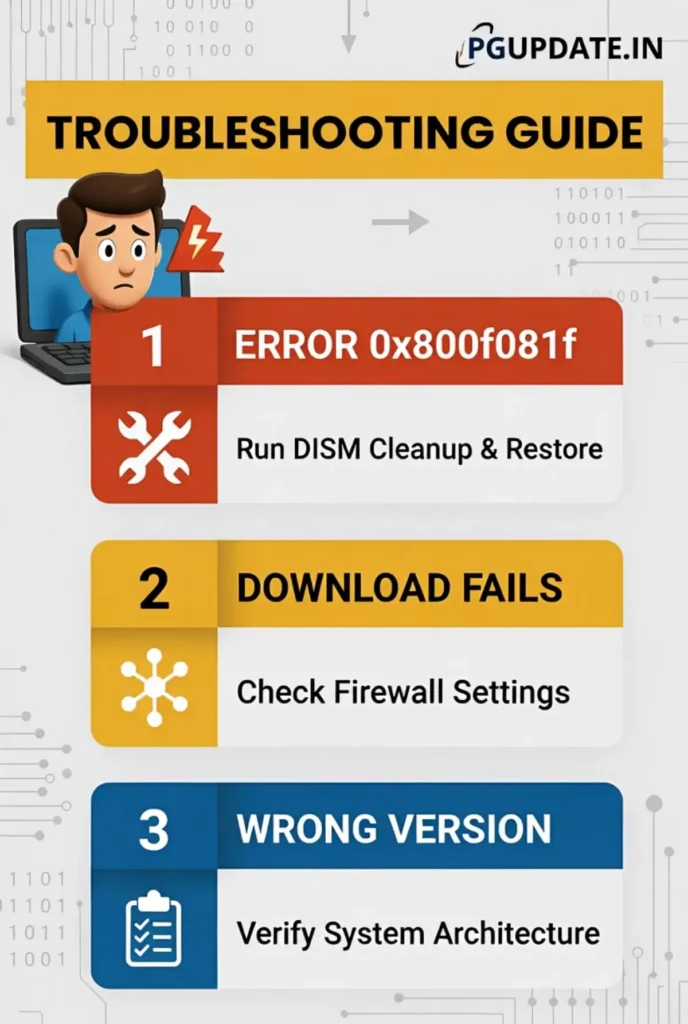
Installation Errors (0x800f081f)
The error 0x800f081f is caused by missing files in the component store. To resolve:
dism /online /cleanup-image /startcomponentcleanup
dism /online /cleanup-image /restorehealth
If issues persist, perform a repair installation through Settings > System > Recovery > “Fix problems using Windows Update” > “Reinstall now.”
Download or Access Problems
If you cannot access certain domains or encounter download failures, check your network configuration. The catalog requires access to:
- catalog.update.microsoft.com
- download.windowsupdate.com
Corporate firewalls may need configuration to allow these domains.
For comprehensive troubleshooting guidance, visit Microsoft’s Update Catalog troubleshooting documentation.
Making Microsoft Update Catalog Work for Your Organization
The catalog isn’t just a tool—it’s a cornerstone of intelligent update strategy. Whether managing ten computers or ten thousand, having update control helps maintain security while avoiding unnecessary business disruptions.
The catalog helps you:
- Stay compliant with security requirements and industry regulations
- Maintain stable, productive systems with minimal downtime
- Prioritize critical security updates while delaying feature updates that might interfere with business applications
- Support legacy systems that still require security patches
- Create standardized deployment packages across your organization
Deployment at Scale
For organizations deploying updates across many devices, consider implementing:
WSUS (Windows Server Update Services): Centralize update management for all Windows computers in your network. Learn more at Microsoft’s WSUS Overview.
Microsoft Endpoint Configuration Manager: Provides comprehensive device management including update deployment, application management, and compliance monitoring.
PowerShell Automation: Script update downloads and installations for consistency and efficiency.
Integration with Modern Management Tools
Modern IT environments increasingly use cloud-based management platforms like Microsoft Intune. While these platforms primarily deliver updates through Windows Update for Business, the catalog remains valuable for:
- Addressing update failures
- Obtaining specific driver updates
- Creating custom deployment packages
- Managing disconnected or air-gapped systems
Staying Current with Latest Updates
As of February 2026, Microsoft continues regular update cycles:
- Patch Tuesday: Second Tuesday of each month delivers security updates
- Optional Preview Updates: Released in the fourth week (when operations permit)
- Out-of-Band Updates: Released as needed for critical vulnerabilities
Due to reduced operations during Western holidays in December and New Year’s Day, there was no December 2025 non-security preview update in the second part of the month, with regular monthly servicing resuming in January 2026.
Monitor Microsoft’s Windows Release Health Dashboard for the latest update information and known issues.
Conclusion
Microsoft Update Catalog provides IT professionals with precise update control that automated systems cannot match. Understanding how to effectively use this resource—from basic downloads to advanced WSUS integration—enables you to maintain secure, stable systems while meeting your organization’s specific requirements.
The right approach to using Microsoft Update Catalog saves time, reduces costs, minimizes frustration, and keeps systems secure and current. Whether you’re an experienced system administrator or IT professional expanding your skillset, mastering this tool enhances your ability to manage Windows environments effectively.
For organizations needing help implementing update management strategies, working with experienced IT professionals or managed service providers can make the difference between smooth, controlled update processes and chaos. The catalog is powerful, but combining it with proper planning, testing procedures, and documentation creates truly robust update management.
Start exploring the Microsoft Update Catalog today and take control of your Windows update strategy.
Last Updated: February 2026