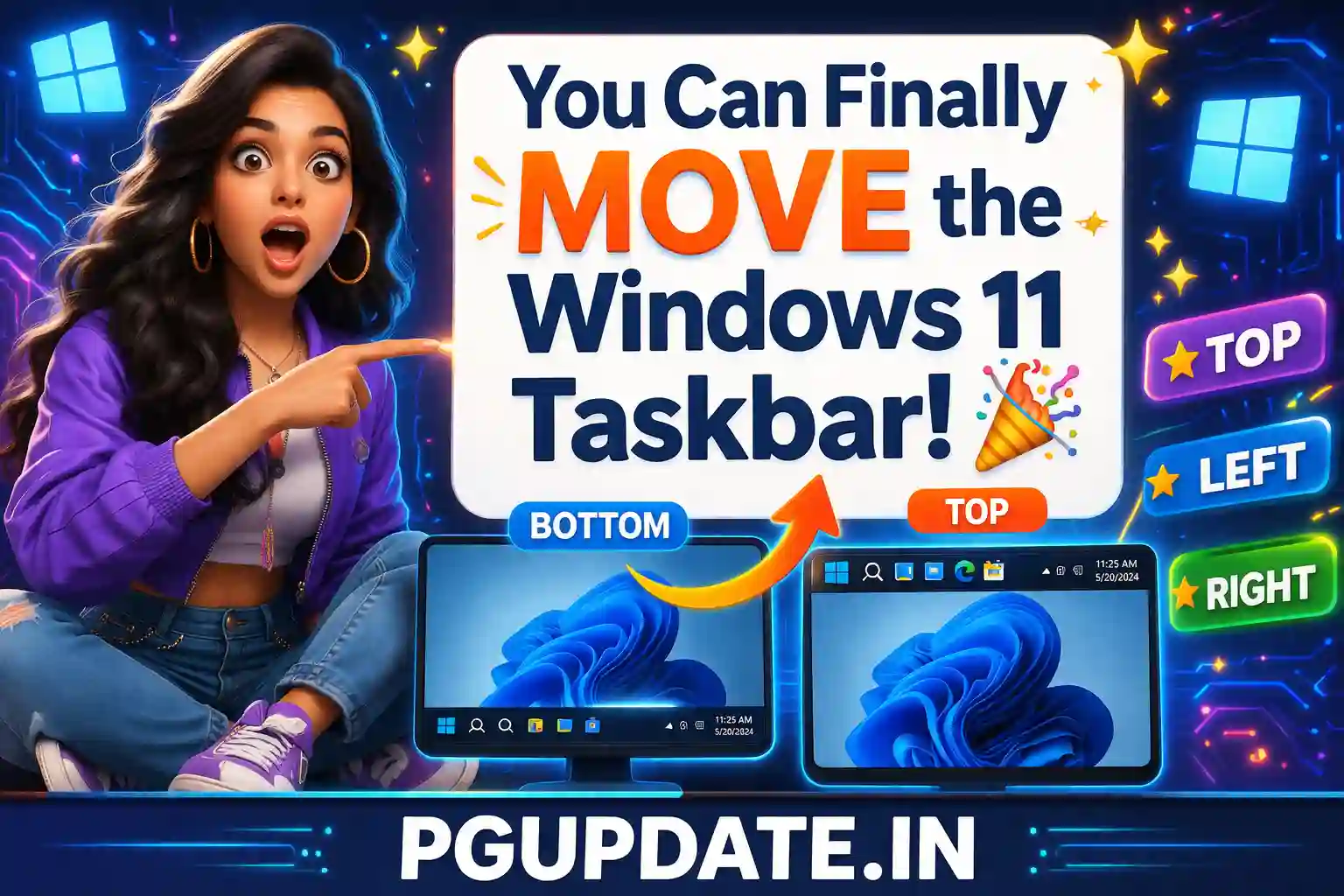
Moving the Windows 11 taskbar is finally possible in 2026 — and Microsoft itself confirmed it. After more than four years of complaints from millions of Windows users, Microsoft has officially restored the ability to move the Windows 11 taskbar to the top, left, or right side of your screen. If you have been frustrated by the fixed bottom taskbar since Windows 11 launched in 2021, this guide is exactly what you need.
In this article, we cover everything: why Microsoft removed the feature, what changed in 2026, how to move the taskbar right now using the official method (Windows Insiders) and third-party tools, and what to expect when the feature rolls out to everyone.

Why Couldn’t You Move the Windows 11 Taskbar Before?
When Windows 11 launched in October 2021, Microsoft completely rebuilt the taskbar from scratch. Unlike Windows 10, where the taskbar was a lightly modified legacy component you could freely drag to any screen edge, Windows 11’s taskbar is a modern, purpose-built interface with centered icons, new animations, and deep integration with Copilot, Widgets, and the notification panel.
According to Microsoft, relocating the taskbar in this new architecture would “fundamentally break the layout and behavior of core elements, including the Start menu, system tray, and app animations.” The feature was not forgotten — it was intentionally removed because of how much engineering work would be required to support it properly.

For years, the most upvoted suggestion on Microsoft’s Feedback Hub was: “Bring back the ability to move the taskbar to the top and sides of the screen on Windows 11.” Microsoft finally listened.
Microsoft’s Official Confirmation: Move Windows 11 Taskbar in 2026
On March 20, 2026, Microsoft’s Windows EVP Pavan Davuluri published an official blog post on the Windows Insider Blog confirming the feature is coming. Here is the exact quote from Microsoft:
“Repositioning the taskbar is one of the top asks we’ve heard from you. We are introducing the ability to reposition it to the top or sides of your screen, making it easier to personalize your workspace.”
The blog post also showed real screenshots of Windows 11 desktops with the taskbar positioned at the bottom, top, left, and right — confirming this is not concept art but a real, working feature being tested inside Microsoft.

This is part of a much larger 2026 Windows 11 quality push. If you want to see all the other changes coming, check out our detailed article on Windows 11’s biggest 2026 updates.
How to Move the Windows 11 Taskbar Right Now (3 Methods)
The official Microsoft method is rolling out to Windows Insiders first. But if you are not an Insider, you can still move the Windows 11 taskbar today using trusted third-party tools. Here are all three methods:
Method 1: Official Method via Windows Settings (Windows Insiders Only)
If you are enrolled in the Windows Insider Program (Canary or Dev channel), you can move the taskbar using the official Settings method:
- Press Windows + I to open Settings.
- Go to Personalization → Taskbar.
- Scroll down to find Taskbar position or Taskbar location on screen.
- Select your preferred position: Bottom, Top, Left, or Right.
- The change applies immediately without a restart.
Note: Some secondary features like system tray icons and notification areas may rearrange themselves depending on your chosen position. Third-party apps that interact with the taskbar may also need updates to fully support non-bottom positions.
Method 2: Move Windows 11 Taskbar Using ExplorerPatcher (Free)
ExplorerPatcher is one of the most trusted free tools for Windows 11 customization. It is open-source, regularly updated, and used by millions of power users worldwide.
- Download ExplorerPatcher from its official GitHub page.
- Run the installer — it will automatically integrate with Windows Explorer.
- Right-click the taskbar and select Properties.
- Under the Taskbar section, find Primary taskbar location on screen.
- Choose Top, Left, or Right from the dropdown.
- Click Restart File Explorer to apply.
Method 3: Move Windows 11 Taskbar Using Windhawk (Safest Option)
Windhawk is an open-source modding tool for Windows that uses safe, non-destructive extensions. It is considered safer than registry hacks and works reliably on Windows 11 24H2.
- Download Windhawk from the official Windhawk website.
- Install and open Windhawk.
- Click Explore in the top-right corner.
- Search for “Taskbar on top for Windows 11”.
- Click Details → Install.
- Your taskbar will immediately move to the top of the screen.
For more Windows 11 customization tips, see our guide on Windows 11 personalization settings you should change right now.
When Will Moving the Taskbar Come to All Windows 11 Users?
According to multiple reports and Microsoft’s own statements, the movable taskbar feature is currently in the Canary and Dev channels of the Windows Insider Program. Based on Microsoft’s 2026 release schedule, here is the expected rollout timeline:
- April–May 2026: Windows Insider Preview (Canary/Dev channels)
- Mid-2026 (Summer): Beta channel Insiders and optional preview update
- Late 2026: General Availability via standard Windows Update for all users
Microsoft is using its Control Feature Rollout (CFR) technology to gradually enable the feature in waves — meaning even after the official release, not everyone will get it on the same day.
What Positions Can You Use for the Windows 11 Taskbar?
Once the feature is available on your device — either via Windows Insider or a third-party tool — you will have four taskbar position options:
- Bottom (default) — The classic Windows 11 position.
- Top — Great for users coming from macOS or older Windows versions.
- Left — Ideal for ultrawide monitor users to save vertical space.
- Right — Useful for left-handed users or specific multi-monitor setups.
Unlike Windows 10 where you could freely drag the taskbar, in Windows 11 you will configure the position through Settings → Personalization → Taskbar — not by dragging. Microsoft confirmed this is intentional to maintain visual consistency.
Does Moving the Taskbar Affect Performance?
No — moving the Windows 11 taskbar to a different position does not affect your PC’s performance in any way. The taskbar uses the same system resources regardless of where it is placed on screen.
However, if you are using a third-party tool like ExplorerPatcher or Windhawk, there can occasionally be minor visual glitches with some animations or system tray icons until the apps are updated. These are cosmetic issues, not performance problems.
If your PC is running slowly regardless of taskbar position, check out our guide on how to fix Windows 11 running slow in 2026.
Frequently Asked Questions
Can I move the Windows 11 taskbar without third-party software?
Currently, the official method is only available to Windows Insider Program members. For regular users, ExplorerPatcher or Windhawk are the safest options until the feature arrives via Windows Update later in 2026.
Does the registry method still work for moving the taskbar in Windows 11?
No. The registry hack (changing the StuckRects3 value) no longer works on Windows 11 24H2 and later. Microsoft removed the positioning logic from the shell entirely. Use ExplorerPatcher or Windhawk instead.
Will moving the taskbar break my Windows 11 apps?
In most cases, no. The core functionality works correctly in all positions. However, some third-party apps that interact directly with the taskbar may display minor visual issues until their developers update them for multi-position support.
Is ExplorerPatcher safe to use on Windows 11?
Yes, ExplorerPatcher is an open-source project available on GitHub and used by millions of Windows users. It is regularly updated and considered safe. However, as with any system modification tool, create a System Restore point before installing.
Can I resize the Windows 11 taskbar in 2026?
Yes — alongside the movable taskbar, Microsoft is also adding a smaller taskbar option. You will be able to make the taskbar physically smaller (not just the icons), similar to Windows 10’s compact taskbar mode. This feature is also currently in Windows Insider testing.
Key Takeaways
- Microsoft officially confirmed you can move the Windows 11 taskbar to the top, left, or right in 2026.
- The feature is currently live for Windows Insider Canary and Dev channel members.
- Regular users can use ExplorerPatcher or Windhawk right now — both are free and safe.
- The registry method no longer works on Windows 11 24H2 and later.
- The official rollout to all Windows 11 users is expected in late 2026 via Windows Update.
- Taskbar position is configured via Settings → Personalization → Taskbar, not by dragging.
This is one of the most requested Windows 11 features of all time, and Microsoft has finally delivered. Whether you join the Windows Insider Program to get it early or wait for the official release, the days of being stuck with a bottom-only taskbar are nearly over.
For more Windows 11 tips, fixes, and how-to guides, explore more articles on PGUpdate.in.