What Are the Commands for GPUpdate-
If you’ve ever sat in front of a Windows terminal, typed gpupdate and hit Enter — watching that brief, satisfying confirmation roll across the screen — you already understand the quiet power of one of Windows administration’s most essential tools. But if you’ve ever wondered exactly what all the commands for gpupdate are, what each switch actually does beneath the surface, and when to use which one in a real production environment, you’ve come to exactly the right place.
The gpupdate command is one of those deceptively simple utilities that rewards deeper knowledge generously. At its most basic, it refreshes Group Policy settings on a Windows computer. But the full suite of gpupdate commands and switches — /force, /target, /logoff, /boot, /sync, /wait — gives administrators and power users precise, granular control over exactly how, when, and where Group Policy is applied. Master these commands, and Group Policy troubleshooting transforms from a frustrating mystery into a disciplined, methodical craft.

⚡ Quick Answer: The primary gpupdate commands are:
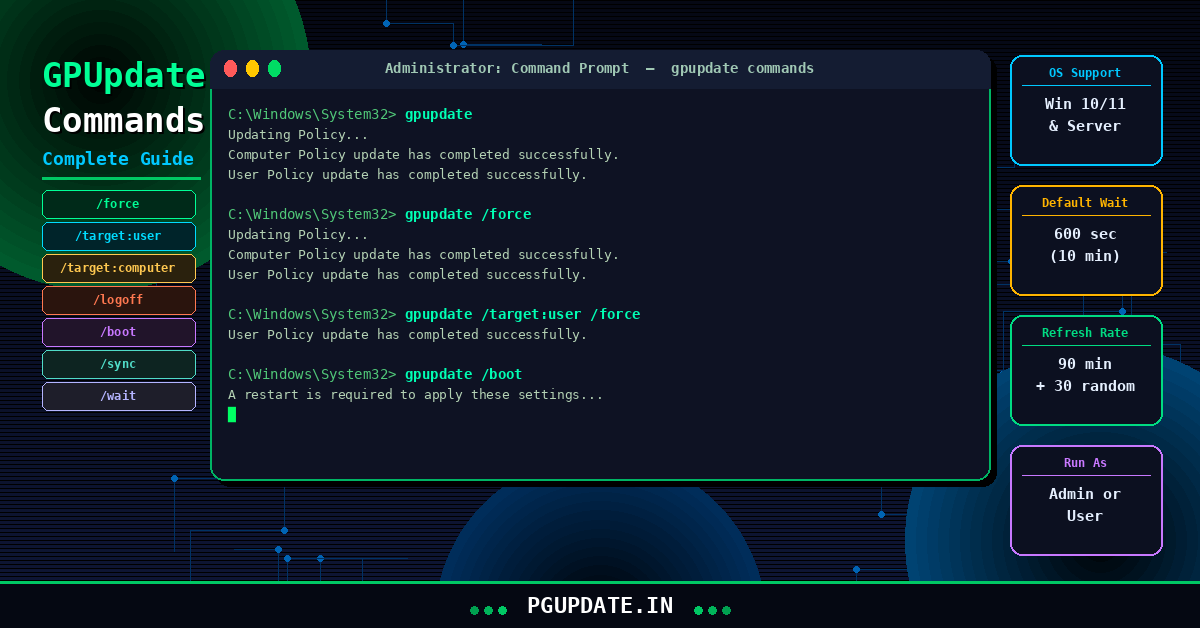
gpupdate(basic refresh),gpupdate /force(force all policies),gpupdate /target:useror/target:computer(target specific policies),gpupdate /logoff(log off after update),gpupdate /boot(restart after update),gpupdate /sync(synchronous processing), andgpupdate /wait:<value>(set timeout). Read on for the full breakdown of every command with real-world examples.
📋 Table of Contents

- What Is the GPUpdate Command?
- Complete GPUpdate Syntax & All Parameters
- gpupdate — The Basic Refresh Command
- gpupdate /force — Force All Policies
- gpupdate /target — User or Computer Only
- gpupdate /logoff — Log Off After Update
- gpupdate /boot — Restart After Update
- gpupdate /sync — Synchronous Processing
- gpupdate /wait — Set Timeout Value
- Combining Multiple Switches Together
- PowerShell: Invoke-GPUpdate for Remote Computers
- How to Open & Run GPUpdate (Step by Step)
- GPUpdate vs GPResult — What’s the Difference?
- Troubleshooting GPUpdate Issues
- Frequently Asked Questions
- Final Thoughts
What Is the GPUpdate Command?
GPUpdate — short for Group Policy Update — is a built-in Windows command-line tool that manually triggers a refresh of Group Policy settings on a local or remote Windows computer. The gpupdate command is a powerful tool designed for system administrators and advanced users who need to manage Group Policy settings within a Windows environment.
Without gpupdate, Windows refreshes Group Policy automatically in the background — but this checks in with the DC for Group Policy changes every 90 minutes with a randomized offset between zero and 30 minutes. In an enterprise environment, waiting 90 minutes for a policy change to propagate is often completely impractical. That’s where the gpupdate command steps in — it forces an immediate refresh, on demand, precisely when the administrator needs it.

According to Microsoft’s official documentation, gpupdate applies to Windows 10, Windows 11, Windows Server 2016, 2019, 2022, and 2025 — making it a universally relevant tool for anyone managing Windows environments today.
Understanding what commands gpupdate supports is essential knowledge for anyone in IT administration, desktop support, or systems management. It’s best to start with the GPUpdate command — this should work most of the time. If the gpupdate command didn’t work, then try gpupdate /force.

Complete GPUpdate Syntax & All Parameters
Before diving into each command individually, here is the complete official gpupdate syntax with all available parameters:
gpupdate [/target:{computer | user}] [/force] [/wait:<VALUE>] [/logoff] [/boot] [/sync] [/?]Here is a complete reference table of every gpupdate command switch and what it does:
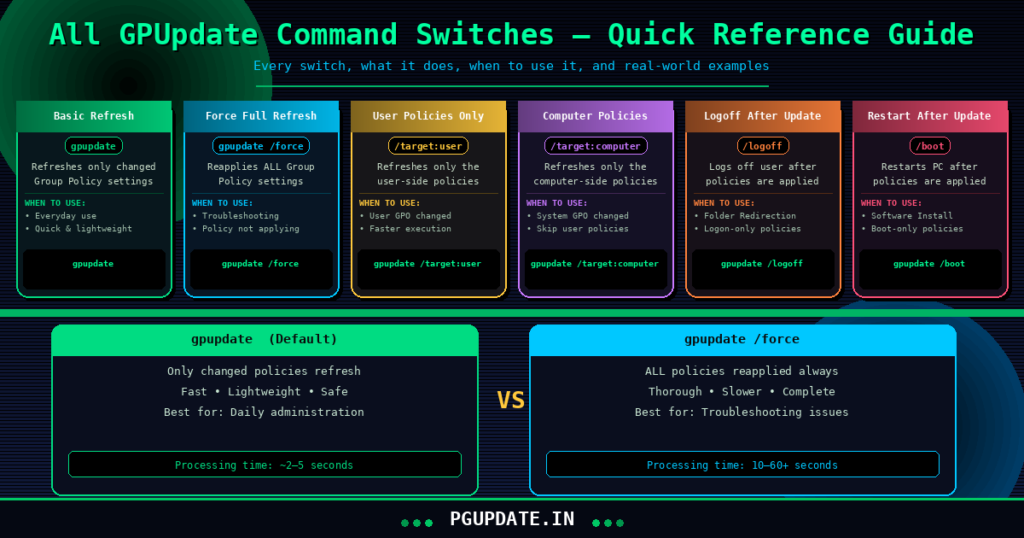
| Switch / Parameter | Full Syntax | What It Does | When to Use |
|---|---|---|---|
| (none) | gpupdate | Refreshes only changed policies (incremental) | Everyday, routine policy refresh |
| /force | gpupdate /force | Reapplies ALL policy settings regardless of changes | Troubleshooting, policy not applying |
| /target:user | gpupdate /target:user | Refreshes only User-side Group Policy settings | User GPO changed, skip computer refresh |
| /target:computer | gpupdate /target:computer | Refreshes only Computer-side Group Policy settings | System GPO changed, skip user refresh |
| /logoff | gpupdate /logoff | Logs off the current user after policy refresh completes | Folder Redirection, logon-only policies |
| /boot | gpupdate /boot | Restarts the computer after policy refresh completes | Software installation, startup-only policies |
| /sync | gpupdate /sync | Sets next foreground policy application to synchronous | Folder Redirection issues, dependent settings |
| /wait:<value> | gpupdate /wait:300 | Sets timeout in seconds (default 600, -1 = indefinite) | Scripted deployments, slow networks |
| /? | gpupdate /? | Displays full help information and available switches | Quick reference at the command line |
gpupdate — The Basic Refresh Command
Running gpupdate on its own — with no switches — performs what Microsoft calls an incremental update. This is the standard, everyday gpupdate command that most administrators run in routine operations.
gpupdateWhat happens when you run it: Windows contacts the domain controller (DC) and checks whether any of the Group Policy Objects (GPOs) that apply to the current user and computer have changed since the last refresh. GPUpdate performs an incremental update. This means it only applies policies that have changed or new settings since the last update.
Expected output:
Updating Policy...
Computer Policy update has completed successfully.
User Policy update has completed successfully.
When to use it: Use the basic gpupdate command any time you’ve made a routine change to a Group Policy Object and want it to propagate to a target computer immediately — without waiting the standard 90-minute background refresh interval. This is particularly useful in scenarios where changes have been made to the policies on the server side and need to be applied immediately to the client computers.
Does it require admin rights? No — the nice thing about the gpupdate command is it can be run as a user with non-admin rights. The basic gpupdate command processes both user and computer policies as the logged-in user, which is sufficient for most routine refreshes.
gpupdate /force — Force a Complete Policy Refresh
The gpupdate /force command is the most widely used variant — and the one most IT professionals reach for when something isn’t working as expected. It’s the power tool in the gpupdate command toolkit.
gpupdate /force/force reapplies all policy settings. By default, only policy settings that have changed are applied. This is a critical distinction. While basic gpupdate checks for changes and only processes what’s new, gpupdate /force instructs the Group Policy engine to reprocess every single applicable GPO — whether it has changed or not.
According to experts at Adam the Automator’s comprehensive gpupdate guide, the /force switch tells the GP engine to ignore the fact that nothing has changed and forces the CSEs to act as if something has changed and reprocess all applied policy settings.
An important nuance: this doesn’t literally mean re-processing EVERYTHING. For example, if the Software Installation CSE has previously installed Adobe Reader, it’s not going to reinstall Adobe Reader during a gpupdate /force if it’s still there. The force switch applies to policy evaluation, not to the mechanical re-execution of every action in every GPO.
When to use gpupdate /force:
- A policy change was made but didn’t seem to apply after a basic
gpupdate - Troubleshooting any GPO application issue — security settings, drive mappings, desktop configurations
- After joining a new computer to a domain for the first time
- After restoring from a backup or reimaging a machine
- Verifying that a specific security policy is enforced as expected
When NOT to use gpupdate /force: The biggest reason not to use the /force switch is when dealing with settings that can only be applied at logon or startup. When this happens, Windows will prompt you to log off or restart every time you run gpupdate /force, even if new settings don’t require such action. Also, I would not run gpupdate /force on several devices at one time. If you have a lot of group policies this can be resource intensive on domain controllers.
gpupdate /target — Refresh User or Computer Policies Selectively
The /target switch gives administrators the ability to refresh only one half of the Group Policy equation — either the user-side policies or the computer-side policies — rather than both simultaneously.
gpupdate /target:user
gpupdate /target:computer
gpupdate /target:user /force
gpupdate /target:computer /force
/target:{Computer | User} — This one lets you refresh either the computer or the user policy selectively. For example, if you made a change to a per-user GPO setting, it’s much quicker to issue the command gpupdate /target:user than to simply type gpupdate, which refreshes both per-computer and per-user settings.
By default, gpupdate tells the Group Policy Client service to process both computer and user settings. If you only need to refresh one of these sets, you can use the /target parameter.
Practical use case — gpupdate /target:user: You’ve just modified a user-targeted GPO that controls desktop wallpaper, mapped drives, or browser homepage settings. Rather than triggering a full dual refresh, running gpupdate /target:user processes only the user-side settings — faster execution, less load on the DC, same result for the specific change you made.
Practical use case — gpupdate /target:computer: You’ve pushed a new software restriction policy or updated firewall rules through a computer-targeted GPO. Running gpupdate /target:computer applies only the computer-side policies without touching user settings — ideal for system-level changes that have nothing to do with the logged-in user profile.

gpupdate /logoff — Apply Policies That Require a Logoff
Some Group Policy settings are specifically designed to apply only during a user logon event — folder redirection, certain login scripts, and some software deployment settings among them. The /logoff switch addresses this by automatically logging off the current user after policy processing completes.
gpupdate /logoff/Logoff — Log off after the Group Policy settings have been updated. Some group policy client-side extensions are only processed when a user logs on. (Software Install, Folder Redirection.)
As SDM Software’s Group Policy expert explains: The Logoff parameter is kind of like a modified Force. What it says is, do a normal GP processing update but, if there are CSEs that apply to the current user that only process in the foreground, set the flag and log me off after GP processing is completed, so that I can log back on to get that foreground processing cycle.
When to use it: You’ve made a Folder Redirection policy change and need it to take effect for a specific user immediately — without asking them to manually log off and back on themselves. Running gpupdate /logoff handles it automatically after the policy refresh completes.
Important warning: Be considerate before running this command on a user’s active session. The logoff will happen automatically after the policy refresh — any unsaved work in open applications will be at risk. Always warn users before executing gpupdate /logoff on their active sessions.
gpupdate /boot — Apply Policies That Require a Restart
The /boot switch is the restart equivalent of /logoff. Certain Group Policy settings — particularly those involving computer-targeted software deployment, startup scripts, and some security configurations — can only be applied during a full computer restart. The /boot switch triggers an automatic restart after policy processing.
gpupdate /boot/Boot — Restart after the Group Policy settings are applied. Some group policy client-side extensions are only processed at startup (e.g. computer-targeted Software Install).
Real-world example: Deploying software through group policy can only occur during a restart. Sorry, boss — you need to reboot. When a software installation GPO is configured and the user’s machine needs it applied, gpupdate /boot ensures the system refreshes policies and then restarts to trigger the software installation process during the startup cycle.
Best practice: Like /logoff, always communicate with end users before executing gpupdate /boot remotely on their machines. An unexpected restart mid-afternoon can cause significant disruption and data loss if documents are open. Schedule /boot-triggered refreshes during maintenance windows or outside business hours where possible.
gpupdate /sync — Force Synchronous Processing
The /sync switch is one of the more nuanced gpupdate commands, aimed at addressing a specific technical behaviour related to how Windows processes Group Policy in the background.
gpupdate /sync/Sync — Apply the next foreground policy synchronously (in the background). This can be applied to computer boot and/or user logon. Can be combined with /target.
To understand why this matters, you need to appreciate the difference between synchronous and asynchronous Group Policy processing. Asynchronous processing is a way to optimize the sign-in experience of domain users. Before Windows XP, all policy processing was synchronous, with the only downside that some settings required two logons or two restarts before being applied. The default mode since Windows XP is now asynchronous.
In asynchronous mode, the computer doesn’t wait for all Group Policy processing to complete before displaying the login screen — it processes policies in the background while the user logs on. This is faster and more convenient for everyday users, but occasionally causes issues with policies that depend on each other (like Folder Redirection, which needs to complete before certain profile settings can apply correctly).
The /sync parameter tells Windows that, during the next foreground event, I want to ensure GP runs synchronously. This might be a good switch to use if you are having problems with Folder Redirection kicking in.
Admin rights required: You can only use the /sync switch while running the command window as an administrator. If not, you’ll see an Access Denied error.
gpupdate /wait — Control the Timeout
The /wait parameter controls how long the command prompt window waits for Group Policy processing to complete before returning control to the user.
gpupdate /wait:300    <!-- Wait up to 5 minutes -->
gpupdate /wait:0     <!-- Don't wait — return immediately -->
gpupdate /wait:-1    <!-- Wait indefinitely -->
/Wait: — The number of seconds to wait for policy processing. ‘0’ = do not wait. ‘-1’ = wait indefinitely. default = 600 (10 minutes). If the time limit is exceeded, the command prompt returns, but policy processing continues.
This parameter is particularly valuable in scripted and automated deployment scenarios. When running gpupdate as part of a larger batch script or deployment pipeline, you often need the script to pause and wait for policy processing to complete before proceeding to the next step. Setting /wait:-1 ensures the script won’t advance until gpupdate fully completes — critical in environments with complex policy chains.
The /wait:0 option is useful when you want to trigger a policy refresh in the background and immediately return to scripted operations — essentially firing the refresh and moving on without waiting for confirmation.
Combining Multiple GPUpdate Switches
One of the most powerful aspects of the gpupdate command is the ability to combine multiple switches together for highly specific behaviour. Here are the most useful combinations:
# Force refresh of user policies only
gpupdate /force /target:user

# Force refresh of computer policies only
gpupdate /force /target:computer

# Force full refresh, then log off user
gpupdate /force /logoff

# Force full refresh, then restart computer
gpupdate /force /boot

# Refresh user policies and wait up to 5 minutes
gpupdate /target:user /wait:300

# Force refresh with synchronous processing (requires admin)
gpupdate /force /sync

# Force computer policies refresh, wait indefinitely
gpupdate /force /target:computer /wait:-1
You can use many of these switches in combination — such as calling /force and specifying the /target parameter to control whether user or computer processing is forced.
PowerShell: Invoke-GPUpdate for Remote Computers
The classic gpupdate command works perfectly on local machines, but IT professionals managing large environments often need to trigger policy refreshes on remote computers without physically visiting them. This is where PowerShell’s Invoke-GPUpdate cmdlet becomes indispensable.
# Update Group Policy on a remote computer
Invoke-GPUpdate -Computer "DESKTOP-ABC123"

# Force update on a remote computer
Invoke-GPUpdate -Computer "DESKTOP-ABC123" -Force

# Target user policies only on remote computer
Invoke-GPUpdate -Computer "DESKTOP-ABC123" -Target User

# Update all computers in an OU
Get-ADComputer -Filter * -SearchBase "OU=Sales,DC=company,DC=com" |
    ForEach-Object { Invoke-GPUpdate -Computer $_.Name -Force }
As TechTarget’s enterprise desktop guide explains, most administrators use Invoke-GPUpdate to refresh policies on remote computers using the -Computer parameter. Using this cmdlet to target a remote system is easier than walking to it, especially for remote offices or work-from-home employees.
Prerequisites for Invoke-GPUpdate: The Remote Server Administration Tools (RSAT) must be installed on your management machine for Invoke-GPUpdate to work. To install it, open an elevated Command Prompt and run:
DISM /Online /Add-Capability /CapabilityName:Rsat.GroupPolicy.Management.Tools~~~~0.0.1.0You can also find detailed RSAT installation guidance in our related guide: How to Run GPUpdate: The Complete Guide to Refreshing Group Policy Settings.
How to Open & Run GPUpdate — Step by Step
Not sure how to access the command line to run gpupdate commands? Here are three methods for Windows 10 and Windows 11:
Method 1 — Command Prompt (Standard)
- Press Win + R to open the Run dialog
- Type
cmdand press Enter - In the Command Prompt window, type your desired gpupdate command and press Enter
Method 2 — Command Prompt (Administrator)
- Right-click the Start button
- Select Terminal (Admin) or Command Prompt (Admin)
- Confirm the UAC prompt if it appears
- Type your gpupdate command and press Enter
Note: Admin access is required for /sync and recommended for /force on domain-joined machines.
Method 3 — Run Dialog (Quick Launch)
- Press Win + R
- Type
gpupdate /forcedirectly into the Run box - Press Enter — a brief Command Prompt window will appear, execute the command, and close
For a deeper walkthrough of running GPUpdate in different scenarios, visit the PG Update GPUpdate Complete Guide.
GPUpdate vs GPResult — Understanding the Difference
A common point of confusion among Windows administrators is the difference between gpupdate and gpresult. They’re complementary tools, not alternatives:
| Aspect | gpupdate | gpresult |
|---|---|---|
| Purpose | Applies / refreshes Group Policy settings | Displays currently applied Group Policy settings (RSoP) |
| Action | Makes changes to the system | Read-only — shows current state |
| Key use | Forcing policy updates | Verifying which policies are applied |
| Admin needed? | No (basic); Yes (for /sync) | Yes (for full computer report) |
| Best practice | Run first to apply changes | Run after gpupdate to verify results |
While the gpresult command displays the current GPO settings, the gpupdate command checks for new GPO settings. Use them as a pair: gpupdate /force to apply, then gpresult /r to verify. You can find more on Group Policy management at the Microsoft GPResult Documentation.
Troubleshooting GPUpdate — Common Issues & Fixes
Even with the right gpupdate commands, things can occasionally go sideways. Here are the most common issues and how to resolve them:
❌ “Access Denied” error running gpupdate /sync
Fix: The /sync switch requires administrator privileges. Right-click Command Prompt and select “Run as Administrator”, then re-execute your command.
❌ Policy changes not applying even after gpupdate /force
Fix: Some policy settings can only be applied at computer startup or user logon — not during a background refresh. Try gpupdate /force /logoff for user policies or gpupdate /force /boot for computer policies. Check the policy’s configuration in GPMC to confirm when it’s designed to apply.
❌ GPUpdate times out before completing
Fix: Network connectivity to the domain controller may be slow. Try gpupdate /wait:-1 to wait indefinitely. Also check network connectivity: ping <domaincontroller> and verify DNS resolution is working correctly.
❌ “gpupdate is not recognized as an internal or external command”
Fix: This typically means you’re running a non-domain environment, or the system path is corrupted. Verify that C:\Windows\System32\ contains gpupdate.exe. Also, check whether the computer is actually joined to a domain — gpupdate for Active Directory Group Policy only applies in domain environments. For local Group Policy, gpupdate still works but requires a domain for full functionality.
❌ Software installation GPO not applying
Fix: Software installation through Group Policy can only apply during computer startup. Running gpupdate /boot will refresh policies and then restart the computer — triggering the software installation during the startup cycle. This is by design and cannot be bypassed. See our guide on Windows Update issues for related troubleshooting.
Frequently Asked Questions — GPUpdate Commands
What is the difference between gpupdate and gpupdate /force?
gpupdate performs an incremental refresh — it only processes Group Policy settings that have changed since the last update. gpupdate /force reapplies every applicable Group Policy setting regardless of whether it has changed. Use /force when troubleshooting or when you need to guarantee all settings are current.
Does gpupdate /force require a restart?
Not always. Most policy settings apply immediately without requiring a restart. However, some settings — particularly computer software installation and certain security configurations — do require a restart to take effect. In those cases, Windows will prompt you or you can pair the command with /boot to automate the restart.
Can gpupdate be run on remote computers?
The classic gpupdate.exe command only works on the local computer. For remote computers, use the PowerShell Invoke-GPUpdate -Computer <computername> cmdlet, which requires RSAT to be installed on your management machine.
How often does Windows automatically run GPUpdate?
Windows performs a background Group Policy refresh automatically every 90 minutes, with a random offset of 0–30 minutes added to prevent all computers from hitting the domain controller simultaneously. Domain controllers refresh every 5 minutes. You can modify this interval through a Group Policy setting itself.
Does gpupdate work without a domain?
Yes — gpupdate also applies Local Group Policy settings (configured via gpedit.msc) on standalone (non-domain) Windows 10 and Windows 11 computers. However, many advanced Group Policy features require Active Directory domain membership.
What is the gpupdate /force command used for in Windows 11?
In Windows 11, gpupdate /force serves the same purpose as in previous versions — it forces a complete reapplication of all Group Policy settings. It’s fully supported on Windows 11 and works identically to Windows 10 behaviour.
How long does gpupdate /force take?
A basic gpupdate typically completes in 2–10 seconds. gpupdate /force takes longer — typically 15–60 seconds on a well-connected domain-joined computer — because it processes every applicable GPO rather than checking for changes first. On complex environments with many GPOs or slow network connections, it can take several minutes.
Final Thoughts — Mastering the GPUpdate Command
The gpupdate command and its full suite of switches represent one of the most elegant, efficient tools in the Windows administration toolkit. From the simple elegance of gpupdate for routine refreshes, to the surgical precision of gpupdate /force /target:user for targeted troubleshooting, to the automation power of Invoke-GPUpdate for remote fleet management — these commands give administrators genuine, granular control over one of Windows’ most important infrastructure components.
The key to using gpupdate commands expertly is understanding when to use each switch — not just what each one does. Start with the basic gpupdate for everyday operations. Reach for /force when troubleshooting. Use /target for efficiency when only one side of policy has changed. Reserve /logoff and /boot for policies that specifically require those events to apply. And leverage Invoke-GPUpdate to scale your Group Policy management across entire organisational units without ever leaving your desk.
Group Policy is the backbone of Windows enterprise management — and gpupdate is how you keep that backbone in line. Master these commands, and you’ll resolve Group Policy issues in minutes that used to take hours of waiting and rebooting.
Have a specific gpupdate command scenario you need help with? Drop your question in the comments below — our community of Windows administrators is always ready to help.
📌 Related Windows Administration Guides on PG Update
- How to Run GPUpdate: The Complete Guide to Refreshing Group Policy Settings
- Microsoft Update Catalog: The Complete 2026 Guide for IT Professionals
- Windows Update Stuck on Pending Download? Here’s How to Fix It
- How to Install Windows on Chromebook – Complete 2026 Guide
- How to Get Custom Skin Packs for Windows 11 – Complete 2026 Guide
Tags: gpupdate commands · what are the commands for gpupdate · gpupdate /force · gpupdate /target · gpupdate switches · group policy update command · gpupdate Windows 11 · gpupdate /logoff · gpupdate /boot · gpupdate /sync · Invoke-GPUpdate PowerShell · force group policy update · gpupdate command line options · gpupdate not working fix · Windows group policy refresh