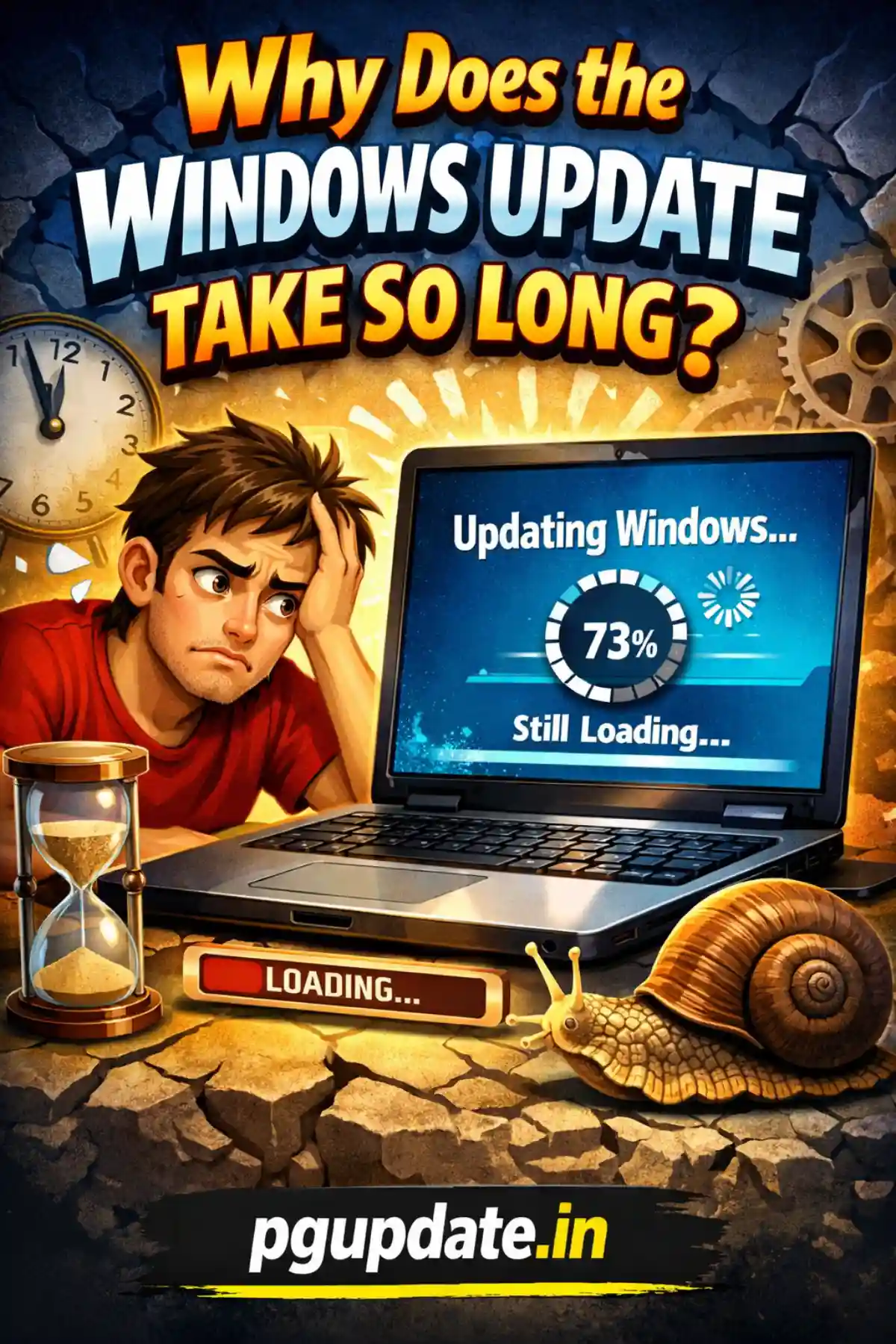
You are staring at that spinning circle on your screen again. The message says “Working on updates — 34%. Don’t turn off your PC.” It has been over two hours. Sound familiar? If you have ever asked yourself, why does the Windows update take so long, you are not alone. Millions of users across the United States face this exact frustration every time Microsoft pushes a new patch.
In this guide, we break down the real reasons behind slow Windows updates and give you actionable fixes that actually work in 2026.
What Happens During a Windows Update?
Before diving into why Windows updates are slow, it helps to understand what is actually happening in the background. When Windows runs an update, it does not simply copy new files onto your drive. The process involves downloading update packages from Microsoft’s servers, verifying file integrity, checking hardware and software compatibility, replacing system files, rebuilding indexes, and creating rollback points in case something goes wrong.
All of this is complex, resource-heavy work — and any one of these steps can slow the entire process down significantly.

Top Reasons Why Windows Update Takes So Long
1. The Update Is Very Large
Microsoft regularly releases cumulative updates — large packages that bundle dozens of security patches, bug fixes, and feature changes into a single download. These can easily exceed 1–4 GB in size. A major feature update like Windows 11 24H2 can be several gigabytes. The bigger the update, the longer the download and installation will take, especially on slower internet connections.
2. Your Internet Speed Is Limiting the Download
Even if you have decent broadband at home, Windows Update can throttle bandwidth usage to avoid disrupting other internet activity. If multiple devices are streaming, downloading, or gaming on the same network, your update download can crawl. Check your internet speed at Speedtest.net to rule out ISP-related slowdowns.

3. Microsoft’s Servers Are Overloaded
When Microsoft releases a major update, hundreds of millions of Windows users worldwide try to download it around the same time. This can cause serious congestion on Microsoft’s update servers. If you are trying to update on Patch Tuesday (the second Tuesday of each month), server load is often at its peak. Waiting 24–48 hours before updating can dramatically improve download speeds.
4. Your Hard Drive Is Old or Nearly Full
Windows updates require significant temporary storage space to unpack and stage files before installation. If your system drive has less than 10–15 GB of free space, the update process will slow to a crawl or stall entirely. Additionally, if you are running a traditional HDD (hard disk drive) rather than a modern SSD, read and write speeds are far slower, stretching the installation phase from minutes into hours. Upgrading to an SSD is one of the most impactful changes you can make. You can also check out our guide on how to speed up Windows 11 for more performance tips.
5. Background Programs Are Interfering
Antivirus software, file sync tools like OneDrive or Dropbox, and even open browser tabs can consume CPU, RAM, and disk resources while an update is trying to install. This competition for system resources is a very common reason why Windows update takes so long. Before starting an update, close all unnecessary programs and temporarily pause your antivirus scanner if possible.
6. Corrupted System Files or Update Components
Sometimes the Windows Update service itself has corrupted cache files or broken components that cause the update to loop, stall, or fail entirely. This is especially common on PCs that have not been properly maintained. If your update has been stuck at the same percentage for more than 3 hours, this could be the cause. Our detailed guide on Windows Update not working fix walks you through exactly how to repair update components step by step.
7. Outdated or Corrupted Drivers
Outdated network drivers can throttle your download speed during updates. Corrupted device drivers may cause the installation phase to hang while Windows tries to apply new driver updates. Keeping your drivers up to date before running major Windows updates can prevent this issue entirely. Visit Microsoft’s official Windows Update page for driver update guidance.
8. Your PC Has Not Been Updated in a Long Time
If you have been postponing updates for weeks or months, Windows will need to install a long chain of cumulative updates in sequence. Each update in that backlog takes additional time, and together they can turn a single update session into an hours-long process. The best strategy is to keep your system regularly updated so each session only involves a small, manageable patch. Check if your Windows update is stuck on Pending Download if you suspect a backlog issue.
How Long Should a Windows Update Take?
On a modern PC with an SSD and a fast internet connection, most monthly security updates complete in 10–20 minutes. Major feature updates (like annual Windows 11 version upgrades) can take 30–90 minutes. If your update has been running for more than 3 hours without any visible progress, it may be genuinely stuck.
What To Do If Windows Update Is Stuck
Here are the most effective steps to take if your update appears frozen:
- Be patient first — some updates genuinely need 1–2 hours, especially on older hardware. Let it run overnight before taking action.
- Run Windows Update Troubleshooter — Go to Settings > System > Troubleshoot > Other Troubleshooters and run the Windows Update troubleshooter.
- Force restart if truly stuck — Hold the power button for 10 seconds. Windows will usually roll back and recover on the next boot.
- Clear the Update Cache — Stop the Windows Update service and rename the SoftwareDistribution folder to force Windows to rebuild it from scratch.
- Free up disk space — Delete temporary files using Disk Cleanup or Settings > Storage > Temporary Files.
If you are frequently experiencing emergency updates that seem to break things, our guide on Microsoft Windows 11 emergency updates explains what these patches are and how to manage them safely.
Tips to Speed Up Future Windows Updates
Follow these best practices to make future updates faster and less painful:
- Upgrade from HDD to SSD for dramatically faster installation speeds.
- Keep at least 15 GB of free space on your system drive at all times.
- Update regularly rather than skipping months of patches.
- Schedule updates to run overnight using Active Hours in Windows Update Settings.
- Use a wired Ethernet connection during updates rather than Wi-Fi for faster and more stable downloads.
- Restart your PC before running a major update to clear RAM and background processes.
Final Thoughts
So, why does the Windows update take so long? The answer is usually a combination of large update size, limited hardware resources, background interference, and occasionally server congestion on Microsoft’s end. The good news is that nearly every cause has a practical fix. By keeping your system maintained, your drivers updated, and your storage clean, you can cut update times significantly and take back control of your PC.
If you are still experiencing persistent update issues, explore our full library of Windows troubleshooting guides at PG Update for step-by-step solutions tailored to real users.