
Windows 11 KB5074109 Problems:
Windows 11 updates are meant to improve security and performance, but sometimes they create unexpected issues. The Windows 11 KB5074109 update is one such cumulative update that has caused problems for many users worldwide.
In this detailed guide, we will explain Windows 11 KB5074109 problems, their causes, real user complaints, and step-by-step solutions to fix them safely.

If your PC is slow, crashing, or stuck after installing KB5074109, this article is for you.
What Is Windows 11 KB5074109 Update?
KB5074109 is a cumulative update for Windows 11 released to enhance system stability, security patches, and bug fixes. It is mainly targeted at:

- Improving Windows Security
- Fixing system vulnerabilities
- Enhancing performance and reliability
However, after installing this update, several users reported serious issues.
🔗 Official Microsoft Update Info:
👉 Windows Update History (Microsoft Support)

Common Windows 11 KB5074109 Problems Reported by Users
After analyzing forums, Microsoft Community posts, and tech websites, here are the most common KB5074109 issues.
video courtesy goes to Britec09..please watch the entire video ..
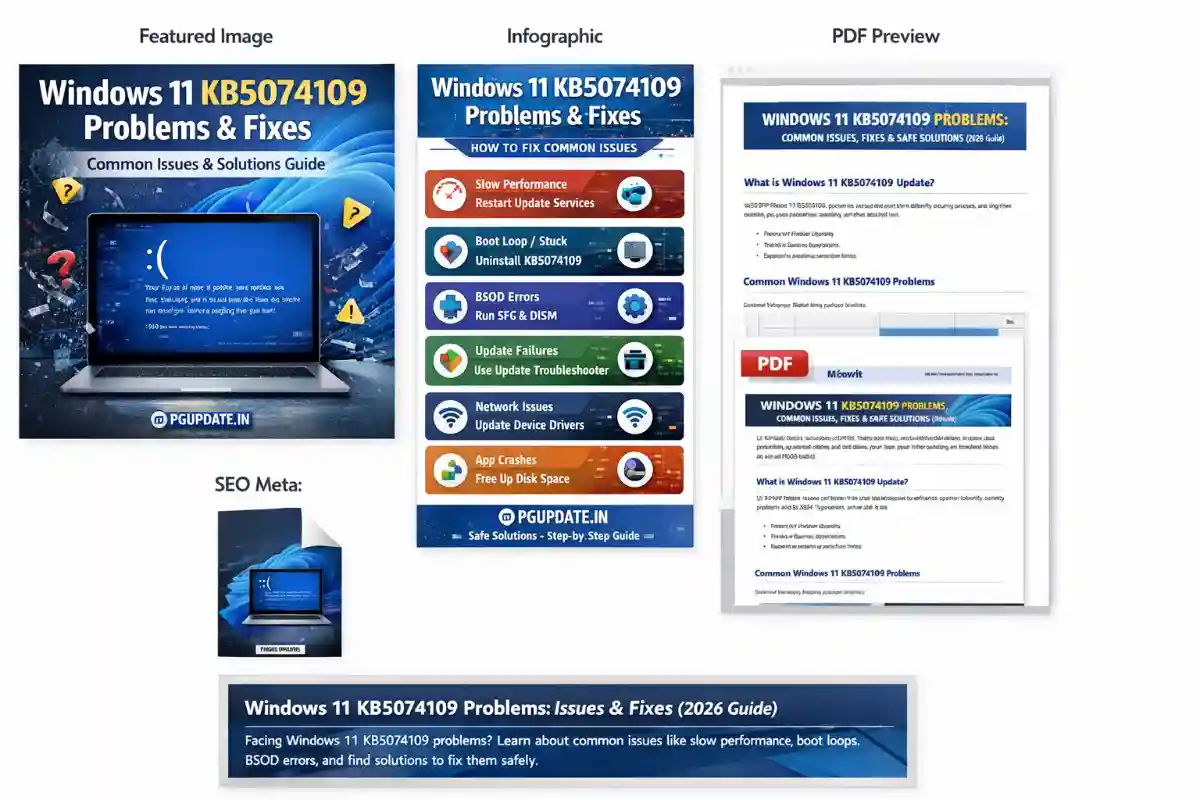
1. Windows 11 Slow Performance After KB5074109
Many users noticed that their PC became extremely slow after installing KB5074109.

Symptoms:
- High CPU usage
- Lag while opening apps
- Slow startup and shutdown
Possible Cause:
Background services conflict after update installation.
2. Windows 11 Stuck on Restart or Boot Loop
One of the most serious Windows 11 KB5074109 problems is the boot loop issue.
Symptoms:
- PC stuck at Windows logo
- Continuous restart loop
- Black screen after restart
🔗 Related Guide on PGUPDATE.IN:
👉 How to Fix Windows 11 Boot Problems
3. Blue Screen of Death (BSOD) After KB5074109
Some systems show BSOD errors immediately after the update.
Common Error Codes:
- IRQL_NOT_LESS_OR_EQUAL
- SYSTEM_SERVICE_EXCEPTION
- MEMORY_MANAGEMENT
🔗 External Reference:
👉 Microsoft BSOD Troubleshooting Guide
4. Windows Update KB5074109 Installation Failed
Many users complained that KB5074109 fails to install completely.
Common Error Codes:
- 0x800f0922
- 0x80070002
- 0x800f081f
This issue mostly occurs due to:
- Corrupted update files
- Low system storage
- Interrupted download
5. Wi-Fi and Network Issues After KB5074109
Another major Windows 11 KB5074109 problem is network connectivity loss.
Symptoms:
- Wi-Fi disconnects frequently
- No internet access
- Ethernet not detected
🔗 External Source:
👉 Windows 11 Network Troubleshooting (Microsoft)
6. Apps Crashing or Not Opening
After KB5074109:
- Microsoft Edge crashes
- File Explorer stops responding
- Third-party apps fail to open
This issue is common on older hardware or outdated drivers.
Why Does Windows 11 KB5074109 Cause Problems?
The main reasons include:
| Reason | Explanation |
|---|
| Driver incompatibility | Old drivers conflict with new update |
| Corrupted system files | Update installation damages files |
| Low disk space | Update cannot install properly |
| Unsupported hardware | Older PCs struggle with updates |
How to Fix Windows 11 KB5074109 Problems (Step-by-Step)
Below are safe and tested solutions to fix KB5074109 issues.
Solution 1: Restart Windows Update Services
- Press Win + R
- Type
services.msc - Restart:
- Windows Update
- Background Intelligent Transfer Service (BITS)
✔ Fixes installation errors.
Solution 2: Run Windows Update Troubleshooter
- Go to Settings → System → Troubleshoot
- Click Other Troubleshooters
- Run Windows Update Troubleshooter
✔ Automatically detects KB5074109 issues.
Solution 3: Uninstall KB5074109 Update (Temporary Fix)
If problems persist:
- Go to Settings → Windows Update
- Click Update History
- Select Uninstall Updates
- Remove KB5074109
⚠ Recommended only if system becomes unusable.
🔗 Microsoft Guide:
👉 How to Uninstall Windows Updates
Solution 4: Repair Corrupted System Files (SFC & DISM)
Open Command Prompt as Administrator and run:
sfc /scannow
DISM /Online /Cleanup-Image /RestoreHealth
✔ Fixes BSOD and crashes.
Solution 5: Update Device Drivers
Outdated drivers are a major cause of KB5074109 problems.
- Open Device Manager
- Update:
- Display drivers
- Network drivers
- Chipset drivers
🔗 External Tool:
👉 Intel Driver & Support Assistant
Solution 6: Free Up Disk Space
Ensure at least 20 GB free space.
- Delete temporary files
- Use Disk Cleanup
- Remove unused apps
✔ Helps smooth update installation.
Should You Install Windows 11 KB5074109?
✔ Recommended If:
- You use latest hardware
- No previous update issues
- Security updates are critical
❌ Avoid If:
- Your PC is old
- You already face crashes
- System is mission-critical
Microsoft’s Response on KB5074109 Problems
Microsoft acknowledged some Windows 11 KB5074109 issues and is expected to release a hotfix update soon.
🔗 Track updates here:
👉 Windows 11 Release Health Dashboard
How to Prevent Future Windows 11 Update Problems
✔ Always create a System Restore Point
✔ Delay updates for a few days
✔ Keep drivers updated
✔ Avoid beta/preview updates
FAQs – Windows 11 KB5074109 Problems
Q1. Is Windows 11 KB5074109 safe?
Yes, but some systems experience issues.
Q2. Can I stop KB5074109 from reinstalling?
Yes, pause updates temporarily.
Q3. Does KB5074109 cause data loss?
No, but backups are recommended.
Q4. When will Microsoft fix KB5074109?
A patch update is expected soon.
Final Verdict
The Windows 11 KB5074109 update brings important security fixes but has caused performance issues, crashes, boot loops, and installation errors for many users.
If your system works fine, keep the update.
If not, follow the fixes above or uninstall it temporarily.
🔔 Stay Updated with Windows Fixes
Visit 👉https://www.pgupdate.in



2 thoughts on “Windows 11 KB5074109 Problems: Common Issues, Fixes & Safe Solutions (2026 Guide)”