
🧠 Key Takeaways
🧰 What is the Windows 11 Media Creation Tool?
The Windows 11 Media Creation Tool is an official utility from Microsoft that lets you download the latest Windows 11 installation files and create installation media, such as a bootable USB drive or an ISO file.
It simplifies installing, reinstalling, or upgrading to Windows 11 without needing to manually handle ISO downloads or command-line tools.
📅 When Should You Use the Tool (and When You Shouldn’t)?
Use it when:

- You want a clean install of Windows 11.
- You need installation media for multiple PCs.
- Your current system won’t update through Windows Update.
Don’t use it when:
- You only need a minor update — use Windows Update instead.
- You’re trying to install on an unsupported device (see notes below).
- Third-party workarounds (e.g., bypassing system requirements) might risk security.
Learn more about alternatives and system compatibility in our article on Windows 11 upgrade methods.

🔗 Official Download: Where to Get It Safely
Get the official tool from Microsoft — NEVER download from random websites:
🔗 Official Windows 11 Download Page: https://www.microsoft.com/software-download/windows11
Scroll to “Create Windows 11 Installation Media” and click Download Now to get MediaCreationTool.exe.
📌 This tool only works on supported Windows systems and is the safest way to create your media.
Also Read

📝 What You Need Before You Start
| Requirement | Details |
|---|---|
| USB Flash Drive | 8GB minimum (all data erased) |
| Internet Connection | Stable for downloading large files |
| Admin Rights | Required to run the tool |
| Compatible PC | Meets Windows 11 system requirements |
Pro Tip: Back up personal files to cloud or external storage before installation.
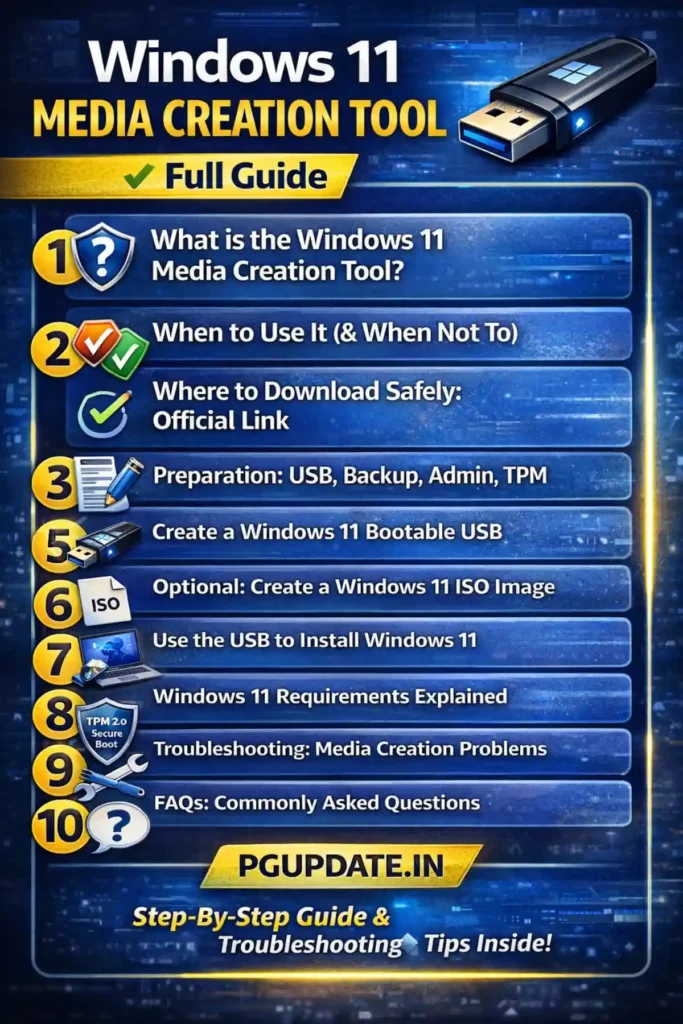
💽 How to Create a Windows 11 Bootable USB (Step-by-Step)
Follow these steps once you’ve downloaded MediaCreationTool.exe:

- Insert an 8GB+ USB flash drive into your PC.
- Run MediaCreationTool.exe as administrator.
- Accept Microsoft’s license terms.
- Choose Create installation media and click Next.
- Select Language, Edition, and Architecture (or keep recommended).
- Choose USB flash drive and select the correct drive.
- Wait as the tool downloads files and creates the bootable USB.
- When finished, safely eject the USB.
This USB can now be used to install or reinstall Windows 11.
📀 How to Create a Windows 11 ISO File Instead (Optional)
If you prefer an ISO (for burning to DVD or using it with virtual machines):
- Run MediaCreationTool.exe.
- Choose ISO file instead of USB.
- Save it to a folder.
- Use tools like Rufus to write ISO to USB later (optional).
🛑 Avoid modifying the ISO to bypass system requirements unless you understand the risks.
🖥️ How to Install Windows 11 Using the USB
- Insert the bootable USB and restart your PC.
- Press the BIOS/UEFI key (often F2, F9, F12, Del) to enter the boot menu.
- Select the USB drive to boot from.
- Follow the Windows 11 setup instructions.
- Choose whether to Keep files or do a Clean install.
For detailed steps see Microsoft’s guide on reinstalling Windows with installation media.
🧪 Windows 11 Requirements (TPM 2.0 + Secure Boot)
Windows 11 requires certain system features:
- TPM 2.0 – Trusted Platform Module security chip.
- Secure Boot – UEFI firmware security option.
- You can check these with the Microsoft PC Health Check app.
For help enabling TPM and Secure Boot see Microsoft’s system requirements page.
💡 Many installation issues stem from missing TPM or Secure Boot.
🛠️ Troubleshooting: Common Problems & Fixes
| Issue | Likely Fix |
|---|---|
| USB not booting | Check BIOS boot order |
| Media Creation Tool stuck | Restart and retry |
| Error during download | Check internet connection |
| PC won’t install Windows 11 | Confirm TPM & Secure Boot settings |
🔗 If you’re curious about installing Windows 11 on unsupported hardware, we discuss risks and options in our unsupported installation guide.
❓ FAQs about Windows 11 Media Creation Tool
Q: Is the Media Creation Tool free?
Yes, it’s free from Microsoft.
Q: Can I use it on another PC?
Yes, you can create media to install on multiple devices.
Q: Do I need Windows 11 to run the tool?
You need a compatible system (e.g., Windows 10/11).
Q: Can I upgrade without losing data?
Yes, you’ll be given an option during setup.
(More FAQs can be added based on audience)
🧾 Final Thoughts
The Windows 11 Media Creation Tool is the safest and most official way to create installation media for Windows 11. Whether you’re upgrading a PC or performing a fresh install, use the steps above and refer to official Microsoft documentation for any detailed concerns.
👉 For more tutorials on Windows tools and updates, visit https://www.pgupdate.in for regularly updated guides.



1 thought on “Windows 11 Media Creation Tool: How to Download & Create a Bootable USB (2026 Guide)”