If you’re seeing “Pending Download” in Windows Update and nothing is happening, you’re not alone. This guide will help you understand why this happens and how to fix it quickly.
What Does “Pending Download” Mean?
“Pending Download” means Windows has found an update but can’t download it right now. The update is waiting in a queue but something is preventing the download from starting or completing.

The normal Windows Update process works in three steps:
- Check for updates – Windows connects to Microsoft’s servers
- Download updates – Updates are downloaded to your computer
- Install updates – Updates are installed and may require a restart
When you see “Pending Download,” the process is stuck at step 2.

Quick Fixes to Try First
Before diving into complex solutions, try these simple fixes that resolve most “Pending Download” issues:
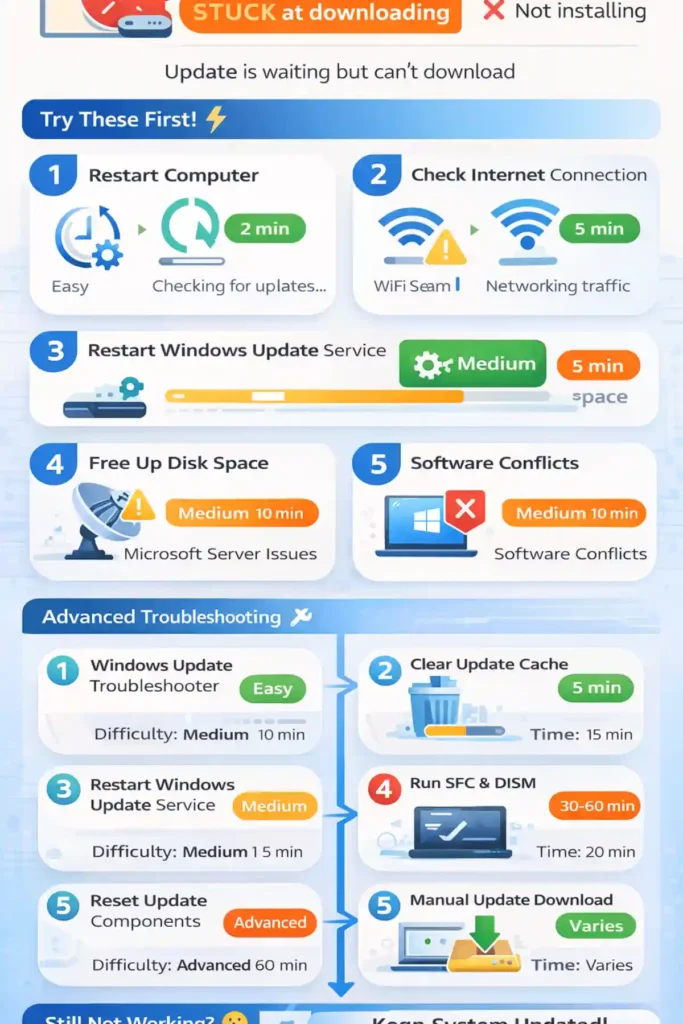
1. Restart Your Computer
A simple restart can clear temporary glitches that prevent Windows Update from working. After restarting, check Windows Update again.

2. Check Your Internet Connection
Make sure you have a stable internet connection. Updates can’t download without internet access. Try:
- Opening a web browser to test your connection
- Running Windows Network Troubleshooter (Settings > Network & Internet > Status > Network troubleshooter)
- Restarting your router if your connection seems slow
3. Restart Windows Update Service
The Windows Update service might need a restart:

- Press Windows + R to open the Run dialog
- Type services.msc and press Enter
- Find “Windows Update” in the list
- Right-click it and select “Restart”
4. Free Up Disk Space
Updates need free space to download. Check if your system drive has at least 10-20 GB available:
- Open Settings > System > Storage
- Check available space on your C: drive
- Use Storage Sense or Disk Cleanup to remove temporary files
Common Causes of “Pending Download” in 2026
If quick fixes don’t work, the issue might be more complex. Here are the most common causes:
Microsoft Server Issues
Sometimes Microsoft’s update servers are overloaded or undergoing maintenance. This is especially common right after major updates are released. If this is the cause, the issue will resolve itself – just wait a few hours and try again.
Network Configuration Problems
Proxy settings, VPN connections, or firewall rules can block Windows Update. Check your network settings and temporarily disable VPN or proxy to test.
Corrupted Update Components
Windows Update files can become corrupted, preventing new downloads. This is fixable by clearing the update cache (explained below).
2026 Infrastructure Changes
Microsoft updated its Windows Update infrastructure in 2026, introducing new security protocols and delivery methods. Some older systems may experience compatibility issues, especially devices from before 2024.
Advanced Solutions
If basic troubleshooting didn’t work, try these more advanced solutions:
Run Windows Update Troubleshooter
Windows includes a built-in troubleshooter that can automatically detect and fix update problems:
- Open Settings > System > Troubleshoot > Other troubleshooters
- Find “Windows Update” and click “Run”
- Follow the on-screen instructions
Clear Windows Update Cache
Clearing the update cache removes corrupted files that might be blocking downloads:
- Open Services (Windows + R, type services.msc)
- Stop the “Windows Update” service (right-click > Stop)
- Open File Explorer and navigate to C:\Windows\SoftwareDistribution
- Delete everything inside this folder (you may need administrator permissions)
- Go back to Services and start the Windows Update service again
- Check for updates again
Run System File Checker (SFC) and DISM
These tools repair corrupted Windows system files:
- Open Command Prompt as Administrator (search for “cmd”, right-click, select “Run as administrator”)
- Type: sfc /scannow and press Enter (this may take 15-30 minutes)
- After SFC completes, type: DISM /Online /Cleanup-Image /RestoreHealth and press Enter
- Restart your computer and check for updates
Reset Windows Update Components
This completely resets Windows Update to its default state. Open Command Prompt as Administrator and run these commands one by one:
net stop wuauserv net stop cryptSvc net stop bits net stop msiserver ren C:\Windows\SoftwareDistribution SoftwareDistribution.old ren C:\Windows\System32\catroot2 catroot2.old net start wuauserv net start cryptSvc net start bits net start msiserver
Download Updates Manually
If automatic updates won’t work, you can download them manually:
- Visit the Microsoft Update Catalog website (catalog.update.microsoft.com)
- Search for the update you need using its KB number
- Download the correct version for your system
- Install the update manually by double-clicking the downloaded file
Hardware and Software Compatibility Issues
Pre-2024 Hardware Limitations
Computers manufactured before 2024 may have compatibility issues with the new update infrastructure. Check if your device meets the minimum requirements for 2026 updates:
- TPM 2.0 chip
- UEFI firmware with Secure Boot
- At least 4GB RAM (8GB recommended)
- 64GB storage minimum
Conflicting Security Software
Third-party antivirus, firewall, or security software can interfere with Windows Update. Try temporarily disabling these programs and checking for updates. If this fixes the issue, add Windows Update to your security software’s whitelist.
Driver Conflicts
Outdated or incompatible drivers can prevent updates from installing. Update your drivers through Device Manager or download them directly from your hardware manufacturer’s website.
Preventing Future Update Problems
Take these steps to avoid “Pending Download” issues in the future:
Keep Adequate Free Space
Always maintain at least 20GB of free space on your system drive. Use Storage Sense to automatically clean temporary files.
Set Active Hours
Configure active hours in Windows Update settings so updates don’t interfere with your work. Windows will schedule downloads and installations outside these hours.
Use Metered Connection Wisely
If you’ve set your connection as metered to save data, remember that this prevents automatic downloads. Manually check for updates regularly when on Wi-Fi.
Regular Maintenance
Run Disk Cleanup monthly and keep your drivers updated. This prevents issues before they start.
When to Use System Restore or Contact Support
Using System Restore
If a recent update caused the “Pending Download” issue, you can restore your system to an earlier point:
- Search for “Create a restore point” in Windows
- Click “System Restore”
- Choose a restore point from before the problem started
- Follow the prompts to restore
Reset Windows (Keep Files)
As a last resort, you can reset Windows while keeping your personal files:
- Go to Settings > System > Recovery
- Click “Reset PC”
- Choose “Keep my files”
- Follow the instructions
Contact Microsoft Support
If none of these solutions work, contact Microsoft Support. They can provide personalized assistance and may have access to solutions for specific error codes or system configurations.
Quick Reference: Troubleshooting Steps
Here’s a summary of troubleshooting steps in order of difficulty:
| Difficulty | Solution | Time Needed |
| Easy | Restart computer | 2 minutes |
| Easy | Check internet connection | 5 minutes |
| Easy | Restart Windows Update service | 5 minutes |
| Easy | Free up disk space | 10 minutes |
| Medium | Run Windows Update Troubleshooter | 10 minutes |
| Medium | Clear Windows Update cache | 15 minutes |
| Advanced | Run SFC and DISM | 30-60 minutes |
| Advanced | Reset Windows Update components | 20 minutes |
| Last Resort | System Restore or Reset PC | 1-2 hours |
Final Thoughts
The “Pending Download” status in Windows Update can be frustrating, but it’s usually fixable. Start with the simplest solutions – restart your computer, check your internet connection, and make sure you have enough disk space. If those don’t work, move on to the Windows Update Troubleshooter and clearing the update cache.
For persistent issues, the advanced solutions like SFC, DISM, and resetting Windows Update components typically resolve even stubborn problems. Remember that keeping your system maintained with regular updates, adequate free space, and updated drivers prevents most update issues from occurring in the first place.
If you’ve tried everything and the problem persists, don’t hesitate to contact Microsoft Support. They have access to diagnostic tools and solutions that aren’t available to the general public.