
Learn how to download Windows 10 on Chrome/Chromebook without USB in 2025. Complete step-by-step guide with virtual machine installation, FAQs, troubleshooting tips & performance optimization for running Windows 10 on Chromebook.
Want to run Windows 10 on your Chromebook but don’t know where to start? You’re not alone. Thousands of Chromebook users search for ways to install Windows 10 to access full desktop applications, Microsoft Office, and gaming software. This comprehensive guide shows you exactly how to download and install Windows 10 on Chromebook without complications.

Can I Download Windows 10 on a Chromebook?
Yes, you can download and install Windows 10 on most Intel or AMD-based Chromebooks. While Chromebooks run ChromeOS by default, modern devices support virtual machine installations that allow Windows 10 to run alongside ChromeOS. However, ARM-based Chromebooks cannot run Windows 10 natively.
Requirements Before Installing Windows 10 on Chromebook

Before you begin the Windows 10 installation process, ensure your Chromebook meets these minimum specifications:

- Processor: Intel Core i3/i5/i7 or AMD Ryzen (64-bit)
- RAM: Minimum 8GB recommended
- Storage: At least 64GB internal storage with 35GB free space
- Linux Support: Your Chromebook must support Linux (Beta)
- KVM Support: Kernel-based Virtual Machine for better performance
To check compatibility, visit the official Chromebook support page or search your specific Chromebook model on MrChromebox.tech.
How to Install Windows 10 on Chromebook Without USB
The easiest method to get Windows 10 on Chromebook is through a virtual machine setup. This approach doesn’t require USB drives and keeps your ChromeOS intact.

Step 1: Enable Linux on Your Chromebook
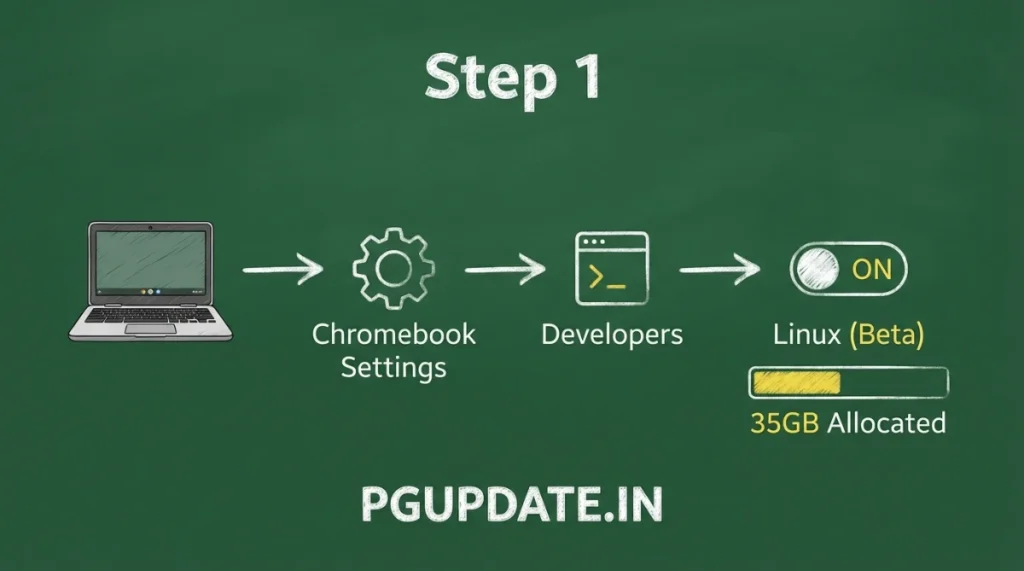
First, activate Linux support on your Chromebook:
- Open Settings on your Chromebook
- Navigate to Developers section
- Find Linux (Beta) option
- Click Turn On and allocate 35GB storage space
- Wait for Linux installation to complete
Step 2: Install Virtual Machine Manager
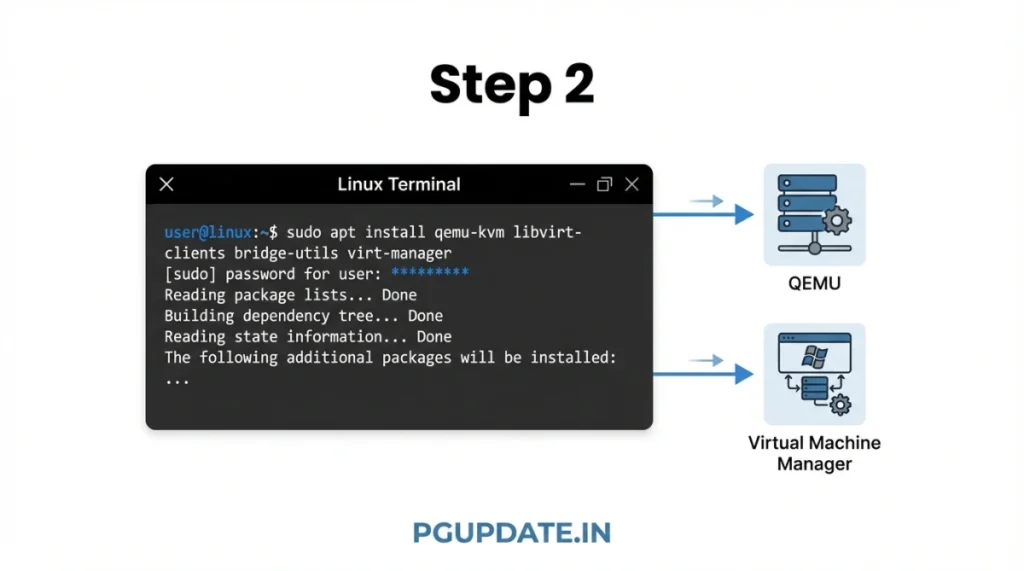
Open the Linux Terminal from your app drawer and execute these commands:

sudo apt update && sudo apt upgrade -y
sudo apt install qemu-kvm libvirt-clients libvirt-daemon-system bridge-utils virtinst libvirt-daemon virt-manager -y
This installs QEMU and Virtual Machine Manager, essential tools for running Windows 10.
Step 3: Download Windows 10 ISO File
Visit the official Microsoft Windows 10 download page to obtain your Windows 10 ISO file legally. Select:
- Windows 10 64-bit edition
- Your preferred language
- Download location
After downloading, move the ISO file to your Linux files folder on the Chromebook.
Step 4: Create Windows 10 Virtual Machine
- Open Virtual Machine Manager from Linux apps
- Click Create a new virtual machine
- Select Local install media
- Click Browse and choose your Windows 10 ISO file
- Allocate 4GB RAM (4096 MB) and 4 CPU cores
- Set storage to 65GB minimum
- Name your virtual machine (e.g., “Windows10”)
- Click Finish to begin installation
Step 5: Complete Windows 10 Setup
The Windows 10 installer will launch automatically. Follow the on-screen instructions to:
- Select installation language
- Accept license terms
- Choose installation type (recommended: Custom)
- Wait for Windows 10 to install (30-60 minutes)
- Set up your user account
Once complete, Windows 10 will run inside your Chromebook like any other application.
Can I Download Windows 10 Without USB?
Absolutely. The virtual machine method described above allows you to download and install Windows 10 on Chromebook without USB drives. This is the safest and most reliable installation method for Chromebook users in 2025.
Alternative methods exist, such as:
- Cloud-based Windows access through services like Microsoft Remote Desktop
- Parallels Desktop for Chromebook Enterprise users
- CrossOver software for running specific Windows applications
However, these alternatives may have limitations or require subscriptions.
Performance Tips for Windows 10 on Chromebook
To optimize your Windows 10 Chromebook experience:
- Keep your Chromebook plugged in during Windows use for best performance
- Close unnecessary ChromeOS apps before launching Windows VM
- Update Windows regularly through Windows Update settings
- Install Chromebook-specific drivers after Windows installation
- Use lightweight Windows programs when possible
Chromebooks with KVM support deliver significantly better Windows 10 performance. Check if your device supports KVM by running egrep -c '(vmx|svm)' /proc/cpuinfo in Linux Terminal. A result greater than 0 indicates KVM support.
Troubleshooting Common Windows 10 Installation Issues
Touchpad or WiFi not working: Download and install Windows drivers from CoolStar specific to your Chromebook model.
Slow performance: Reduce allocated RAM to 3GB, allocate more storage space to Linux, or consider using Windows 7 if your device lacks KVM support.
Installation freezes: Ensure you have allocated sufficient storage (65GB minimum) and that your Chromebook is plugged into power during installation.
Audio issues: Install Chromebook-specific audio drivers after Windows installation completes.
Frequently Asked Questions
How to install Windows 10 on Chromebook no USB?
Use the virtual machine method with Linux (Beta) and Virtual Machine Manager. This approach downloads Windows 10 directly and installs it without requiring any USB drives. The process takes approximately 2-3 hours from start to finish.
Can I download Windows 10 on a Chromebook?
Yes, you can download Windows 10 ISO files from Microsoft’s official website and install them on Intel or AMD-based Chromebooks using virtual machine software. ARM-based Chromebooks cannot run Windows 10.
Can I download Windows 10 without USB?
Yes, downloading Windows 10 without USB is possible through virtual machine installation on Chromebooks with Linux support. You download the ISO file directly to your Chromebook storage and install through Virtual Machine Manager.
Will installing Windows 10 void my Chromebook warranty?
Installing Windows 10 through virtual machines does not void your warranty as you’re not modifying the firmware. However, enabling Developer Mode and replacing firmware (full installation method) may void warranties on some devices.
Is Windows 10 on Chromebook legal?
Yes, running Windows 10 on Chromebook is legal provided you have a valid Windows 10 license. You can purchase licenses from Microsoft Store or use existing licenses you own.
How much storage do I need for Windows 10 on Chromebook?
You need minimum 64GB total Chromebook storage with at least 65GB allocated to Linux and the Windows virtual machine. For comfortable usage, 128GB or more internal storage is recommended.
Can I run Windows 10 and ChromeOS at the same time?
Yes, the virtual machine method allows you to run Windows 10 inside ChromeOS. You can switch between Windows applications and Chrome browser seamlessly without restarting your device.
Conclusion
Installing Windows 10 on your Chromebook opens up a world of desktop application possibilities without sacrificing ChromeOS benefits. The virtual machine method provides the safest, most reliable approach to run Windows 10 without USB drives or firmware modifications.
Remember to ensure your Chromebook meets minimum requirements, particularly 8GB RAM and Intel/AMD processor support. With proper setup, you can enjoy full Windows 10 functionality on your Chromebook for productivity, gaming, and specialized software needs.
For the latest Chromebook-compatible Windows drivers and firmware updates, bookmark MrChromebox and CoolStar resources.
Last Updated: January 2025



