

Is gpupdate not working on your Windows 10 or Windows 11 PC? Whether you’re seeing "Access Denied", "The processing of Group Policy failed", or the command just hangs forever — this guide has 7 proven fixes to get it working again in 2026.
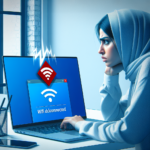
Common GPUpdate Errors
- Access Denied when running gpupdate
- gpupdate hangs and never completes
- “The processing of Group Policy failed”
- gpupdate completes but policies don’t apply
- gpupdate /force not working on remote computer
- “Computer Policy update has completed but User Policy failed”
Fix 1: Run Command Prompt as Administrator
The most common reason gpupdate fails is missing admin rights. Computer-level Group Policy updates always require elevated permissions.
- Press Win + S → search Command Prompt
- Right-click → Run as Administrator
- Run:
gpupdate /force
Never run gpupdate from a standard (non-admin) Command Prompt when updating computer policies.

Fix 2: Check Network Connectivity to Domain Controller
GPUpdate communicates with the Domain Controller (DC) to fetch updated policies. If the DC is unreachable, gpupdate will fail.
- Open Command Prompt as Admin
- Run:
ping yourdomain.com - If ping fails, check your network connection and VPN
- Test DC connectivity:
nltest /dsgetdc:yourdomain.com
If your PC cannot reach the DC, gpupdate will always fail regardless of what switches you use.

Fix 3: Flush DNS and Retry
DNS resolution failures prevent gpupdate from locating the Domain Controller.
ipconfig /flushdns
ipconfig /registerdns
gpupdate /force
After flushing DNS, retry the gpupdate command. This resolves the majority of "processing of Group Policy failed" errors in domain environments.

Fix 4: Increase the Wait Timeout
If gpupdate hangs on slow networks or with many GPOs, the default 600-second timeout may expire before processing completes.
gpupdate /force /wait:1800This gives gpupdate 30 minutes to complete. For extremely slow environments:
gpupdate /force /wait:-1The -1 value means wait indefinitely until processing finishes.
Fix 5: Check Event Viewer for Group Policy Errors
Event Viewer contains detailed error logs that reveal exactly why gpupdate is failing.
- Press Win + R → type
eventvwr.msc→ Enter - Navigate to: Applications and Services Logs → Microsoft → Windows → GroupPolicy → Operational
- Look for Error or Warning events
- Note the Event ID and error description
Common Event IDs:
- Event 1129 — Network connectivity to DC failed
- Event 1030 — Could not query GPO list from DC
- Event 7016 — A specific CSE (Client Side Extension) failed
Fix 6: Reset Group Policy Settings
If Group Policy settings are corrupted, resetting them often fixes persistent gpupdate failures.
- Open Command Prompt as Administrator
- Run these commands in order:
rd /S /Q "%WinDir%System32GroupPolicy"
rd /S /Q "%WinDir%System32GroupPolicyUsers"
gpupdate /force
This deletes locally cached Group Policy files and forces a full fresh download from the Domain Controller.
Fix 7: Re-enable WinRM for Remote GPUpdate Failures
If gpupdate is failing on remote computers via Invoke-GPUpdate, WinRM (Windows Remote Management) may be disabled.
- On the remote computer, open PowerShell as Admin
- Run:
Enable-PSRemoting -Force - Then retry:
Invoke-GPUpdate -Computer "PCName" -RandomDelayInMinutes 0 -Force
Also ensure firewall rules allow WinRM traffic (port 5985).
How to Verify GPUpdate Worked Correctly
After fixing the issue, always verify policies applied successfully:
gpresult /rFor a full HTML report showing every applied GPO:
gpresult /h C:GPReport.htmlKey Takeaways
- Always run CMD as Administrator for computer policy updates
- Network connectivity to the Domain Controller is mandatory
- Flushing DNS resolves most “policy failed” errors
- Use
/wait:-1to prevent timeout on slow networks - Event Viewer → GroupPolicy → Operational gives exact error details
For more Windows guides, visit PGUpdate.in. Also check our complete gpupdate /force command guide and learn how to fix Windows 11 not updating.
Frequently Asked Questions
Why does gpupdate say “Access Denied”?
You’re not running Command Prompt as Administrator. Right-click CMD → Run as Administrator, then retry.
Why does gpupdate hang indefinitely?
Usually caused by slow DC connectivity, many GPOs, or WMI issues. Run gpupdate /force /wait:1800 to extend the timeout.
Can I run gpupdate if not on a domain?
Yes. On non-domain PCs, gpupdate refreshes Local Group Policy settings (found in gpedit.msc) instead of domain GPOs.
Why do policies still not apply after gpupdate?
Some policies (folder redirection, software installation) require a logoff or reboot. Use gpupdate /force /logoff or gpupdate /force /boot.
How do I check which Group Policies are applied?
Run gpresult /r in Command Prompt or gpresult /h C:report.html for a full detailed HTML report.



