So you’ve been staring at the same old Windows 11 desktop for months, and you’re thinking — “There’s definitely a way to make this look way cooler, right?” Absolutely! Learning how to get custom skin packs for Windows 11 is one of the most satisfying (and surprisingly easy) ways to completely transform your PC experience without reinstalling anything or spending a fortune.
In this friendly, step-by-step guide, we cover everything you need to know — what Windows 11 skin packs are, where to safely download them, which tools you’ll need, how to install them properly, the best packs to try in 2026, and how to troubleshoot common issues. Let’s dive in! 🚀

⚠️ Before You Start: Always create a Windows System Restore Point before installing any skin pack or theme. It takes less than 2 minutes and can save you hours of headache if something goes wrong.
📋 Table of Contents
- 1. What Are Custom Skin Packs for Windows 11?
- 2. Where to Safely Download Windows 11 Skin Packs
- 3. Tools You Need Before Installing
- 4. How to Install a Skin Pack – Step by Step
- 5. Best Custom Skin Packs for Windows 11 in 2026
- 6. Safety Tips You Must Follow
- 7. Skin Pack Not Working? Fix It Here
- 8. Best Tools – Quick Comparison Table
- 9. Bonus: Supercharge with Rainmeter
- 10. Frequently Asked Questions
- 11. Final Thoughts
What Are Custom Skin Packs for Windows 11?
A skin pack for Windows 11 is a bundled collection of visual customization files — icons, wallpapers, cursor themes, taskbar styles, window frame designs, and system fonts — all packaged together to give your desktop a completely fresh, new identity.

Unlike just changing your wallpaper, a proper Windows 11 custom skin pack digs deeper and can reshape:
- The Start Menu layout and visual design
- Taskbar appearance, position, and icons
- Window title bars, borders, and transparency/blur effects
- System-wide fonts and colour schemes
- Mouse cursors and system sounds
- Lock screen and login screen visuals
Think of it like a full wardrobe makeover for your operating system — your PC looks the same under the hood, but the entire visual presentation is brand new. And with hundreds of incredible free Windows 11 skin packs available online, you can switch looks as often as you like.

Where to Safely Download Windows 11 Skin Packs (Best Trusted Sources)
This is arguably the most important part of the entire guide. Downloading Windows 11 skin packs from sketchy websites is a fast route to malware. Always stick to these well-known, trusted platforms:
1. DeviantArt – Largest Community for Windows Themes
DeviantArt hosts the biggest collection of Windows customization content on the internet. The DeviantArt Windows Customization Section has thousands of free skin packs and visual styles shared daily by passionate designers. Filter by “Windows 11” and sort by popularity to find the gems.

2. WinCustomize – Premium Quality Themes
WinCustomize.com is one of the most reputable Windows customization platforms, backed by Stardock — the company behind iconic tools like WindowBlinds, Fences, and Start11. It’s the place to go for premium-grade Windows 11 visual styles and skin packs.
3. GitHub – Open Source Transparency
Many of the best Windows 11 theme packs are open-source and hosted on GitHub’s Windows 11 Theme Projects. The massive advantage here is transparency — you can read the code before running anything. Great for tech-savvy users who want full control.
4. NexusMods – Unique Themes You Won’t Find Elsewhere
NexusMods.com is best known for game modifications, but it also has a growing section of Windows UI customization packs — especially game-inspired themes like Skyrim, Cyberpunk, and more.
5. Pling / OpenDesktop – Community-Driven Collection
Pling.com’s Desktop Themes Section offers a solid library of free, community-created Windows 11 themes and skin packs. Many are cross-platform and of surprisingly high quality. A great alternative if DeviantArt feels overwhelming.
Tools You Need to Install Custom Skin Packs on Windows 11
Windows 11 by default only allows Microsoft-signed themes. To use third-party custom skin packs, you need a couple of lightweight utility tools. Here’s what’s required:
UltraUXThemePatcher – Enable Custom Visual Styles
UltraUXThemePatcher is a small utility that patches your Windows theme DLL files to allow unsigned custom visual styles (.msstyles) to load. It’s one of the most used tools in the Windows customization community and is regularly updated for new Windows builds.
SecureUXTheme – Safer Alternative
If patching system files makes you nervous, SecureUXTheme (GitHub) is an open-source tool that achieves the same result without permanently modifying protected system DLLs. It’s the safer, more modern approach recommended for Windows 11 22H2 and later.
StartAllBack – Advanced Shell Customization
For skin packs that involve deeper transformations of the taskbar or Start Menu, StartAllBack is a brilliant (and very affordable at ~$5) tool that gives you full control over the Windows 11 shell. Many popular macOS-style and Windows 10-style skin packs rely on it.
7-Zip – Extract Compressed Skin Pack Files
Almost all skin packs come as ZIP or RAR archives. Make sure you have 7-Zip (completely free) installed so you can extract the contents properly before installation.
Rainmeter – Desktop Widgets (Bonus Tool)
While not strictly required, Rainmeter is the go-to tool for adding beautiful desktop widgets — clocks, weather displays, music players, system monitors — that perfectly complement your skin pack. It’s free and completely open source.
How to Install Custom Skin Packs on Windows 11 – Step-by-Step
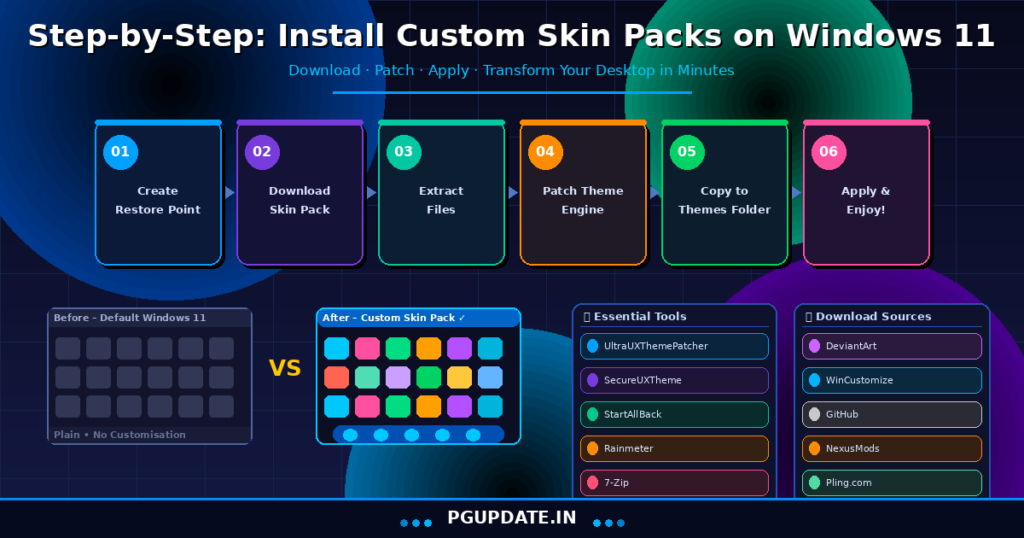
Here’s the complete, beginner-friendly process for installing a Windows 11 custom skin pack using the safe manual method. We’re using a .msstyles visual style pack as the example — this is the most common and recommended format.
💡 Tip: The whole process takes about 10–15 minutes. Read through all steps once before you begin so there are no surprises!
Step 1 – Create a System Restore Point
Open your Start Menu and search for “Create a restore point”. In the System Properties window that opens, click the “Create” button and name it something memorable like “Before Skin Pack — [Date]”. Click Create and wait for it to complete. Done — your safety net is set!
Step 2 – Download Your Chosen Windows 11 Skin Pack
Visit one of the trusted sources from Section 2 above and download your preferred custom skin pack for Windows 11. Save it to a location you’ll remember — your Desktop or Downloads folder works perfectly.
Step 3 – Extract the Skin Pack Files
Right-click the downloaded .zip or .rar file and select “Extract Here” using 7-Zip. You should see a folder containing a .msstyles file, an icons folder, wallpapers, and often a README or instructions file. Read that README! The developer often includes important tips.
Step 4 – Patch the Windows Theme Engine
Run either UltraUXThemePatcher or SecureUXTheme as Administrator (right-click → Run as Administrator). Follow the on-screen instructions — it usually completes in under a minute. You may need to restart your PC after this step before proceeding.
Step 5 – Copy Files to the Windows Themes Folder
Copy the entire extracted skin pack folder to the following directory on your PC:
C:\Windows\Resources\Themes\Important: The .msstyles file must be inside a named subfolder within the Themes directory — not placed directly in the Themes root folder. Windows requires this structure to recognise and display the theme.
Step 6 – Apply Your New Skin Pack
Right-click on your Desktop and select Personalize. Navigate to the Themes section. Scroll through the available themes — your newly added skin pack should now appear in the list! Click it to apply. Your screen will briefly flash as Windows refreshes, and your brand new theme will be live.
Step 7 – Apply Extra Elements (Icons, Cursors, Wallpapers)
Many Windows 11 skin packs include additional elements beyond the core visual style. For icon packs, follow the instructions in the README (usually involves running an icon installer or manually applying). For cursors, go to Settings → Bluetooth & devices → Mouse → Additional mouse settings → Pointers and browse to the cursors folder in your skin pack. For wallpapers, right-click the included image and select Set as desktop background.
Best Custom Skin Packs for Windows 11 in 2026
Now the really fun part! Here are the most popular and visually stunning free Windows 11 skin packs the community is raving about this year:
🍎 1. macOS Sonoma / Sequoia Skin Pack
Transform Windows 11 into a near-perfect macOS lookalike. This category of skin packs converts your taskbar into a Mac-style Dock, replaces system icons with Apple-style ones, and applies a beautiful frosted glass and blur effect throughout. Search “macOS Windows 11 theme” on DeviantArt — you’ll find several excellent variants.
🪟 2. Windows 10 Classic Throwback Pack
Miss the Windows 10 Start Menu and taskbar style? There are excellent Windows 10-style skin packs for Windows 11 that restore the classic look — centred or left-aligned taskbar options, the old Start Menu layout, and familiar icon styles — all without actually downgrading.
🌆 3. Cyberpunk / Neon Futuristic Theme
For gamers and sci-fi fans, cyberpunk-inspired skin packs are absolutely jaw-dropping — dark backgrounds with electric neon accents, futuristic fonts, glowing borders, and night-city wallpapers. Several stunning variants can be found on DeviantArt’s Windows section.
🐧 4. Ubuntu / Linux GNOME Skin Pack
Want the power of Windows with the sleek look of Ubuntu or GNOME Linux? These skin packs are surprisingly convincing and very popular with developers who spend time on both platforms. Includes GNOME-style window controls, the Ubuntu orange colour palette, and matching icons.
✨ 5. Fluent Design Enhanced Pack
This stays close to Windows 11’s native aesthetic but pushes it further — dramatically enhanced transparency and acrylic blur effects, refined colour palettes, updated icon sets, and polished animations. A perfect choice if you love Windows 11’s direction but want it to feel more premium.
🌿 6. Nature / Minimal Zen Pack
Beautiful earthy tones, soft gradients, minimalist icons, and calming nature wallpapers. These “Zen” skin packs are hugely popular among people who stare at screens all day and want something that feels calming and non-distracting.
Important Safety Tips for Installing Windows 11 Skin Packs
Getting excited about customisation is totally understandable, but safety should always come first. Here are the non-negotiable rules to follow:
🚨 Red Flag Alert: If a skin pack’s installer asks you to disable Windows Defender or your antivirus before running — close it immediately and delete the file. No legitimate skin pack requires this.
- Always virus-scan before running: Windows Defender can scan any file by right-clicking it and selecting “Scan with Microsoft Defender”. For extra peace of mind, use VirusTotal.com — it scans your file with 70+ antivirus engines simultaneously for free.
- Prefer manual .msstyles installation over EXE installers from unknown developers. Legitimate skin packs don’t need to run system-level executables.
- Read community reviews on DeviantArt and WinCustomize before downloading — users are fast to flag and report any packs that behave suspiciously.
- Keep your Restore Point from Step 1 intact until you’re satisfied everything is working correctly.
- Update Windows first. Applying skin packs on an up-to-date system minimises compatibility issues. Check for Windows Updates before you start. You can also refer to PG Update’s Microsoft Update Catalog Guide for keeping your system current.
Microsoft also has official guidance on themes and personalisation at their Windows 11 Themes Support Page, which is worth bookmarking.
Skin Pack Not Working on Windows 11? Here’s How to Fix It
Things don’t always go perfectly the first time. Here are the most common problems people face when installing Windows 11 custom skin packs and exactly how to fix them:
❌ Problem: Theme not showing up in Personalization Settings
Fix: Check that the .msstyles file is inside a named subfolder within C:\Windows\Resources\Themes\. The correct structure looks like this:
C:\Windows\Resources\Themes\
  └── MyThemeName\
      └── MyThemeName.msstyles
If the .msstyles file is dumped directly into the Themes root folder, Windows won’t find it.
❌ Problem: Theme applied but colours look completely wrong
Fix: Open Settings → Personalization → Colours and manually set the accent colour to the one recommended in the skin pack’s README file. Many themes are designed around a specific accent colour.
❌ Problem: Icons haven’t changed after applying the pack
Fix: Icon replacement is almost always a separate step from the visual style. Look inside your extracted skin pack for an icon installer or a folder labelled “Icons”. Many packs also include instructions for using IconPackager or manually replacing icons via File Explorer’s Properties → Change Icon option.
❌ Problem: System became unstable or slow after patching
Fix: Roll back using your System Restore Point immediately. Then try switching from UltraUXThemePatcher to the lighter SecureUXTheme approach, which is less invasive and better suited to the latest Windows 11 builds.
❌ Problem: Windows Update fails after applying a skin pack
Fix: Temporarily uninstall or disable your theme patcher, run the Windows Update, then reapply afterwards. Theme patchers occasionally interfere with specific system file updates. You can also visit our guide on Windows Update Stuck issues for detailed troubleshooting.
Best Windows 11 Skin Pack Tools – Quick Comparison Table
| Tool | Type | Cost | Best For | Risk Level |
|---|---|---|---|---|
| UltraUXThemePatcher | Theme Patcher | Free | Enabling all custom visual styles | Low–Medium |
| SecureUXTheme | Safe Theme Loader | Free | Safer alternative to patching DLLs | Very Low |
| StartAllBack | Shell Customizer | ~$4.99 | Taskbar & Start Menu transforms | Very Low |
| 7-Zip | Archive Manager | Free | Extracting .zip / .rar skin files | None |
| Rainmeter | Desktop Widget Engine | Free | Adding widgets to your skin pack | None |
Bonus: Use Rainmeter to Supercharge Your Windows 11 Look
No Windows 11 desktop customization guide is truly complete without talking about Rainmeter. This free, open-source tool lets you place beautiful, fully customisable widgets directly on your desktop — including:
- Elegant analogue or digital clock displays
- Live weather forecasts with animated icons
- Music player widgets synced with Spotify or Windows Media
- CPU, RAM, and GPU usage monitors with beautiful visualisations
- Custom launcher shortcuts with icon grids
Pair a quality Rainmeter skin with your Windows 11 custom skin pack and the result is genuinely stunning — the kind of desktop that people screenshot and post online. Download the latest version from the Official Rainmeter Website and explore thousands of community skins on DeviantArt’s dedicated Rainmeter section.
💡 Pro Tip: The “Mond” and “SysDash” Rainmeter skins pair beautifully with minimalist Windows 11 skin packs. Search for them on DeviantArt for a clean, professional-looking desktop.
Frequently Asked Questions – Windows 11 Custom Skin Packs
Are custom skin packs safe to install on Windows 11?
Yes — when downloaded from trusted sources like DeviantArt, WinCustomize, or GitHub, and installed using the safe manual method described in this guide, Windows 11 skin packs are completely safe. Always scan files with Windows Defender or VirusTotal before running anything.
Will a skin pack void my Windows 11 licence?
No. Installing custom themes or skin packs does not affect your Windows 11 licence in any way. Visual customisation is entirely on the user’s end and Microsoft has no issue with it. The tools used (UltraUXThemePatcher, SecureUXTheme) simply modify how theme files are loaded — they don’t touch activation or licencing components.
Can I easily remove a skin pack and return to the default look?
Absolutely! Just navigate to Settings → Personalization → Themes and click the default Windows 11 theme to reapply it. Your desktop will instantly return to the standard look. If you also installed a theme patcher, you can uninstall it via Settings → Apps → Installed Apps.
Do skin packs slow down Windows 11 performance?
Quality, well-made skin packs from reputable developers have a negligible performance impact — often less than 1% CPU overhead. However, poorly optimised packs with excessive high-resolution animations can cause noticeable slowdown on older or lower-spec hardware.
What’s the best free skin pack for Windows 11 beginners?
For beginners, we recommend starting with a Fluent Design Enhanced pack or a simple macOS-inspired theme from DeviantArt. These tend to be well-documented, widely tested, and have the most community support for troubleshooting.
Does applying a skin pack affect Windows Updates?
It can occasionally. When a major Windows 11 update (like a feature update) replaces system DLL files, your theme patcher may need to be re-run. We recommend temporarily disabling your theme customisation before running major Windows Updates as a precaution. See our Windows Update troubleshooting guide for help.
Final Thoughts – Time to Transform Your Windows 11 Desktop!
And there you have it — the complete, friendly guide on how to get custom skin packs for Windows 11! We’ve covered what skin packs are, the best safe download sources, all the tools you need, a full step-by-step installation walkthrough, the top themes to try in 2026, safety best practices, and common fixes.
The Windows 11 customisation community is massive, creative, and incredibly welcoming to beginners. Once you apply your first skin pack and see your desktop transformed, it’s genuinely hard to stop — in the best possible way! There are literally thousands of free Windows 11 skin packs waiting for you to discover.
So go ahead — head over to DeviantArt, pick a theme that speaks to you, follow our steps, and give that desktop the glow-up it deserves. If you have questions or want to share a screenshot of your new setup, drop a comment below! We’d love to see what you create. 🎨
Happy customising! 🖥️✨
📌 Related Guides You’ll Love
- How to Install Windows on Chromebook – Complete 2026 Guide
- Microsoft Update Catalog: The Complete 2026 Guide for IT Professionals
- Windows Update Stuck on Pending Download? Here’s How to Fix It
- How to Run GPUpdate: Refreshing Group Policy Settings
Tags: custom skin packs Windows 11 · Windows 11 skin pack download · how to install skin packs Windows 11 · best Windows 11 theme packs free · free Windows 11 themes 2026 · Windows 11 desktop customization · Windows 11 visual styles · Windows 11 icon packs · how to change Windows 11 theme · Windows 11 makeover · Rainmeter Windows 11 · UltraUXThemePatcher guide