
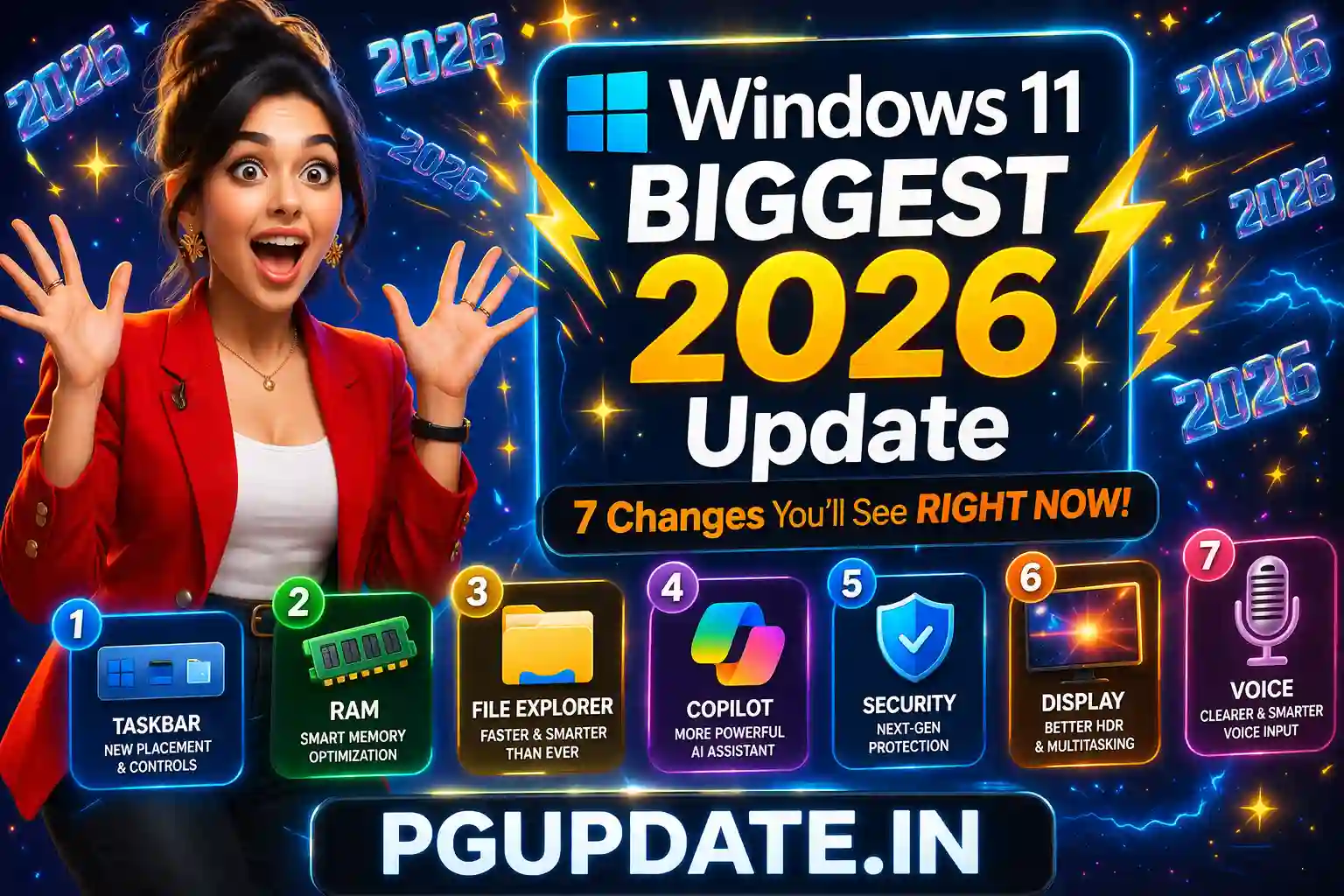
Windows 11’s biggest 2026 update is finally here — and it addresses nearly every complaint users have had since launch. Microsoft’s Windows chief Pavan Davuluri confirmed that a comprehensive year-long overhaul of Windows 11 is underway in 2026, with the first wave of changes already rolling out through Windows Insider builds in March and April. This is not a minor bug fix update — it is a fundamental rethinking of how Windows 11 looks, feels, and performs.
In this article, we break down the 7 most impactful Windows 11 2026 update features you’ll notice immediately, what’s coming later in the year, and how to get these updates on your PC right now.

Why Is Microsoft Making Such a Big Change to Windows 11 in 2026?
By late January 2026, Microsoft’s Windows president publicly admitted that Windows 11 had “gone off track.” Years of rushed AI features, intrusive Copilot integrations, forced update restarts, and performance regressions had pushed user satisfaction to an all-time low. In response, Microsoft aligned multiple engineering teams around a single goal: make Windows faster, more reliable, and more predictable to use.
Scott Hanselman, VP at Microsoft, confirmed that improvements would arrive “this month and every month this year.” This is not a one-time patch — it is a rolling monthly cadence of real improvements throughout all of 2026.

7 Windows 11 2026 Update Changes You’ll Notice Immediately
1. Movable Taskbar (Top, Left, Right)
The most demanded Windows 11 feature of all time is finally here. Microsoft confirmed you can now move the Windows 11 taskbar to the top, left, or right side of your screen via Settings → Personalization → Taskbar. After five years of being stuck at the bottom, this alone makes 2026 a landmark year for Windows. Read our dedicated guide on how to move the Windows 11 taskbar right now.
2. Reduced Copilot Clutter Across Windows Apps
One of the biggest complaints about Windows 11 in 2025 was Copilot being shoved into every app — Snipping Tool, Photos, Notepad, Widgets, and more. The 2026 update significantly reduces Copilot’s footprint. Microsoft is pulling back AI integration from apps where it adds no value, letting users focus on actual work. Copilot buttons and suggestions in Snipping Tool, Photos, and Notepad are being reduced or made optional.

3. Faster and More Reliable File Explorer
File Explorer is getting a massive overhaul in 2026. Microsoft has already improved launch speed by preloading parts of Explorer in the background. Additional improvements include:
- Reduced UI flicker when opening folders
- Smoother navigation between directories
- Faster and more reliable Search inside Explorer
- More stable large file transfers — no more random slowdowns
- Fixed dark mode flash when launching or resizing File Explorer
If you have been frustrated by File Explorer freezing or search returning wrong results, this 2026 update directly targets all of those issues.

4. Smart App Control — Turn It On/Off Without Reinstalling Windows
Smart App Control (SAC) previously required a clean Windows installation to enable, and you could not turn it back on once disabled. The April 2026 Security Update (releasing April 14, 2026) fixes this completely. You can now toggle Smart App Control on or off anytime from:
Windows Security → App & Browser Control → Smart App Control
This is a major security quality-of-life improvement for both home users and IT administrators.
5. AI-Powered Narrator Image Descriptions on All PCs
Windows Narrator’s AI image description feature was previously only available on Copilot+ PCs with a local AI model. Starting with the April 2026 update, this feature is available on all Windows 11 PCs by routing image analysis through Copilot in the cloud. Use these shortcuts:
- Narrator key + Ctrl + D — Describe the focused image
- Narrator key + Ctrl + S — Describe the full screen
6. 1000Hz+ Monitor Refresh Rate Support
The April 2026 update adds official support for displays reporting refresh rates of 1,000Hz and higher — reflecting the new ultra-high-refresh gaming monitors showcased at CES 2026. If you own or are planning to buy one of these next-generation monitors, Windows 11 will now properly recognize and display these refresh rates in Settings → Advanced Display.
7. Voice Typing for Renaming Files
A small but genuinely useful addition: Windows 11 now lets you use voice typing when renaming files in File Explorer. This is rolling out gradually starting in April 2026. It’s especially useful for accessibility, but also handy for anyone who deals with long or complex file names regularly.
What’s Coming to Windows 11 Later in 2026?
Beyond April, Microsoft has confirmed a comprehensive roadmap of improvements rolling out monthly throughout 2026. Here is what to expect:
- Lower baseline RAM usage — freeing up memory for apps
- Better responsiveness under load — smoother multitasking
- Reduced interaction latency — by moving more components to WinUI3
- Faster Windows Search — clearer separation between local and web results
- Fewer OS-level crashes — improved driver stability
- Better Bluetooth, USB, camera, and audio reliability
- More predictable Windows Update — fewer forced restarts
- Faster and more reliable Windows Hello — face and fingerprint
- Native Windows apps — Microsoft building first-party apps without web wrappers
- Resizable taskbar — make it smaller like Windows 10
This is the most comprehensive set of changes planned for Windows 11 since its launch in 2021. For the full list of all confirmed features, see Microsoft’s official Windows Insider Blog at blogs.windows.com.
How to Get the Windows 11 2026 Update on Your PC
There are two ways to get the Windows 11 2026 updates:
Method 1: Join Windows Insider Program (Get Features First)
- Go to Settings → Windows Update → Windows Insider Program
- Sign in with your Microsoft account
- Choose Beta Channel for stable new features, or Dev/Canary for the very latest
- Restart your PC and check for updates
Method 2: Wait for Patch Tuesday Updates (Safest for Most Users)
The April 2026 Security Update releases on April 14, 2026. To install it:
- Go to Settings → Windows Update
- Click Check for updates
- Install the April 2026 Cumulative Update
- Restart your PC
Note that Microsoft uses Controlled Feature Rollout (CFR) technology, meaning some features may arrive on your device a few weeks after the update releases, even if you are fully updated.
If your Windows Update is not working properly, check our guide on how to fix Windows Update when it’s stuck in 2026.
Frequently Asked Questions
Is there a Windows 12 in 2026?
No. Microsoft officially confirmed there will be no Windows 12 in 2026. The company’s entire focus is on improving Windows 11 throughout the year with monthly updates. Windows 11 will remain the current version through at least 2027.
Does the Windows 11 2026 update require new hardware?
No. The 2026 performance and feature updates apply to all devices currently running Windows 11 (24H2 and 25H2). You do not need a new Copilot+ PC or specific hardware for most improvements. AI Narrator features use Copilot cloud processing, so any internet-connected Windows 11 PC will benefit.
When exactly does the April 2026 Windows 11 update release?
The April 2026 Security Update (Patch Tuesday) is scheduled for April 14, 2026. An optional preview update was available in late March 2026 for users who wanted early access.
Will the 2026 Windows 11 update make my PC faster?
Yes — particularly for RAM usage, File Explorer speed, and app launch times. Microsoft has confirmed lower baseline memory usage, faster search, and reduced UI latency as core goals for 2026 updates. The improvements will roll out gradually through monthly updates. For more tips on speeding up your PC, see our article on how to speed up a slow Windows 11 PC.
Can I undo the Windows 11 2026 update if something breaks?
Yes. Windows 11 allows you to uninstall recent updates from Settings → Windows Update → Update History → Uninstall Updates. You can also use System Restore if you created a restore point before updating.
Key Takeaways
- The Windows 11 2026 update is the most comprehensive overhaul since launch, rolling out monthly throughout the year.
- The April 14, 2026 Patch Tuesday brings Smart App Control toggle, Narrator AI improvements, 1000Hz display support, and more.
- The movable taskbar, reduced Copilot, faster File Explorer, and lower RAM usage are the biggest headline changes.
- Most improvements will come gradually via Controlled Feature Rollout — not all at once.
- No Windows 12 in 2026 — Microsoft is fully committed to improving Windows 11.
- Join Windows Insider Beta Channel to get new features weeks or months before everyone else.
2026 is shaping up to be the year Windows 11 finally delivers on its original promise. Microsoft has publicly committed to monthly improvements all year long — and for the first time in years, the changes being made are exactly what users have been asking for. Stay updated with the latest Windows 11 news on PGUpdate.in.





